
Insignia Fire TV Remote Not Working? Fixes That Work
If your Insignia Fire TV remote is not working, start with fresh batteries and a re-pair — hold the home button for about 10 seconds with the TV on, which fixes the majority of unresponsive Fire TV remotes.
Insignia Fire TV remotes pair wirelessly with the TV, so a lost pairing is the most common cause of failure, followed by weak batteries. Both are quick to fix once you know the steps.
This guide covers how to fix an Insignia Fire TV remote not working, how to re-pair it, which replacement remote to get if it’s truly dead, and how to set up the TV without a remote at all.
It also touches on Insignia Roku TV remotes, which some households have instead.
Start Here: Quick Fixes
When an Insignia Fire TV remote is not working, two steps resolve it far more often than anything else. Try both before moving on.
Replace the Batteries
Weak batteries are the number-one cause of an Insignia Fire TV remote not working. A battery that still lights an indicator can be too weak to hold a Bluetooth connection, so use two fresh alkaline batteries, replaced both at once.
Fresh batteries are the first thing to try for any Insignia Fire TV remote not working, resolving a surprising share of cases on their own.
Restart the TV
A quick restart clears temporary glitches. Unplug the Insignia Fire TV for about 30 seconds, then plug it back in and let it fully boot. A frozen TV can ignore a working remote until it’s restarted.
Download TV Remote AppHow to Re-Pair an Insignia Fire TV Remote
If batteries and a restart didn’t help, re-pairing is the key fix. A lost pairing is the most common reason for an insignia fire tv remote not pairing.
The Re-Pairing Steps
With the TV on and showing the Fire TV interface, press and hold the home button on the remote for about 10 seconds until the TV confirms the connection. This is how to pair insignia fire tv remote and the main fix for an Insignia Fire TV remote not working.
Re-pairing is the single most effective fix for an Insignia Fire TV remote not working once batteries are ruled out.
If Pairing Fails
If it won’t pair, insert fresh batteries and try again, keeping the remote close to the TV. Make sure the TV is fully booted to the home screen, since pairing can fail while it’s still starting up. Weak batteries are the usual reason an insignia fire tv remote not pairing persists.
💡 Discover Helpful Guides: Insignia TV Remote App: Free Options and How to Set Up
Insignia Fire TV Replacement Remotes
If re-pairing and fresh batteries don’t revive the remote, it may need replacing. Insignia Fire TV remotes have specific model numbers worth knowing.
The NS-RCFNA-21 Remote
A common replacement is the insignia fire tv replacement remote ns rcfna 21, the model that ships with many Insignia Fire TVs. If your insignia fire tv remote ns rcfna 21 has failed, this exact model is a direct replacement that pairs the same way.
Other Replacement Options
Because Insignia Fire TVs run Amazon Fire TV, an Amazon Fire TV replacement remote also works. This gives you more options than the exact Insignia model alone, and any compatible Fire TV remote pairs with the home-button method.
Voice Remote Replacements
If your original had Alexa voice search, choose a Fire TV voice remote as the replacement so you keep that feature. A basic non-voice remote will handle navigation and playback but won’t restore voice search on the Insignia Fire TV.
How to Set Up an Insignia Fire TV Without a Remote
If the remote is dead and you need to set up or control the TV now, you can do it without the physical remote. How to set up insignia fire tv without remote relies on a phone app.
Install the Amazon Fire TV app or the Remote TV App, connect your phone to the same Wi-Fi network the TV uses, and the app acts as the remote. This is the fastest way to regain control when an Insignia Fire TV remote not working leaves you stuck, and it doesn’t require buying a replacement first.
This app route is the fastest workaround whenever an Insignia Fire TV remote not working leaves you without a way to control the screen.
📘 Find the Right Guide: Insignia TV Remote Replacement: Options and Buying Guide
Insignia Roku TV Remotes
Some households have an Insignia Roku TV rather than a Fire TV model, and the fixes differ slightly. An insignia roku tv remote not working follows the Roku pattern: fresh batteries, then re-pair by holding the pairing button inside the battery compartment for five seconds.
The core troubleshooting is the same in spirit — batteries first, then re-pairing — but the pairing button location and steps differ between Fire TV and Roku remotes. Confirm which platform your Insignia TV runs before troubleshooting.
Using a Universal Remote on an Insignia Fire TV
A universal remote can control an Insignia Fire TV’s power and volume once programmed, which is a useful backup if the original remote fails.
Ge universal remote codes for insignia fire tv are published in the GE remote’s manual and app. Enter a code or run auto search, and the universal remote covers basic control, though it won’t fully replicate the Fire TV interface navigation the original remote or an app provides.
A programmed universal remote is a solid stopgap for an Insignia Fire TV remote not working, at least for power and volume.
Testing Whether the Remote Has Failed
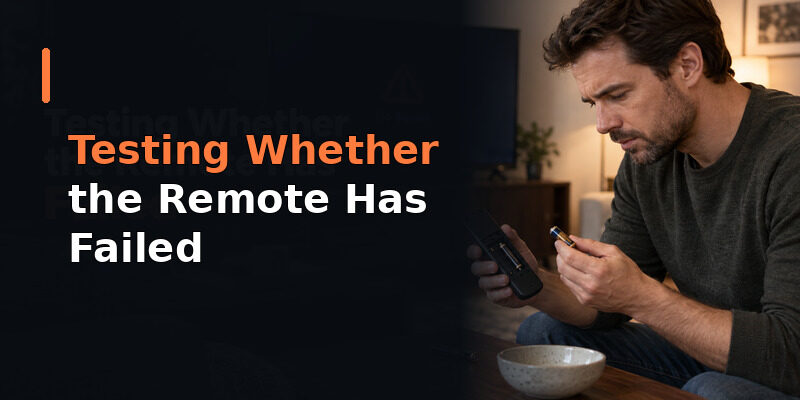
Before buying a replacement, confirm the hardware is truly dead. Fire TV remotes are Bluetooth, so the phone-camera infrared test doesn’t apply, but the pairing and battery tests do.
If the remote won’t pair after fresh batteries, multiple re-pair attempts, and a TV restart, it’s likely faulty. At that point a replacement remote or a phone app is the practical next step, rather than more troubleshooting of the Insignia Fire TV remote not working.
Running these checks in order settles whether an Insignia Fire TV remote not working is a fixable issue or a genuine hardware failure.
Common Mistakes to Avoid
A few avoidable errors make an Insignia Fire TV remote not working harder to fix than it needs to be.
Using Only One Fresh Battery
Pairing a new battery with a half-drained one leaves the remote underpowered, so it still fails after what looks like a battery change. Always replace both at once for a clean test.
Not Holding the Home Button Long Enough
A quick tap won’t trigger pairing mode. Hold the home button for the full 10 seconds and wait for the on-screen confirmation, since releasing early is a frequent reason pairing seems to fail.
Troubleshooting the Wrong Platform
Insignia makes both Fire TV and Roku TVs, and their remotes pair differently. Confirm which platform your TV runs before following pairing steps, since the wrong method won’t work.
📖 Read More Guides: Insignia TV Remote Codes: Complete Programming Guide
Keep Watching Now With a Remote TV App
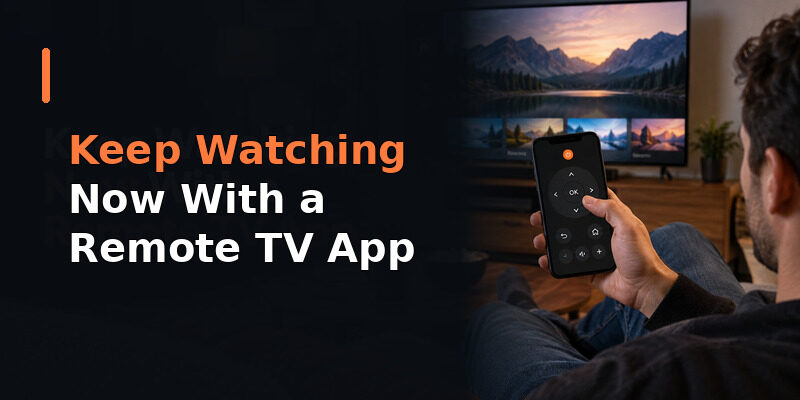
While you fix or replace the remote, you don’t have to lose access to your TV. The Remote TV App turns a phone into a working remote over Wi-Fi, restoring power, volume, navigation, and app launching.
It’s the fastest way to regain control the moment an Insignia Fire TV remote not working leaves you stuck, and it doubles as a permanent backup. to keep watching while you sort out the physical remote.
💡 Discover Helpful Guides: Insignia TV Remote Not Working? How to Fix It Fast
FAQs About an Insignia Fire TV Remote Not Working
How do I fix an Insignia Fire TV remote that’s not working?
Replace the batteries, restart the TV by unplugging it for 30 seconds, then re-pair by holding the home button for about 10 seconds with the TV on. This resolves most cases.
How do I pair an Insignia Fire TV remote?
With the TV on and at the Fire TV home screen, press and hold the home button on the remote for about 10 seconds until the TV confirms the connection. Use fresh batteries if it won’t pair.
What replacement remote works for an Insignia Fire TV?
The NS-RCFNA-21 is the direct Insignia model. Because these TVs run Fire TV, an Amazon Fire TV replacement remote also works and pairs the same way with the home-button method.
How do I set up an Insignia Fire TV without a remote?
Install the Amazon Fire TV app or the Remote TV App, connect your phone to the same Wi-Fi network as the TV, and use the app as the remote. No physical remote is needed.
Can I use my phone while the remote is broken?
Yes. The Remote TV App controls the TV over Wi-Fi, so you can keep watching immediately while you fix or replace the physical remote.
🗺️ Browse How-To Guides: Lost Insignia TV Remote: What to Do Right Now
Final Thoughts
When an Insignia Fire TV remote is not working, fresh batteries and re-pairing with the home button fix the majority of cases, with a TV restart clearing frozen-system ones. The NS-RCFNA-21 or any Fire TV remote works as a replacement if it’s truly dead.
And if you need control right now, a phone app sets up and runs the TV over Wi-Fi with no physical remote at all. Keep the Remote TV App installed so a failed remote never leaves you without your TV.
Download TV Remote App