
Insignia TV No Remote: How to Control It Without One
By the Remote TV App Team
Last updated: September 2026
Short answer: Nearly every Insignia TV has physical buttons on the set itself — usually on the back or bottom edge — that can turn it on, change the volume, and navigate basic menus even with an insignia tv no remote situation. This guide covers exactly where those buttons are, how to change volume and settings without a remote, what to do if your model has no buttons at all, how to get the TV back online if Wi-Fi needs re-entering, and the fastest ways to get full control back — from a phone app to a proper replacement remote. None of the fixes below require special tools, and most take only a couple of minutes once you know where to look.
Using the TV’s Physical Buttons
Most Insignia TVs keep a small set of controls on the physical unit specifically for situations like an insignia tv no remote emergency.
Finding the Buttons on Your TV
Look along the bottom edge or the back panel, usually near the power cord or the Insignia logo. On many models it’s a single joystick-style button rather than several separate buttons; pressing it in different directions controls different functions, while pressing straight in usually opens a quick menu. Older Insignia models sometimes place these controls on the right or left edge instead of the bottom, so check all four sides before assuming there’s nothing there.
What Each Button Does
A dedicated power button turns the TV on or off. If there’s a joystick control, pushing left or right typically adjusts volume, and up or down usually changes the channel or moves through an on-screen menu once you press in to activate it. The exact mapping can vary between a handful of Insignia model generations, so a small amount of trial and error is normal the first time.
| Control Type | Common Location | What It Does |
| Single joystick button | Back or bottom-center | Power, volume, channel, menu navigation |
| Separate power button | Bottom-right or back panel | Power on/off only |
| Separate volume buttons | Bottom edge | Volume up/down only |
💡 Discover Helpful Guides: Insignia TV Remote App: Free Options and How to Set Up
How to Change Volume on an Insignia TV Without a Remote
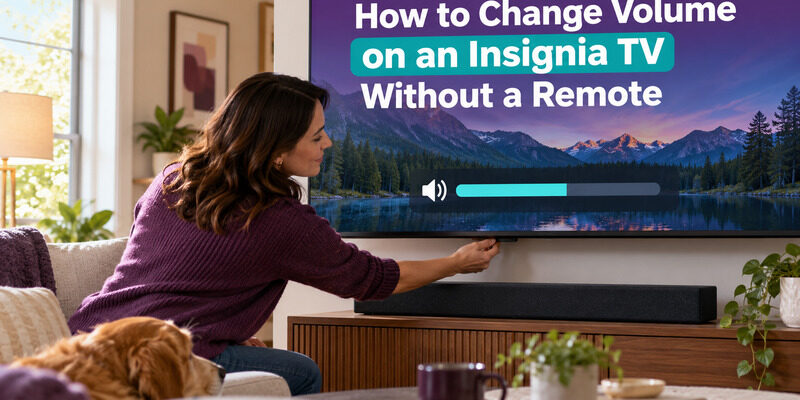
Adjusting sound is one of the most common reasons people search for insignia tv volume control without remote solutions, since a lost or dead remote otherwise leaves the TV stuck at whatever volume it was last set to.
Using the TV’s Side or Bottom Buttons
If your model has a joystick control, push it left or right to lower or raise the volume — the exact direction varies by model, so try both ways and watch the on-screen volume indicator that appears briefly on screen. If your TV has separate volume buttons instead, they’re usually clearly marked with + and – symbols near the power button.
If Volume Buttons Don’t Respond
A TV that won’t adjust volume from its physical buttons even when powered on may have the volume routed to a connected soundbar or external speaker instead. Check whether a soundbar is connected before assuming the TV’s own buttons are broken, since HDMI-CEC often hands volume control over to whichever audio device is plugged in.
How to Turn the TV On or Off Without a Remote
An insignia tv no remote situation doesn’t have to mean losing power control entirely, since the power function is almost always the most reliably preserved physical button on the set.
Turning the TV On
Press the physical power button, or push the joystick control straight in if that’s what your model uses. If nothing happens, confirm the TV is actually plugged in and the outlet is working, since a dead physical button can look identical to a power supply issue, and it’s worth testing the outlet with another device before concluding the TV itself has failed.
Turning the TV Off Completely
A quick press usually puts the TV in standby, while holding the power button for several seconds on some models triggers a full shutdown or reset — useful if the TV is frozen and unresponsive to any input at all. A full unplug-and-replug also works as a last resort and clears the same kind of temporary glitch a remote-based restart would.
📘 Find the Right Guide: Insignia TV Remote Replacement: Options and Buying Guide
How to Get to Settings Without a Remote
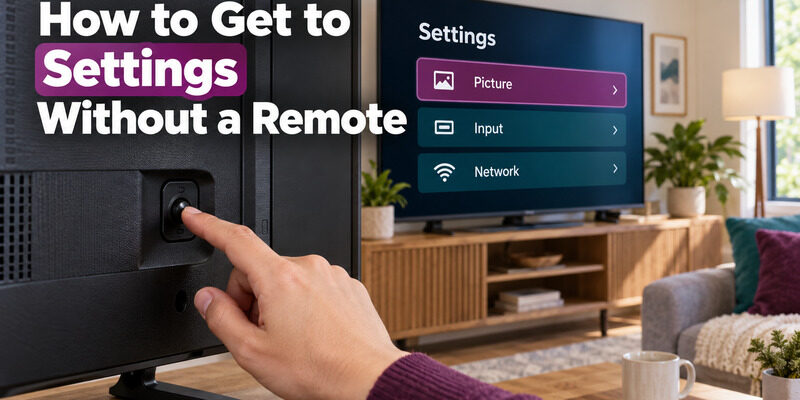
Reaching the settings menu is trickier than power or volume in an insignia tv no remote scenario, but it’s usually still possible with just the joystick control.
Navigating Menus With Only Power/Volume Buttons
Press the joystick straight in to open the main menu, then use the directional pushes to move through options and press in again to select. It’s slower than a remote, but every setting a remote can reach is technically still accessible this way on most models. Picture settings, input selection, and network setup are all reachable through the same joystick-only navigation, even though it takes noticeably more button presses than a dedicated remote would. The table below sums up what’s possible at each stage of an insignia tv no remote situation.
Using Voice Commands (Fire TV Edition)
If your set is a Fire TV Edition model with a built-in microphone on the TV itself (less common) or a paired phone with the Fire TV app, voice commands can reach settings that the physical buttons alone would take many steps to find.
| Task | Without Any Remote | With Remote TV App |
| Power on/off | Physical button/joystick | Yes, once connected to Wi-Fi |
| Volume control | Physical button/joystick | Yes |
| Full settings menu navigation | Slow, joystick only | Fast, full directional control |
| Typing Wi-Fi password | Very slow or impractical | Not needed — app connects over existing Wi-Fi |
When the TV Has No Buttons At All
A genuine insignia tv no remote no buttons situation is rarer but does happen on some ultra-slim or budget models where the manufacturer minimized visible controls to keep the bezel clean.
Check for a Hidden Joystick or D-Pad
Run a finger along the entire bottom and back edge — some joystick controls are recessed or covered by a thin plastic flap and easy to miss on first inspection, especially in low light. A small light-colored dot or texture change in the plastic is often the only visual clue that a control exists at all.
What This Means for Your Model
If there’s genuinely no physical control of any kind, a phone app or a replacement remote isn’t optional — it’s the only way to regain any control at all, which makes the next two sections the priority rather than a backup plan. In this specific case, an insignia tv no remote problem is effectively an insignia tv no way to control it problem until one of those two options is in place.
Download TV Remote App📖 Read More Guides: Insignia TV Remote Codes: Complete Programming Guide
Using a Phone as a Backup Remote
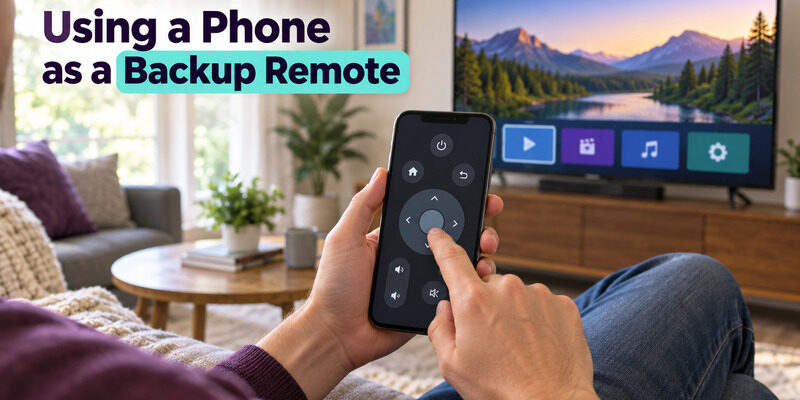
The Remote TV App turns a smartphone into a full remote control over Wi-Fi, which sidesteps the entire insignia tv no remote problem without needing to touch a single physical button once it’s set up.
Setting Up the Remote TV App
Since the TV is already on and connected once you’ve used the physical buttons to get it running, connecting the app over the same Wi-Fi network takes just a couple of minutes and restores full remote-level control immediately. There’s no code to enter and no pairing sequence beyond joining the same network the TV is already using.
What It Can and Can’t Control
The app handles volume, navigation, app launching, and power for TVs already connected to Wi-Fi. It can’t help with the very first step of getting the TV onto Wi-Fi in the first place if that hasn’t happened yet, which is where the physical buttons or an Ethernet cable still come in. You can to get complete control back without waiting on a physical button fix or a new remote in the mail.
Reconnecting to Wi-Fi Without a Remote
Some Insignia TVs need Wi-Fi credentials re-entered after a reset, which is awkward without a remote’s directional pad and adds a second layer to an already frustrating insignia tv no remote day.
Using an Ethernet Cable Instead
If your TV has an Ethernet port, plugging in a wired connection skips the Wi-Fi setup screen entirely and gets the TV online immediately, at which point the Remote TV App can take over for everything else without any further joystick navigation needed.
Why Wi-Fi Setup Usually Needs a Remote
Typing a Wi-Fi password with only a joystick button is technically possible but extremely slow, so an Ethernet cable or a borrowed working remote is worth using if either is available before attempting it the hard way. Once the TV is online, an insignia tv no remote problem stops being a connectivity problem and becomes purely a navigation convenience issue that the app resolves.
💡 Discover Helpful Guides: Insignia TV Remote Not Working? How to Fix It Fast
Getting a Replacement Remote
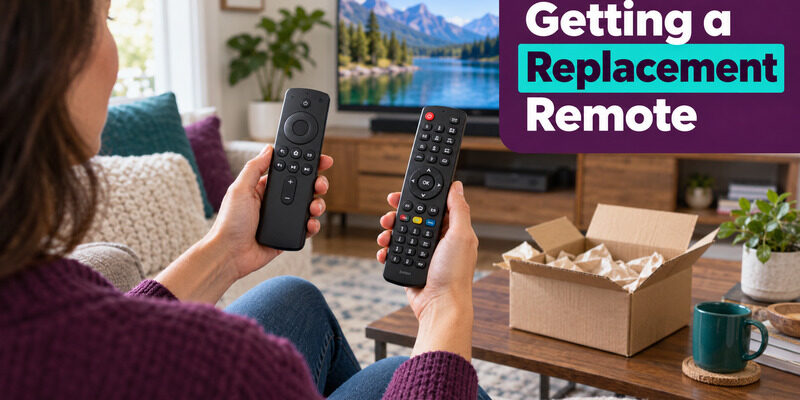
For anything beyond occasional use, a proper remote is worth getting rather than living with an insignia tv no remote workaround long-term, since joystick-only navigation gets tedious fast for everyday viewing.
Ordering a New Insignia Remote
A genuine connects the same way the original did — no special setup beyond batteries and, for Fire TV Edition models, a quick Bluetooth pairing that takes under a minute.
Using a Universal Remote in the Meantime
A universal remote programmed to your TV works as a full-featured stand-in while you wait on a direct replacement, and most modern universal remotes support an auto-scan setup that doesn’t require knowing a specific code ahead of time.
FAQs About Insignia TVs Without a Remote
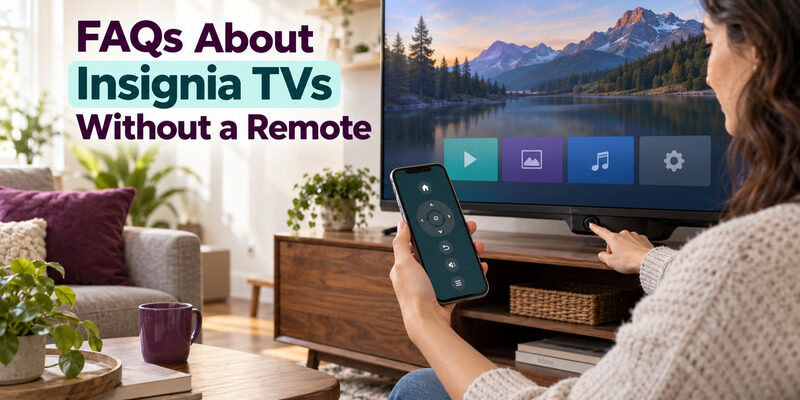
These are the most common questions people have once they’ve confirmed their insignia tv no remote situation isn’t going away on its own.
Can you control an Insignia TV without a remote at all?
Yes. Nearly every model has at least a basic physical control on the unit itself, and the Remote TV App restores full control over Wi-Fi once the TV is powered on and connected. Between the two, there’s rarely a function you truly can’t reach.
Can you turn on an Insignia TV without a remote?
Yes, using the physical power button or joystick control on the TV itself. This works even if the remote is completely lost or dead, since the power button doesn’t depend on the remote’s batteries or pairing status at all.
How do I access settings on an Insignia TV without a remote?
Push the joystick control in to open the main menu, then use directional pushes to navigate — every setting remains reachable, just slower than with a dedicated remote. Network setup, picture adjustments, and app management are all included.
Does my Insignia TV remote need Wi-Fi to work?
No, the physical remote and the TV’s own buttons work independently of Wi-Fi. Wi-Fi only matters if you’re using a phone-based remote app or setting up streaming services that need an internet connection.
Why does my Insignia TV have no buttons on it?
Some slim or budget models place the only control in a hard-to-spot recessed joystick rather than skipping physical controls entirely — check carefully along every edge before concluding there’s genuinely nothing there. A flashlight and a slow pass around the bezel usually turns it up.
🗺️ Browse How-To Guides: Lost Insignia TV Remote: What to Do Right Now
Final Thoughts
An insignia tv no remote situation almost always has a working fix within reach: check the TV’s own physical buttons first, use the Remote TV App as soon as the set is on and connected to Wi-Fi, and order a proper replacement remote or program a universal one for anything beyond short-term use. Between the built-in controls and a phone app, full functionality is rarely more than a few minutes away.
Download TV Remote App