
Insignia TV Codes for Xfinity Remote: Complete Code List and Setup Guide
Finding the right insignia tv codes for xfinity remote can help you control your Insignia TV without switching between multiple remotes. Whether you recently purchased a new Xfinity remote, reset your TV settings, or your previous remote stopped responding, entering the correct code is the easiest way to connect your devices.
Many users search for an xfinity remote code for insignia tv because Insignia offers different television models, including standard LED TVs, Smart TVs, Fire TV Edition models, and other versions with different compatibility requirements.
The correct code depends on two main factors:
- Your Insignia TV model.
- Your Xfinity remote version.
In this guide, you will find a complete list of compatible codes, learn how to program your remote step by step, troubleshoot common problems, and explore alternative solutions such as a Remote TV App when a physical remote is unavailable.
1. Insignia TV Codes for Xfinity Remote: Quick Answer
The correct insignia tv codes for xfinity remote allow your Xfinity remote to communicate with your Insignia television. Most Xfinity remotes require a five-digit code that matches your TV brand and model.
Before entering any code, check these basic requirements:
- Turn on your Insignia TV.
- Install fresh batteries in your Xfinity remote.
- Make sure your remote is compatible with TV control.
- Identify your remote model (XR2, XR5, XR11, XR15, XR16, or another version).
Some commonly used Insignia TV codes include:
| Insignia TV Code | Compatibility |
| 12002 | Common Insignia TV models |
| 10463 | Many Insignia LED TVs |
| 11463 | Older Insignia models |
| 1326 | Selected Insignia televisions |
| 1327 | Selected Insignia televisions |
| 0463 | Older Insignia TVs |
Not every code works for every television. If the first code fails, try another option or use Xfinity’s automatic code search.
A successful connection usually allows you to:
- Turn your TV on and off.
- Adjust volume.
- Mute audio.
- Change input sources.
How Do Xfinity Remote Codes Work With Insignia TVs?
A remote code works like a communication profile between your Xfinity remote and your television. When you enter an insignia tv code for comcast remote, the remote loads a group of commands designed specifically for Insignia TVs.
These commands tell the remote how to control:
- Power functions.
- Volume controls.
- Mute options.
- Input switching.
Although many users search for insignia tv codes for comcast remote, the programming process is usually similar because Comcast and Xfinity remotes use related systems.
The most important factor is your exact remote model, not only whether it is labeled Comcast or Xfinity.
💡 Discover Helpful Guides: Insignia TV Remote App: Free Options and How to Set Up
2. Complete Insignia TV Codes for Xfinity and Comcast Remotes
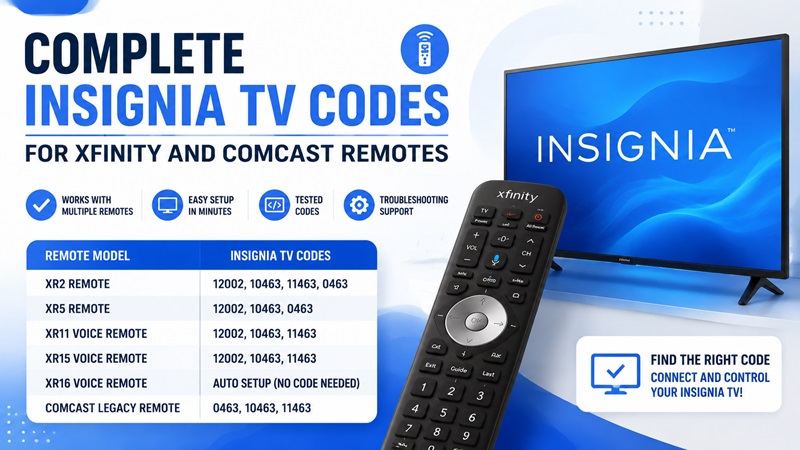
If you are looking for xfinity remote codes for insignia tv, start with the table below. These codes cover many common Insignia television models and Xfinity remote versions.
Insignia TV Code Table
| Xfinity Remote Model | Recommended Insignia Codes | Setup Method |
| XR2 Remote | 12002, 10463, 11463 | Setup button + code |
| XR5 Remote | 12002, 0463, 10463 | Setup button + code |
| XR11 Voice Remote | 12002, 10463, 11463 | Setup or code search |
| XR15 Voice Remote | 12002, 10463, 11463 | Xfinity + Mute |
| XR16 Voice Remote | Automatic setup | Voice pairing |
| Comcast Legacy Remote | 0463, 10463, 11463 | TV + Setup |
Which Insignia Code Should You Try First?
When programming your Xfinity remote, test codes in this order:
- Enter 12002.
- Check if the TV turns off.
- Test volume buttons.
- Test mute.
- Test input switching.
If the remote controls only power but not volume, the code may have limited compatibility.
Try the next code until all important functions work correctly.
Many users searching for insignia codes for xfinity remote make the mistake of stopping after the first code attempt. Some Insignia TVs require a different command profile even when the brand is the same.
Are Xfinity and Comcast Remote Codes the Same?
People often search for both insignia tv code for comcast remote and Xfinity versions because they are unsure whether the codes are different.
In most cases, the answer is simple:
- Comcast and Xfinity remotes often share similar programming methods.
- The remote model determines compatibility.
- The TV brand and model determine which code works.
For example, an XR15 remote may use a different setup process compared with an older Comcast remote, even when controlling the same Insignia TV.
What Are Xfinity Insignia Remote Codes Used For?
Xfinity insignia remote codes are mainly used to connect your remote with your TV’s infrared receiver.
After programming, you can usually control:
- TV power.
- Volume.
- Mute.
- Input selection.
However, some smart TV features may still require your original TV remote or the built-in TV interface.
📘 Find the Right Guide: Insignia TV Remote Replacement: Options and Buying Guide
3. How to Program an Xfinity Remote to an Insignia TV Step by Step
After finding the correct insignia tv codes for xfinity remote, the next step is programming your remote correctly. The setup process depends on the Xfinity remote model you own. Older remotes usually require manual code entry, while newer voice remotes often provide automatic pairing options.
Before starting the setup, prepare your devices:
- Turn on your Insignia TV.
- Install fresh batteries in your Xfinity remote.
- Keep the remote close to the TV.
- Remove anything blocking the TV sensor.
- Confirm your remote model.
A properly programmed Xfinity remote should control the main TV functions:
- Power on and off.
- Volume adjustment.
- Mute.
- Input switching.
If your remote does not work after entering a code, do not worry. You may simply need another compatible code or an automatic search.
Method 1: Program an Xfinity Remote With a Setup Button
Many older Xfinity remotes, including some XR2 and XR5 models, use a Setup button for programming.
Follow these steps:
Step 1: Turn On Your Insignia TV
Use your TV’s physical power button or the original remote to turn on the television.
The TV must be powered on before starting the programming process.
Step 2: Enter Remote Setup Mode
Press and hold the Setup button on your Xfinity remote.
Wait until the LED indicator changes color. Depending on the remote model, the light may change from red to green.
This means the remote is ready to accept a TV code.
Step 3: Enter the Insignia TV Code
Enter one of the compatible codes:
- 12002
- 10463
- 11463
- 0463
After entering the code, the remote light should confirm the input.
If the LED does not respond correctly, repeat the process with another code.
Step 4: Test Your Remote
Point the remote toward your Insignia TV and test:
- Power button.
- Volume up.
- Volume down.
- Mute button.
- Input button.
If all functions work correctly, your setup is complete.
If only one function works, try another code from the list of xfinity remote code for insignia tv options.
📖 Read More Guides: Insignia TV Remote Codes: Complete Programming Guide
Method 2: Program an Xfinity Voice Remote Without a Setup Button
Newer Xfinity voice remotes, such as XR15 and XR16 models, use a different programming method.
These remotes are designed to make setup easier without requiring users to search manually through multiple codes.
Steps for XR15 Voice Remote:
- Turn on your Insignia TV.
- Press and hold the Xfinity button and Mute button together.
- Wait until the remote indicator changes.
- Enter your five-digit Insignia TV code.
- Press Power to test the connection.
- Check volume and mute functions.
If the first code fails, repeat the process using another code.
Many users looking for xfinity code for insignia tv can solve their problem by simply trying another compatible code instead of replacing their remote.
Method 3: Program an XR16 Voice Remote Automatically
The XR16 remote works differently from older Xfinity models.
Instead of manually entering codes, you can often complete setup using voice commands.
Follow these steps:
- Turn on your Insignia TV.
- Press the microphone button on your remote.
- Say “Program remote”.
- Follow the instructions shown on your TV screen.
- Complete the power and volume tests.
The system will automatically guide you through the pairing process.
This method is useful for users who do not know their exact insignia tv codes for xfinity remote.
4. How to Set Up XR2, XR5, XR11, XR15, and XR16 Remotes
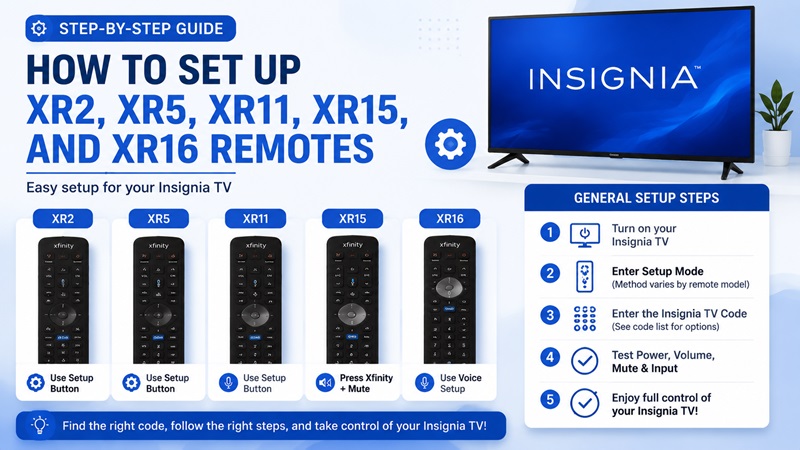
Different Xfinity remote models require slightly different setup methods. Identifying your remote model before programming can save time and prevent failed attempts.
Programming an XR2 Remote for an Insignia TV
The XR2 is one of the most common Xfinity remotes.
It usually includes:
- Setup button.
- Number buttons.
- TV control buttons.
To program an XR2 remote:
- Turn on your Insignia TV.
- Hold the Setup button.
- Wait for the LED confirmation.
- Enter your selected TV code.
- Test Power and Volume.
Programming an XR5 Remote
The XR5 remote follows a similar process.
Steps:
- Press Setup.
- Wait for the indicator light.
- Enter an Insignia TV code.
- Confirm the connection.
- Test the remote.
If the remote controls your TV power but not the volume, the code may only partially match your television model.
Try another code until all major functions work.
Programming an XR11 Voice Remote
The XR11 combines traditional buttons with voice features.
To connect it:
- Turn on your Insignia TV.
- Press the Setup button.
- Enter the correct TV code.
- Wait for confirmation.
- Test both voice and standard controls.
A common issue is that the remote controls the Xfinity cable box but not the television.
This happens because the remote is connected to the receiver but has not been programmed for TV control.
Run the TV setup process again to fix this issue.
Programming an XR15 Voice Remote
The XR15 does not include a traditional Setup button.
Instead, it uses a button combination:
- Press and hold Xfinity + Mute.
- Wait until the LED changes.
- Enter the five-digit Insignia code.
- Press Power.
- Test volume and mute.
If your XR15 was previously connected to another television, resetting it may help before programming again.
Programming an XR16 Voice Remote
The XR16 is designed for automatic setup.
Unlike older remotes, it does not rely heavily on manual code entry.
To connect:
- Turn on your Insignia TV.
- Press the microphone button.
- Say “Program remote”.
- Follow the on-screen instructions.
The system will automatically guide you through pairing.
This is usually the easiest method for users who cannot find a working xfinity insignia code.
How to Reset an Xfinity Remote Before Programming Again
Sometimes the problem is not the TV code but the remote’s previous settings.
Reset your remote if:
- It was connected to another TV.
- Buttons perform unexpected actions.
- The remote accepts codes but does not control the TV.
- Automatic setup fails repeatedly.
After resetting:
- Restart the remote.
- Turn on your Insignia TV.
- Enter a new TV code.
- Test all functions.
A clean setup process often solves connection problems.
💡 Discover Helpful Guides: Insignia TV Remote Not Working? How to Fix It Fast
5. How to Find the Correct Insignia TV Code Automatically
Manual code entry is effective, but it is not always successful. If none of the listed insignia tv codes for xfinity remote work, the automatic search function can help your remote find a compatible command profile.
This method is especially useful when:
- You lost your original TV remote.
- You do not know your Insignia TV model number.
- Several manual codes failed.
- Your Xfinity remote was previously paired with another television.
Use the 9-9-1 Code Search Method
The 9-9-1 method allows the remote to scan through available TV codes automatically.
Follow these steps:
- Turn on your Insignia TV.
- Press and hold the Setup button.
- Wait until the LED indicator changes.
- Enter 9-9-1.
- Point the remote toward your TV.
- Press Channel Up slowly.
- Wait until your TV turns off.
- Press Setup to save the discovered code.
After saving the code, test:
- Power.
- Volume.
- Mute.
- Input.
If some buttons do not work, repeat the process because the remote may have found a partially compatible code.
Use Xfinity On-Screen Setup
Many newer Xfinity systems provide setup directly through the TV menu.
The general process is:
- Press the Xfinity button.
- Open Remote Settings.
- Select TV Setup.
- Choose Insignia.
- Follow the instructions.
This option is recommended for users with voice remotes because it removes the need to manually search through codes.
Use a Remote Code Lookup Tool
If you still cannot connect your devices, verify:
- Your exact Xfinity remote model.
- Your Insignia TV type.
- Your remote programming method.
Searching by remote model is more accurate than searching only by TV brand.
For example, an XR15 remote and an older Comcast remote may require different setup instructions even when controlling the same television.
🗺️ Browse How-To Guides: Insignia TV Remote Batteries: Size, Type, and Replacement
6. Why Are Insignia TV Codes Not Working?
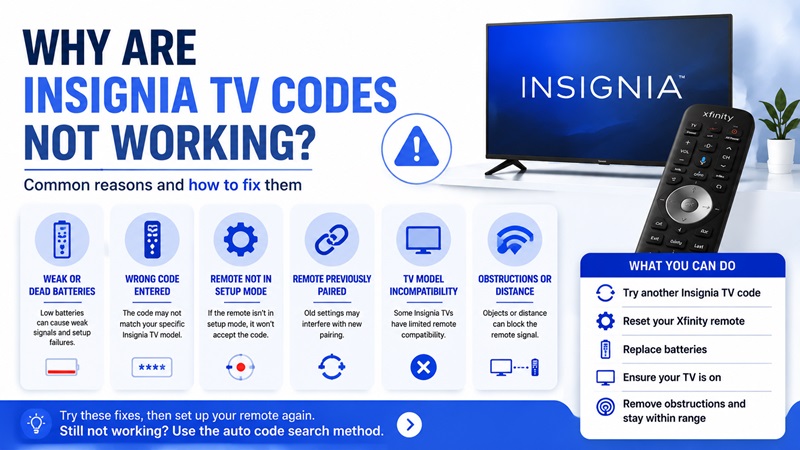
Even after entering the correct insignia tv codes for xfinity remote, your remote may still fail to control your television. This does not always mean the code is wrong. In many cases, the problem comes from incorrect setup, remote compatibility issues, or incomplete pairing.
Before replacing your remote, check the most common causes below.
The Remote Code Works but Only Some Buttons Respond
One of the most common problems is partial compatibility.
For example:
- The Power button turns the TV on and off.
- The Volume buttons do not work.
- The Mute button responds incorrectly.
- The Input button does nothing.
This usually means the remote accepted the code, but the command profile does not fully match your Insignia TV model.
The solution is simple:
- Reset the programming process.
- Try another code.
- Test all important functions again.
Do not assume a code is correct just because the TV turns off. A fully working setup should control all essential features.
Wrong Xfinity Remote Model
Many users search for xfinity remote codes for insignia tv without checking their remote model first.
However, the programming process changes depending on the remote version.
For example:
- XR2 remotes usually use a Setup button.
- XR15 remotes use the Xfinity + Mute combination.
- XR16 remotes rely more on automatic pairing.
Using instructions for the wrong remote model can make a working code appear unsuccessful.
Check the model number:
- Inside the battery compartment.
- On the back of the remote.
- In your Xfinity account device settings.
Weak Batteries Can Cause Programming Problems
A remote may appear to accept a code but fail during testing because the batteries cannot send strong enough signals.
Replace the batteries if:
- The LED indicator is dim.
- The remote responds slowly.
- Buttons work inconsistently.
- Programming fails multiple times.
Always replace both batteries together instead of mixing old and new batteries.
The Remote Was Previously Connected to Another TV
If you recently changed televisions, your Xfinity remote may still contain previous settings.
Common signs include:
- The remote controls the old TV but not the Insignia TV.
- The remote accepts codes but does not respond.
- Volume control behaves unexpectedly.
In this situation:
- Reset your Xfinity remote.
- Start the setup process again.
- Enter a new Insignia TV code.
A fresh setup often fixes pairing conflicts.
Insignia Fire TV or Smart TV Compatibility Issues
Some Insignia televisions use different operating systems, such as Fire TV Edition models.
These TVs may behave differently compared with standard Insignia LED televisions.
For example:
- Basic power control may work.
- Volume may require additional setup.
- Smart features may still need the original remote.
If you own an Insignia Fire TV, check whether your Xfinity remote supports the specific functions you need.
Reset and Reprogram Your Remote
If nothing works, perform a complete reset.
A reset removes previous device settings and allows you to start over.
After resetting:
- Turn on your Insignia TV.
- Choose a compatible code.
- Program your Xfinity remote again.
- Test Power, Volume, and Mute.
This method solves many problems related to incorrect setup.
Still having trouble controlling your TV? Consider using a smartphone-based solution as a backup. The next section explains how a Remote TV App can help.
Control Your Insignia TV Today
7. Can You Control an Insignia TV With a Remote TV App?
If you cannot find a working insignia tv codes for xfinity remote or your physical remote is lost, a smartphone remote can be a convenient alternative.
A Remote TV App allows you to control compatible smart TVs directly from your phone. Instead of searching for a missing remote or replacing batteries, you can use your smartphone as a backup controller.
This solution is useful when:
- Your Xfinity remote is damaged.
- Your TV remote is missing.
- You need quick access to basic controls.
- You want faster text input for smart TV features.
How Does a Remote TV App Work?
Most Remote TV App solutions connect through your home network.
The general setup process includes:
- Install the remote application on your smartphone.
- Connect your phone and TV to the same Wi-Fi network.
- Select your television from the available devices.
- Pair the app with your TV.
- Start controlling your television.
Depending on your Insignia TV model, available features may include:
- Power control.
- Volume adjustment.
- Navigation buttons.
- Keyboard input.
- Channel switching.
Remote TV App vs Xfinity Remote
Both solutions have different advantages.
| Feature | Xfinity Remote | Remote TV App |
| Physical buttons | Yes | No |
| Works without Wi-Fi | Usually yes | Usually no |
| Easy text typing | Limited | Better |
| Replace lost remote | No | Yes |
| Smartphone convenience | No | Yes |
An Xfinity remote is still the best option for controlling Xfinity cable boxes and related services. However, a Remote TV App can be a useful backup for TV control.
When Should You Use a Remote TV App?
A Remote TV App is especially helpful when:
- You cannot locate your physical remote.
- Your remote batteries are dead.
- You need to type passwords or search terms faster.
- Your TV remote is temporarily unavailable.
It is not always a replacement for every Xfinity function, but it provides another way to manage your television.
🗺️ Browse How-To Guides: Insignia 8 Device Universal Remote: Setup and Compatibility
8. Frequently Asked Questions About Xfinity Insignia Remote Codes
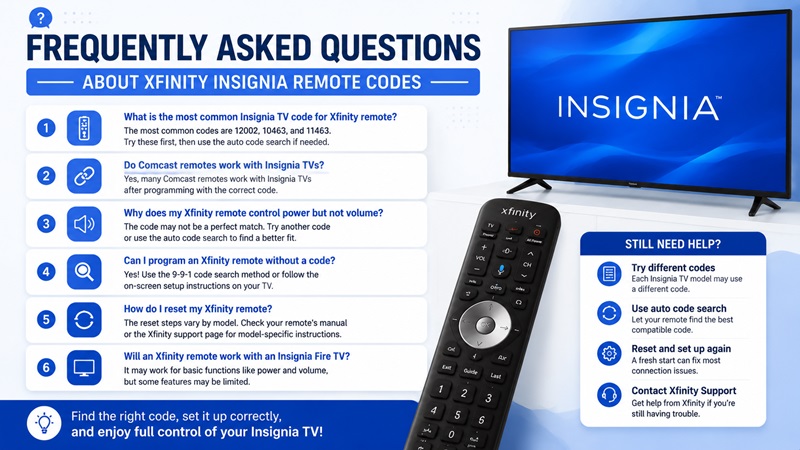
What Is the Most Common Insignia TV Code for Xfinity Remote?
The most commonly tested insignia tv codes for xfinity remote include 12002, 10463, and 11463. However, the correct code depends on your TV model and Xfinity remote version.
Do Comcast Remotes Work With Insignia TVs?
Yes. Many Comcast remotes can control Insignia televisions after proper programming. Users searching for an insignia tv code for comcast remote can usually follow similar steps used for Xfinity remotes.
Why Does My Xfinity Remote Control Power but Not Volume?
This usually means the remote code only provides partial compatibility. Try another code or repeat the setup process using automatic code search.
Can I Program an Xfinity Remote Without a Code?
Yes. Many Xfinity remotes support automatic code searching. This allows the remote to scan available TV profiles until it finds a compatible match.
How Do I Reset My Xfinity Remote?
The reset method depends on your remote model. Older remotes usually use the Setup button, while newer voice remotes use different button combinations.
After resetting, you can program the remote again with the correct xfinity insignia code.
Will an Xfinity Remote Work With an Insignia Fire TV?
An Xfinity remote may control basic functions on some Insignia Fire TV models, but compatibility depends on the exact television version and remote model.
9. The Best Way to Connect an Xfinity Remote to an Insignia TV
Finding the right insignia tv codes for xfinity remote is usually the fastest way to connect your devices, but successful setup requires more than just entering a number.
The best approach is:
- Identify your Xfinity remote model.
- Start with the most common Insignia codes.
- Test Power, Volume, Mute, and Input.
- Use automatic code search if manual setup fails.
- Reset and reprogram the remote if necessary.
For most users, codes like 12002, 10463, and 11463 are a good starting point. However, different Insignia TV generations may require different programming profiles.
If your physical remote is unavailable, a Remote TV App can provide a convenient backup method for controlling compatible televisions from your smartphone.
With the right code and setup process, you can quickly connect your Xfinity remote and enjoy easier control of your Insignia TV.
Download the ultimate Remote TV App and control your favorite smart TVs with ease. Whether you use LG, Sony, Samsung, TCL, Hisense, Philips, Roku TV, Android TV, Google TV, or many other popular brands, our app lets you turn your smartphone into a powerful TV remote in seconds. Enjoy quick setup, an intuitive interface, and convenient features like touchpad navigation, keyboard input, volume control, channel switching, and more.
Download the Remote TV App today and take full control of your TV—no physical remote required.
Control Your Insignia TV Today
