
LG Remote TV: Complete Guide to Setup, Apps, Pairing, Codes, and Troubleshooting
An LG remote tv is one of the most important accessories for controlling an LG television. While traditional remotes were designed mainly for changing channels and adjusting volume, modern LG controllers provide much more advanced features such as voice search, smart navigation, pointer control, streaming shortcuts, and device management.
As LG Smart TVs continue to evolve, choosing and managing the right remote has become more complicated. Some users need help pairing a Magic Remote, others want to replace a lost controller with a smartphone application, while many simply need to fix problems such as delayed buttons, connection failures, or an unresponsive remote.
The good news is that most LG remote tv problems can be solved without replacing the television. Understanding how different remote technologies work, how to connect them correctly, and which replacement options are available can help users restore full control quickly.
This complete guide explains everything about LG remote tv controllers, including remote types, mobile apps, pairing instructions, universal remote codes, reset methods, and troubleshooting solutions.
1. What Is an LG Remote TV and How Does It Work?
An LG remote tv is a device that allows users to control an LG television wirelessly. Depending on the model, the remote may communicate through infrared signals, Bluetooth, Wi-Fi, or a combination of multiple technologies.
Older LG televisions typically use infrared remotes. These controllers send signals directly toward a sensor on the TV. They are simple, reliable, and usually work immediately after inserting batteries.
Newer LG Smart TVs often use Bluetooth-based controllers, especially LG Magic Remote models. Instead of pointing directly at the screen, users can move the remote naturally while controlling menus, apps, and settings. Bluetooth also enables advanced functions such as voice commands and motion-based pointer navigation.
A modern LG remote tv can control many functions, including:
- Turning the TV on and off
- Adjusting volume
- Changing channels
- Switching input sources
- Opening streaming applications
- Searching content
- Controlling connected devices
- Entering text using a virtual keyboard
- Using voice commands
For LG Smart TV users, the remote is not only a basic controller but also an important part of the overall viewing experience.
Many people search what is a magic remote control for lg tv because they notice that this controller works differently from a traditional remote. The Magic Remote includes a scroll wheel, cursor navigation, microphone button, and shortcut keys that make webOS navigation faster and easier.
Unlike a standard remote, the Magic Remote allows users to move an on-screen pointer by moving their hand. This makes browsing apps, selecting menus, and typing information more similar to using a computer mouse.
Explore Related Articles: How to Connect LG Remote to TV: Complete Pairing and Recovery Guide
2. Different Types of LG Remote TV Controllers
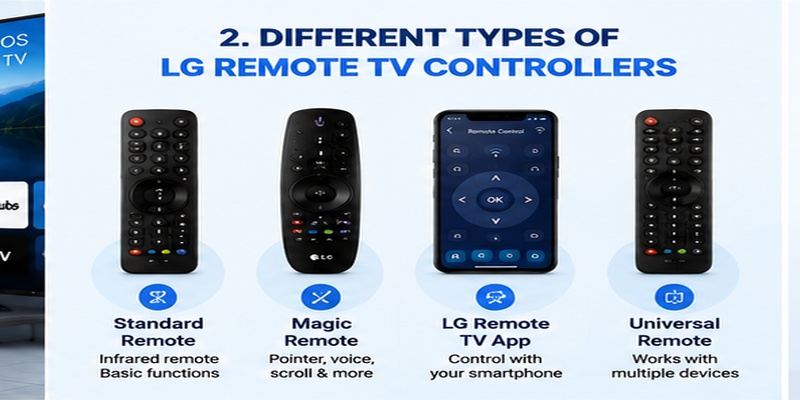
LG offers several types of remote solutions depending on television generation and user requirements.
Standard LG Infrared Remote
The standard remote is included with many LG televisions. It uses infrared technology and focuses on essential controls.
Main functions include:
- Power button
- Volume adjustment
- Channel switching
- Input selection
- Number keys
- Menu navigation
This type of LG remote tv is ideal for users who only watch television, cable channels, or basic streaming content.
The biggest advantage is simplicity. No Bluetooth pairing is required, and setup usually only involves inserting batteries.
However, standard remotes do not provide advanced features such as voice search, pointer control, or smart navigation.
LG Magic Remote
The LG Magic Remote is the premium controller designed for modern LG Smart TVs.
It provides:
- Motion pointer control
- Voice search
- Scroll wheel navigation
- Smart TV shortcuts
- Faster menu browsing
- Universal device control
The Magic Remote connects through Bluetooth after registration. This means users can control the television without directly pointing the remote at the screen.
For users who frequently use Netflix, YouTube, web browsers, or smart features, the Magic Remote provides a much smoother experience.
LG Remote TV App
A smartphone can also become an alternative LG remote tv controller. Mobile applications allow users to control their television using Wi-Fi.
A mobile controller can provide:
- Virtual remote buttons
- Touchpad navigation
- Keyboard input
- App shortcuts
- Volume control
- Media playback control
This option is especially useful when the physical remote is lost or when users need to enter passwords and search content faster.
Universal Remote
A universal remote can replace an original LG controller and operate multiple entertainment devices.
A universal controller may support:
- LG televisions
- Soundbars
- Cable boxes
- DVD players
- Streaming devices
However, universal remotes usually provide fewer smart features compared with an original Magic Remote.
For example, some models may control power and volume but cannot support voice search or pointer functions.
3. LG Remote TV Comparison: Which One Should You Choose?
Choosing the correct controller depends on your television model and daily usage.
| Remote Type | Connection | Best For | Advantages | Limitations |
| Standard LG Remote | Infrared | Basic TV users | Easy setup, affordable | No smart features |
| Magic Remote | Bluetooth + Infrared | Smart TV users | Voice control, pointer, scrolling | Higher price |
| Mobile Remote App | Wi-Fi | Backup control | Keyboard, phone convenience | Requires network |
| Universal Remote | Infrared/Bluetooth | Multiple devices | Controls many products | Limited LG features |
For most LG Smart TV owners, the Magic Remote is the best choice because it offers the complete smart television experience.
Users who mainly watch streaming services may prefer a smartphone-based LG remote tv solution because typing and searching are much faster.
A universal remote is recommended for households with multiple entertainment devices, while a standard remote remains the most reliable option for basic television control.
Download on the App StoreView Related Articles: What Is a Magic Remote Control for LG TV? Complete Setup Guide
4. How to Connect LG Remote to TV Step by Step
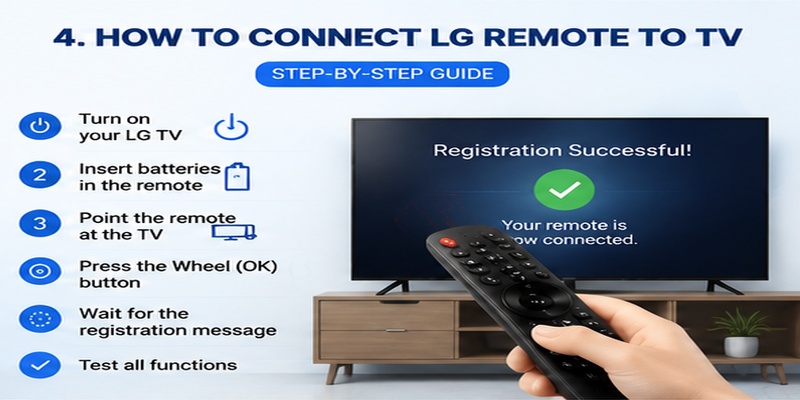
Many users search how to connect lg remote to tv when their Magic Remote stops responding or when they purchase a replacement controller.
Follow these steps:
Step 1: Turn On Your LG TV
Use the physical power button on the television if your current remote cannot turn it on.
Step 2: Insert Fresh Batteries
Weak batteries are one of the most common reasons pairing fails. Replace both batteries before starting.
Step 3: Point the Remote Toward the Screen
Hold the LG remote tv close to the television.
Step 4: Press the Wheel Button
Press the center wheel or OK button on the Magic Remote.
Step 5: Complete Registration
Wait until the TV displays a successful connection message.
Step 6: Test All Functions
Check:
- Pointer movement
- Volume buttons
- Home button
- Voice search
- Streaming shortcuts
If pairing fails, restart the television and repeat the process.
Common reasons pairing does not work include:
- Remote already connected to another TV
- Weak batteries
- Unsupported remote model
- Bluetooth interference
- Temporary TV software errors
A successful connection ensures that your LG remote tv can access all smart features instead of only basic infrared commands.
5. How to Use an LG Remote TV App on Android and iPhone
A smartphone can become a convenient replacement for a physical LG remote tv when the original controller is lost, damaged, or unavailable. Instead of buying a new remote immediately, users can install a compatible mobile application and control their television directly from their phone.
A remote application communicates with the LG TV through the same home network. This means both devices usually need to be connected to the same Wi-Fi connection before the phone can discover and control the television.
Modern LG remote tv applications can provide many features that are similar to a physical controller, including:
- Virtual remote buttons
- Volume and channel control
- Input switching
- Touchpad navigation
- Mobile keyboard typing
- Streaming app shortcuts
- Media playback controls
- Voice search support
For users who frequently search movies, enter passwords, or browse applications, using a phone can actually be faster than a traditional remote.
How to Connect an LG Remote TV App Step by Step
Follow these steps to turn your smartphone into an LG TV controller:
Step 1: Connect Your Phone and TV to the Same Network
Make sure your LG television and smartphone are connected to the same Wi-Fi network.
Avoid using:
- Guest Wi-Fi networks
- VPN connections
- Mobile hotspot networks with device isolation
These connections may prevent the application from finding your TV.
Step 2: Install a Compatible Remote Application
Download a trusted application from the official app store.
Users searching download free lg tv remote control app should verify:
- Developer information
- User reviews
- Update frequency
- Required permissions
- Compatibility with LG TV models
Step 3: Open the Application
Launch the app and allow network access permission when requested.
The application will scan for available LG televisions on the network.
Step 4: Select Your LG TV
Choose your television from the detected device list.
A verification code may appear on the TV screen.
Step 5: Complete Pairing
Enter the displayed code into your smartphone.
After successful pairing, your phone becomes a functional LG remote tv.
LG Remote TV App Features Comparison
| Feature | Physical Remote | LG Remote TV App |
| Change volume | Yes | Yes |
| Change channels | Yes | Yes |
| Type text quickly | No | Yes |
| Use phone keyboard | No | Yes |
| Touch navigation | Limited | Yes |
| Voice control | Depends on model | Depends on app |
| Requires batteries | Yes | No |
| Works without Wi-Fi | Usually yes | Usually no |
For everyday smart TV usage, a mobile application offers several advantages. The biggest benefit is text input. Entering passwords or searching YouTube videos with a phone keyboard is much faster than using directional buttons.
Using LG Remote TV App on iPhone
Many iPhone users search for lg tv remote ios solutions because they want to control their television directly from their Apple device.
When setting up an iPhone controller, make sure:
- Your iPhone is connected to Wi-Fi.
- Your LG TV is connected to the same network.
- Local Network permission is enabled.
- Bluetooth is turned on if required.
- Your LG TV software is updated.
If your iPhone cannot detect the television, check:
- iOS privacy settings
- Router restrictions
- VPN status
- TV network connection
An iPhone-based LG remote tv can be especially useful because typing, searching, and browsing content are easier compared with traditional remotes.
6. How to Download an LG TV Remote App Safely
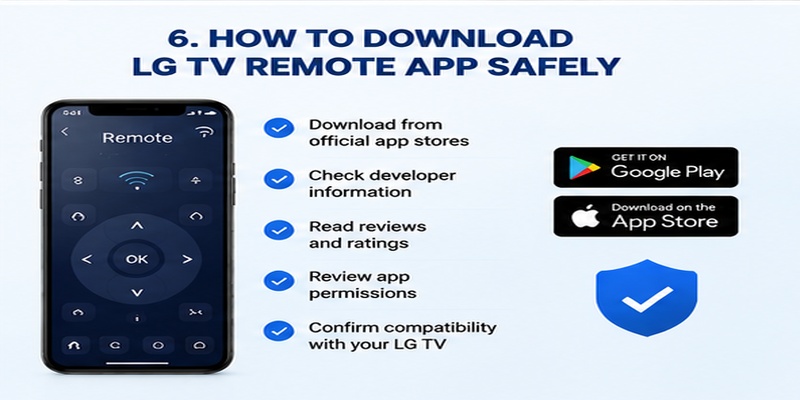
Finding the correct LG remote tv application can be confusing because many third-party apps appear when users search terms like download remote tv lg or lg tv remote app free.
Some applications may provide useful features, but others may contain excessive advertisements, limited functionality, or unexpected subscription fees.
Before installing any remote application, users should check several important factors.
Checklist Before Downloading an LG Remote TV App
- Check the official publisher name
- Read recent user reviews
- Review app permissions
- Confirm LG TV compatibility
- Check whether free features are enough
- Avoid unknown APK websites
- Review subscription information
A trustworthy app remote tv lg solution should mainly require network access to discover and communicate with the television.
It should not request unnecessary permissions such as:
- Contacts
- Personal files
- Call history
- Location data without explanation
Official LG App vs Third-Party Remote Applications
| Category | Official LG App | Third-Party App |
| Compatibility | High | Depends on developer |
| Security | Better verified | Requires more caution |
| Updates | Regular | Varies |
| Features | Optimized for LG TVs | May offer extra customization |
| Cost | Usually free | May include subscriptions |
For users who want reliability, the official solution is usually the safest choice. Third-party applications can still be useful if they offer a better interface or additional features.
7. Universal Remote LG TV Code: Setup and Programming Guide
A universal remote is another option when the original LG remote tv is missing or damaged. These controllers can operate multiple entertainment devices using programmed codes.
The most important part of setup is finding the correct universal remote lg tv code.
Different universal remote brands use different code databases, so the same LG television may require different numbers depending on the controller model.
How to Program a Universal Remote for LG TV
Follow these steps:
Step 1: Turn On Your LG Television
Use the physical button on the TV if necessary.
Step 2: Activate Setup Mode
Press and hold the Setup button until the indicator light turns on.
Step 3: Select TV Mode
Press the TV device button.
Step 4: Enter the LG Code
Enter the correct universal remote lg tv code from your remote manual.
Step 5: Test the Remote
Check:
- Power button
- Volume control
- Input selection
- Channel buttons
If the remote does not work, try another compatible code.
Automatic Code Search Method
If you cannot find the correct code, many universal remotes support automatic searching.
The remote cycles through available codes until the television responds.
Steps usually include:
- Turn on the LG TV.
- Enter remote setup mode.
- Start automatic code search.
- Wait until the TV turns off or responds.
- Save the detected code.
This method takes longer but works when the original code list is unavailable.
Universal Remote vs LG Magic Remote
| Feature | Universal Remote | LG Magic Remote |
| Basic TV control | Yes | Yes |
| Voice search | Rare | Yes |
| Pointer control | No | Yes |
| Controls other devices | Yes | Sometimes |
| Setup difficulty | Medium | Easy after pairing |
| Smart TV experience | Limited | Full |
A universal remote is practical for basic functions, but users who frequently use LG Smart TV features will usually prefer the Magic Remote.
8. How to Reset LG TV Remote and Fix Connection Problems
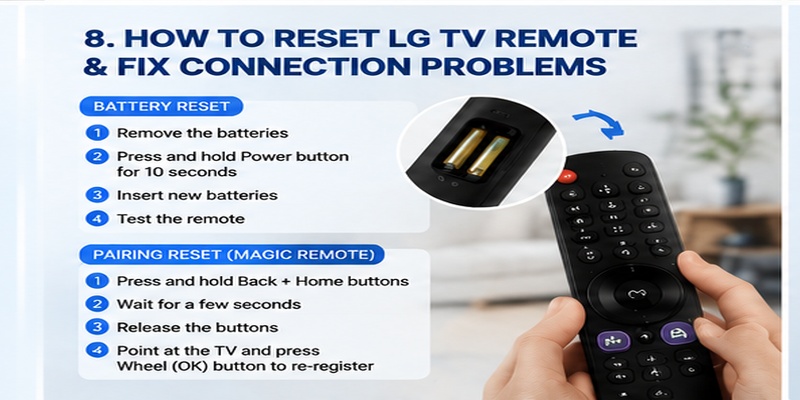
Knowing how to reset lg tv remote is useful when the controller stops responding, loses Bluetooth connection, or behaves unpredictably.
Before replacing your remote, try resetting it.
Method 1: Battery Reset
- Remove batteries from the remote.
- Press and hold the power button for 10 seconds.
- Wait for a few seconds.
- Insert fresh batteries.
- Test the remote again.
This removes temporary power issues.
Method 2: Reset Magic Remote Pairing
For many LG Magic Remote models:
- Press and hold the Back button.
- Press and hold the Home button.
- Wait several seconds.
- Release the buttons.
- Point the remote at the TV.
- Press the Wheel button to register again.
The exact button combination may vary depending on the remote generation.
Common Reset Situations
| Problem | Reset Solution |
| Pointer disappears | Re-register Magic Remote |
| Remote delays | Replace batteries |
| TV cannot detect remote | Reset Bluetooth connection |
| Buttons stop responding | Restart TV and remote |
| Remote connected to another TV | Remove previous pairing |
Resetting usually solves software-related problems. However, physical damage, liquid exposure, or broken internal components may require replacement.
Download on the App StoreView Related Articles: LG TV Remote iOS: Official iPhone Setup and Control Guide
9. Why Is My LG TV Remote Not Working? Common Causes and Solutions
One of the most common problems LG television users experience is an unresponsive controller. Many people search why is my lg tv remote not working because the remote suddenly stops controlling the TV, buttons respond slowly, or smart features such as voice commands and pointer navigation disappear.
In most cases, an LG remote tv problem is caused by simple issues such as weak batteries, lost Bluetooth pairing, network problems, or temporary software errors. Before purchasing a replacement, users should try several troubleshooting methods.
Understanding the cause helps avoid unnecessary replacement costs.
Common Reasons an LG Remote TV Stops Working
| Problem | Possible Cause | Recommended Solution |
| Remote completely unresponsive | Dead batteries | Replace batteries |
| Power button works but other buttons fail | Bluetooth connection issue | Re-pair the remote |
| Pointer does not appear | Magic Remote registration problem | Reset and reconnect |
| Buttons work randomly | Signal interference | Remove nearby obstacles |
| Remote app cannot find TV | Network issue | Connect both devices to the same Wi-Fi |
| Voice command fails | Microphone or software problem | Update TV and reconnect |
| Volume buttons do not work | Device control conflict | Reset remote settings |
Check Batteries First
Battery problems are the most common reason an LG remote tv stops responding.
Even when the remote indicator light turns on, batteries may not have enough power to send strong signals.
Try these steps:
- Remove the existing batteries.
- Check for corrosion or dirt inside the battery compartment.
- Insert two new batteries.
- Make sure the positive and negative sides match the markings.
- Test the remote again.
Avoid mixing old and new batteries because this can reduce performance.
Check the Remote Sensor and Signal
Traditional LG remotes use infrared signals. The signal must reach the sensor on the television.
Make sure:
- Nothing blocks the TV sensor
- The remote is pointed toward the TV
- The remote is not damaged
- Bright sunlight is not directly hitting the sensor
For infrared testing, users can point the remote toward a smartphone camera and press buttons. Some phone cameras can detect infrared light as a flashing signal.
Restart Your LG TV
Temporary software problems can prevent an LG remote tv from working correctly.
Restart the television:
- Turn off the TV.
- Disconnect the power cable.
- Wait approximately one minute.
- Plug the TV back in.
- Turn it on and test the remote.
This process clears temporary system errors and can restore Bluetooth communication.
Reconnect Your Magic Remote
If basic buttons work but pointer movement, voice search, or scrolling do not work, the Magic Remote may have lost its registration.
Try pairing again:
- Point the remote toward the TV.
- Press the Wheel button.
- Wait for the registration message.
- Test pointer movement.
If unsuccessful, reset the remote connection and repeat the process.
LG Remote TV Troubleshooting Checklist
Before replacing your controller, complete this checklist:
- Replace batteries
- Restart the television
- Reset remote pairing
- Remove obstacles near the TV sensor
- Check remote compatibility
- Update TV software
- Test another compatible controller
- Check Wi-Fi connection for app-based control
These steps solve most LG remote tv issues without additional purchases.
10. How to Control LG TV Without Original Remote
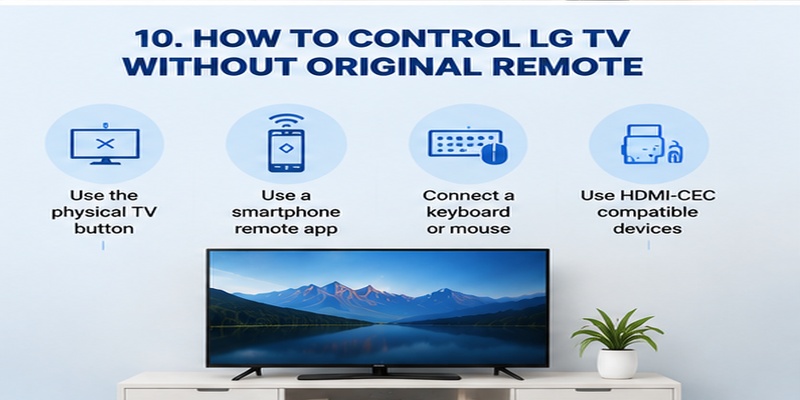
Losing the original controller does not mean losing access to your television. Several alternative methods can control an LG Smart TV without the original LG remote tv.
Method 1: Use the Physical TV Button
Almost every LG television includes a built-in button.
Depending on the model, the button may be:
- Under the LG logo
- Behind the TV panel
- On the bottom edge
- On the rear side
The physical button usually allows users to:
- Turn the TV on or off
- Change input
- Adjust volume
- Open basic menus
However, it is not designed for full smart TV navigation.
Method 2: Use a Smartphone Remote Application
A smartphone is one of the easiest replacements for a missing LG remote tv.
Users can:
- Control volume
- Open apps
- Navigate menus
- Type passwords
- Search content
The phone and television must usually be connected to the same Wi-Fi network.
This solution is especially useful for users who frequently lose physical remotes or want a backup controller.
Method 3: Use a USB Keyboard or Mouse
Many LG Smart TVs support USB accessories.
Connect:
- Wireless keyboard receiver
- USB mouse
- Wired keyboard
A mouse can help navigate menus, while a keyboard makes typing much easier.
This method is useful when setting up Wi-Fi passwords or searching streaming content.
Method 4: Use Another Device Remote
Some connected devices can control LG televisions through HDMI-CEC.
Examples include:
- Streaming players
- Game consoles
- Cable receivers
- Sound systems
When HDMI-CEC is enabled, one remote may control multiple devices.
11. Best LG Remote TV Solution for Different Users
The best LG remote tv option depends on how you use your television.
For Basic TV Watching
Recommended:
Standard LG Remote
Best for:
- Cable channels
- Volume adjustment
- Power control
- Simple navigation
Advantages:
- Affordable
- Reliable
- No pairing required
For Smart TV Users
Recommended:
LG Magic Remote
Best for:
- Netflix
- YouTube
- Web browsing
- Voice search
- Smart features
Advantages:
- Pointer navigation
- Faster browsing
- Better webOS experience
For Users Who Lost Their Remote
Recommended:
LG Remote TV App
Best for:
- Temporary replacement
- Searching content
- Entering passwords
Advantages:
- Uses existing smartphone
- No additional hardware needed
- Convenient backup solution
For Multi-Device Entertainment Systems
Recommended:
Universal Remote
Best for:
- TV
- Soundbar
- Receiver
- Streaming devices
Advantages:
- Controls multiple products
- Reduces number of remotes
12.Frequently Asked Questions About LG Remote TV
Can I use my phone as an LG remote tv?
Yes. A smartphone can replace a physical controller using a compatible remote application. The phone and LG TV usually need to be connected to the same Wi-Fi network.
Why does my LG Magic Remote not connect?
Common reasons include weak batteries, previous Bluetooth registration, software issues, or incompatible remote models. Resetting and pairing again usually solves the problem.
Can I use a universal remote with LG TV?
Yes. A universal remote can control many LG televisions after entering the correct universal remote lg tv code or completing automatic setup.
How do I reset my LG remote?
To reset an LG remote tv, remove the batteries, restart the television, clear previous pairing, and reconnect the remote. Magic Remote users may need to register the controller again.
Is there a free LG remote app?
Yes. Some LG remote tv applications are available for free. Users should download applications from trusted app stores and check compatibility before installation.
An LG remote tv is more than a simple controller. Modern LG remotes combine traditional buttons with smart features such as voice search, pointer navigation, and smartphone integration.
Whether you use a Magic Remote, mobile application, universal controller, or standard remote, the best choice depends on your television model and viewing habits.
When your remote stops working, start with simple solutions:
- Replace batteries
- Restart your TV
- Reconnect Bluetooth
- Check network settings
- Test alternative control methods
For most users, restoring an LG remote tv connection takes only a few minutes. Understanding how different remote solutions work helps you choose the right controller and enjoy a smoother LG Smart TV experience.
Download on the App Store