
How to Set Quick Access on LG TV Remote: Complete Shortcut Setup Guide
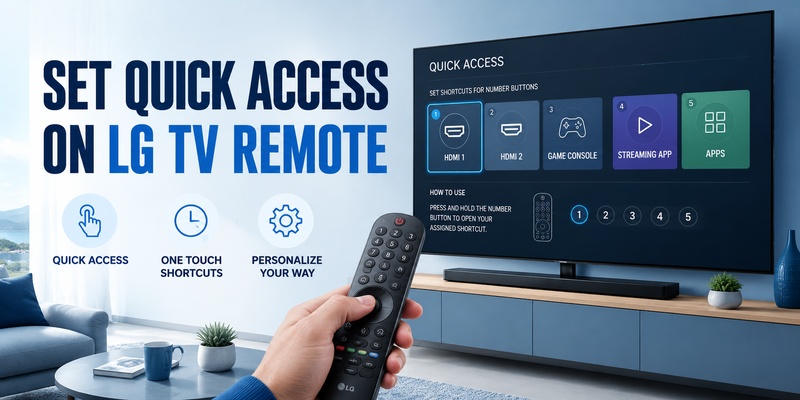
If you want to open Netflix, HDMI, a favorite channel, or another frequently used function without searching through menus, learning how to set quick access on lg tv remote can save several steps every time you use your television. LG’s Quick Access feature lets supported TVs associate selected apps, channels, or inputs with number buttons on the remote.
The setup is simple: open the app, channel, or input you want, hold an available number button, and confirm the registration. Holding the same number later launches the shortcut. LG currently documents numbers 1–8 for customizable Quick Access assignments, while holding 0 opens the edit screen and 9 is reserved for Quick Help on supported models.
This guide explains how to set quick access on lg tv remote from beginning to end, including how to assign shortcuts, edit them, remove old entries, troubleshoot problems, and organize the number buttons so they are actually useful.
1. What Is Quick Access on an LG TV?
Before learning how to set quick access on lg tv remote, it helps to understand what the feature does. Quick Access works like speed dial for your television. Instead of navigating through Home, Apps, Inputs, or channel menus each time, you assign a frequently used destination to a number button.
For example, you might assign:
- 1 to a streaming app you use every evening.
- 2 to HDMI 1 for a game console.
- 3 to HDMI 2 for a cable or satellite box.
- 4 to a favorite TV channel.
- 5 to another installed app.
Once registered, you normally press and hold the number rather than tapping it briefly. The long press tells the TV to execute the Quick Access assignment.
That distinction matters when searching for how to use quick access on lg tv. A short press may still enter a number or perform a normal remote function, while a long press activates the shortcut associated with that key.
The available functions and exact screen design can vary by TV model and webOS version. Therefore, how to set quick access on lg tv remote is best treated as a feature workflow rather than a promise that every LG television shows exactly the same menus.
Download LG TV Remote2. How to Set Quick Access on LG TV Remote Step by Step
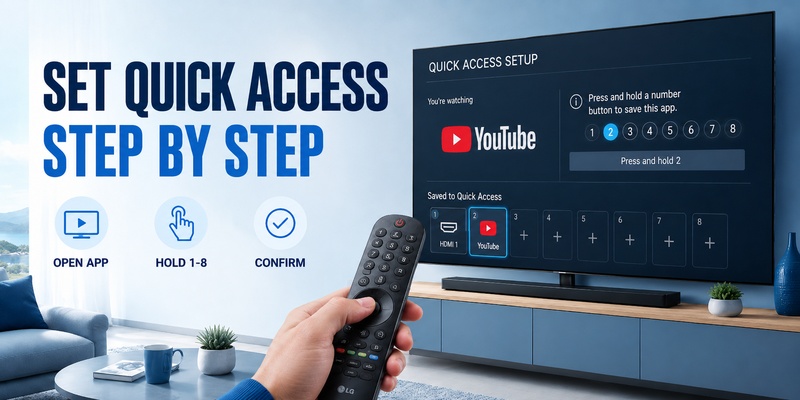
The fastest answer to how to set quick access on lg tv remote is to start from the content you want to save. LG instructs users to launch the app, select the channel, or choose the external input first, then press and hold the desired number button.
Step 1: Turn on the TV and choose the destination
Open the app, channel, or input you want to assign. If you want HDMI 1 on button 1, switch to HDMI 1 first. If you want a streaming service on button 2, launch that app first.
This tells the TV which destination to save during setup quick access lg tv.
Step 2: Press and hold a number from 1 to 8
Choose an available number and press and hold it. Do not simply tap the button. Continue holding until the TV displays a Quick Access registration message or confirmation window.
LG documents numbers 1–8 as assignable shortcuts on supported models, while 9 is used for Quick Help.
Step 3: Confirm the registration
If the TV displays a message asking whether you want to register the current app, channel, or input, select Yes.
At this point, you have completed the essential process for how to set quick access on lg tv remote. The television remembers the relationship between that number and the destination you selected.
Step 4: Test the shortcut
Leave the current app or input, then press and hold your assigned number. If registration succeeded, the TV should open the saved destination.
The same workflow answers how to set quick access on lg remote on many Magic Remotes with number keys. If your remote layout differs, check its model-specific controls.
Explore Related Articles: LG TV Remote Volume Button Not Working? 12 Practical Fixes to Restore Volume Control
3. What Can You Assign to Quick Access?
A major advantage of learning how to set quick access on lg tv remote is that supported TVs can register apps, channels, or external inputs. LG’s current setup guide explicitly identifies those three destination types for Quick Access.
Apps
Installed streaming and media apps are obvious choices because a shortcut removes the need to open Home and find the app tile.
If you use one particular streaming platform almost every evening, assigning it to 1 or 2 can make sense. The destination becomes available through a single long press instead of several navigation steps.
TV channels
Frequently watched channels can also be useful assignments on supported setups.
This can work well for news, sports, children’s programming, or another channel your household regularly returns to. Rather than remembering the full channel number each time, Quick Access can provide a more convenient route.
External inputs
HDMI inputs are especially useful for consoles, streaming boxes, or set-top boxes connected to fixed ports.
A practical lg quick access remote layout might reserve lower numbers for apps and higher numbers for hardware inputs. For example, 1–4 could be streaming services, while 5–8 could be HDMI or channels.
When deciding how to set quick access on lg tv remote, prioritize destinations that normally require several navigation steps. Saving a shortcut to something already available on a dedicated remote button provides less benefit.
View Related Articles: LG TV Remote iOS: Official iPhone Setup and Control Guide
4. How to Open and Use Your Quick Access Shortcuts
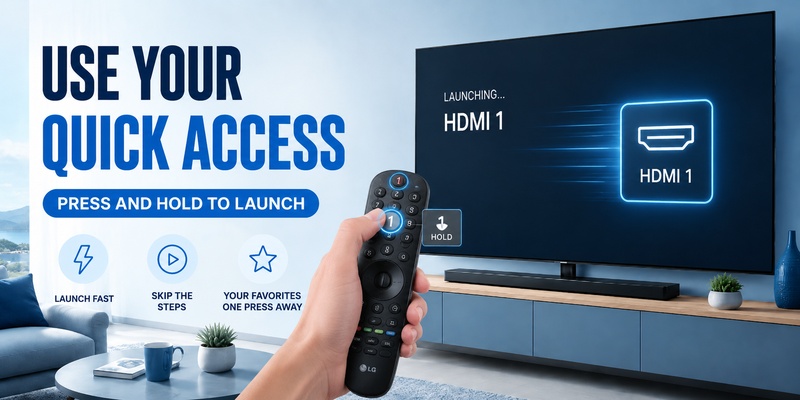
After learning how to set quick access on lg tv remote, using a saved shortcut is usually easier than creating it. Press and hold the registered number button. The TV should launch the app, channel, or input linked to that number.
This is the core answer to how to use quick access on lg remote: remember that Quick Access is based on a long press.
If button 2 is assigned to HDMI 1, hold 2 until the TV begins switching inputs. If button 3 is assigned to an app, hold 3 until the app opens. You do not need to open the Quick Access edit menu every time.
To make quick access on lg remote easier, use a memorable number pattern, keep frequently used destinations on easy keys, and test every shortcut after registration.
When you are learning how to set quick access on lg tv remote, do not assume a shortcut is saved just because you held the number. Make sure the TV showed the registration confirmation and then test the result.
If nothing happens when you hold a registered key, the current TV mode may prevent that shortcut from launching, the assignment may have been removed, or the destination may no longer be available.
For households with several people using the same TV, it can also help to agree on a simple number system. If everyone knows that 1 means a primary streaming service and 6 means the game console, Quick Access becomes much easier to remember.
Explore Related Articles: LG Magic Remote Lagging: 12 Fixes for Slow or Delayed Response
5. How to Change or Remove Quick Access Shortcuts
You may eventually need how to change quick access on lg tv when an app, input, or viewing habit changes.
The simplest method is to press and hold 0 on a supported LG remote. LG states that this opens the Quick Access edit screen. From there, you can review registered numbers, remove existing assignments, and register new ones.
Open the edit screen
Press and hold the 0 button until the Quick Access management screen appears.
This screen is particularly useful if you cannot remember which numbers are already occupied. Rather than pressing every number individually, you can see the current assignments in one place.
Select an existing shortcut
Choose a number that already has an assignment. The TV should provide an option to unregister or remove it.
Once the old assignment has been removed, that number can be used for a new destination.
Knowing how to set quick access on lg tv remote and knowing how to edit it are two parts of the same workflow. The initial setup gets you started; the edit screen keeps your shortcuts useful over time.
If you delete an app that was assigned to a shortcut, LG notes that its Quick Access registration can also be removed automatically. That means an apparently “broken” shortcut may simply point to content that is no longer installed.
6. Quick Access Number Buttons Explained
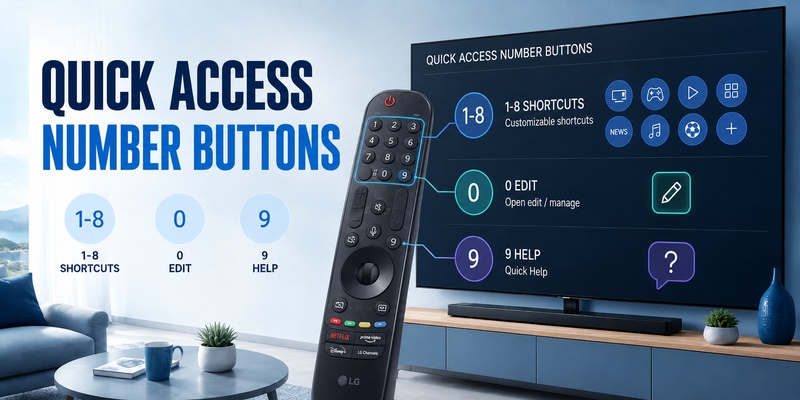
When people ask how to set quick access on lg tv remote, they often expect every number button to be fully customizable. On current LG guidance, that is not the case.
| Number | Typical Quick Access role |
| 1–8 | Custom shortcuts for supported apps, channels, or inputs |
| 9 | Quick Help shortcut on supported models |
| 0 | Hold to open the Quick Access edit screen |
The most important quick access button on lg remote is therefore not a single dedicated key. Quick Access is primarily built around the number pad.
Numbers 1–8 function as shortcut slots. Number 0 is the management shortcut, and number 9 has a special support role on compatible models. LG’s 2024 simulator and Magic Remote documentation both describe holding 9 for Quick Help and holding 0 to review or edit Quick Access.
Understanding this layout makes how to set quick access on lg tv remote easier because you can plan the number pad rather than adding shortcuts randomly. Once the number roles are clear, how to set quick access on lg tv remote becomes much easier to remember.
You might, for example, reserve 1–3 for apps, 4–5 for channels, and 6–8 for connected hardware. There is no requirement to use this exact organization; what matters is choosing a layout you can recall without opening the edit menu every time.
Explore Related Articles: How to Connect LG Remote to TV: Complete Pairing and Recovery Guide
7. Why Quick Access May Not Work
Even after you follow how to set quick access on lg tv remote correctly, a shortcut may fail. Check the assignment, destination, remote, and TV mode.
The number is already assigned
If a number already has a shortcut, holding it may launch the existing destination instead of registering a new one. Open the edit screen by holding 0 and remove the old assignment first.
You are trying to use number 9
On supported LG TVs, 9 is reserved for Quick Help. Choose a number from 1–8 instead. LG describes 9 as a Quick Help hotkey rather than a normal user-configurable Quick Access slot.
The app was deleted
If an assigned app is removed from the television, its shortcut may be unregistered automatically. Reinstall the app if available and assign it again.
The shortcut cannot run in the current mode
LG notes that Quick Access may not work when the shortcut is in a mode where it cannot be executed. Try returning to Home or normal TV operation and holding the registered number again.
The remote does not support the expected controls
A replacement or simplified remote may not provide the same number-key behavior as the original. If your goal is how to set quick access on lg tv remote, confirm that your remote and TV combination supports the feature.
The button is being tapped instead of held
A common mistake is pressing a number quickly and expecting the shortcut to run. Quick Access uses a long press. Hold the assigned number until the TV responds.
Troubleshooting how to set quick access on lg tv remote is usually easier when you first hold 0 and check whether the shortcut is actually registered. That quick check can confirm whether how to set quick access on lg tv remote failed during registration or only during launch.
🧭 Explore Guides: LG MR26GA vs MR25GA: Which LG Magic Remote Should You Choose in 2026?
8. How Quick Access Differs Across LG TV Models
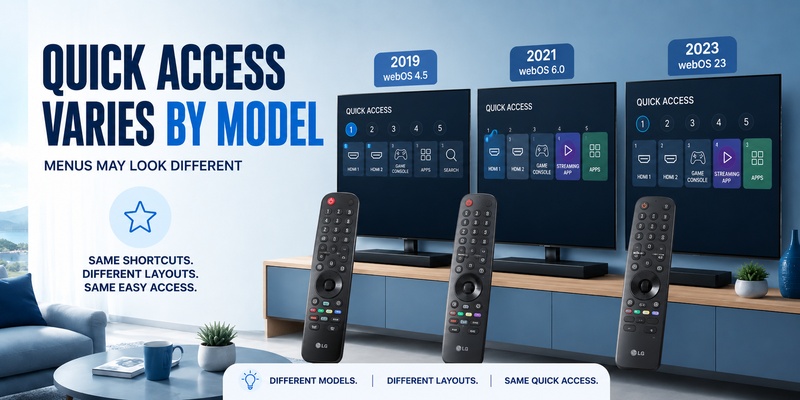
The fundamental workflow for how to set quick access on lg tv remote has remained recognizable across multiple LG Magic Remote generations, but the physical remote and on-screen UI can vary.
LG’s support documentation for 2020 and 2021-style Magic Remotes shows that holding 0 opens Quick Access editing while holding 9 opens Quick Help. LG’s 2024 simulator also presents the same central Quick Access workflow: select content, hold a number to register it, confirm, and hold 0 to edit.
Remote layouts and on-screen labels can still vary by model, year, and region. LG itself notes that menu settings and available options can vary with the TV’s manufacturing year and recommends using the model-specific user guide when necessary.
For that reason, how to set quick access on lg tv remote should not be interpreted as one visual sequence that is identical on every LG TV. The reliable concepts are:
- Select the app, channel, or input.
- Use an available number shortcut.
- Confirm the assignment.
- Long-press that number to launch it.
- Use the Quick Access management screen to edit shortcuts.
If you are searching how to set quick access on lg tv for an older television, check whether the remote has number keys and whether Quick Access appears in the TV’s user guide.
If your screen does not match screenshots from a newer television, that does not necessarily mean the feature is missing. Look for equivalent Quick Access terminology in the built-in help system or model-specific manual.
🛠️ Learn with Step-by-Step Guides: LG Remote TV: Complete Guide to Setup, Apps, Pairing, Codes, and Troubleshooting
9. Can You Use a Phone Instead of Quick Access?
Learning how to set quick access on lg tv remote is useful with the physical remote, but a phone can help when that remote is unavailable.
A Remote TV App can provide common smart-TV controls from a phone, depending on TV compatibility and the app you use. Typical functions may include navigation, volume, input selection, playback controls, and quick access to frequently used TV actions.
A phone does not necessarily reproduce LG’s numbered Quick Access system, so use the compatible physical LG remote when you specifically want long-press number shortcuts.
A phone can complement how to set quick access on lg tv remote when the physical remote is unavailable.
For example, if the remote is lost between sofa cushions, has dead batteries, or is being used by someone else, a phone can provide temporary control without requiring you to use physical buttons on the television.
If your main goal is fast access rather than preserving the exact remote-button workflow, a Remote TV App may reduce the need to navigate through multiple TV menus.
10. Best Ways to Organize Your LG Quick Access Shortcuts
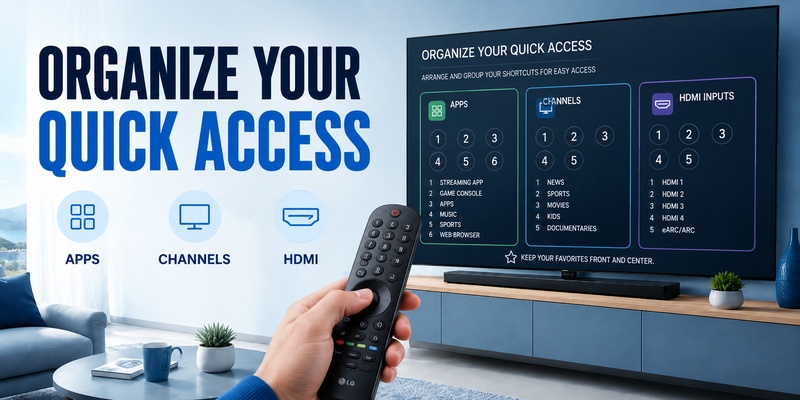
Once you understand how to set quick access on lg tv remote, the biggest improvement comes from choosing assignments that are easy to remember.
Put your most-used service on 1
Number 1 is easy to remember and easy to reach. Use it for the app, input, or channel you open most frequently.
If you normally start every evening with the same streaming service, putting it on 1 creates an intuitive default shortcut.
Group similar destinations
Keep streaming apps together, inputs together, and channels together. For example:
| Number | Suggested assignment |
| 1 | Most-used streaming app |
| 2 | Second streaming app |
| 3 | Music or media app |
| 4 | Favorite channel |
| 5 | Second favorite channel |
| 6 | HDMI 1 |
| 7 | HDMI 2 |
| 8 | HDMI 3 |
This layout is only an example. Your own version of how to set quick access on lg tv remote should reflect your devices and viewing habits.
Another useful strategy is to match shortcut numbers with physical device positions. For example, if your main console is HDMI 1, assigning it to number 1 may be easier to remember than placing it on 7.
Do not duplicate dedicated buttons unnecessarily
Some Magic Remotes already include dedicated service buttons. If one of those buttons already opens a service you use, assigning the same app to Quick Access may waste a valuable number slot.
Use Quick Access for destinations that otherwise require several actions.
Review your shortcuts
After several days, hold 0 and review your setup. Remove shortcuts you never use and reassign those numbers.
A well-planned setup turns how to set quick access on lg tv remote from a one-time configuration task into a practical speed-up for everyday TV use.
11. Frequently Asked Questions
How do I set a Quick Access shortcut on my LG TV?
To complete how to set quick access on lg tv remote, open the app, channel, or input you want to save, press and hold a number from 1–8, and confirm the registration if prompted. Later, hold that number again to launch the saved destination.
How do I see all my LG Quick Access shortcuts?
If you already know how to set quick access on lg tv remote, the management shortcut is just as useful: press and hold 0. On supported LG TVs, this opens the Quick Access edit screen where you can see, add, or remove assignments.
Can I change the number 9 shortcut?
Generally, no on models following LG’s current Quick Access guidance. Number 9 is assigned to Quick Help. If you are configuring how to set quick access on lg tv remote, use numbers 1–8 for custom assignments.
Why does pressing a number not open my app?
Quick Access normally requires a long press, not a quick tap. If you followed how to set quick access on lg tv remote and it still fails, hold 0 to confirm the shortcut exists, then check that the app is still installed and the TV is in a mode where the shortcut can run.
Can I assign HDMI to an LG Quick Access number?
Yes, on supported TVs, external inputs are among the destinations LG identifies for Quick Access. When using how to set quick access on lg tv remote, switch to the desired HDMI input first and then hold the number you want to register.
Can I assign several streaming apps at the same time?
Yes. Each available number from 1–8 can have its own supported assignment. For example, you could put one streaming service on 1, another on 2, and HDMI 1 on 6. The exact destinations available depend on your TV and installed content.
12. Final Thoughts
Learning how to set quick access on lg tv remote is a simple way to reduce menu navigation by turning number buttons into shortcuts for the destinations you use most.
The setup is straightforward: open the app, channel, or input you want, hold a number from 1–8, and confirm the registration. Hold the same number later to launch the shortcut. If you need to review or change your assignments, hold 0 to open the Quick Access edit screen. On supported models, number 9 remains dedicated to Quick Help.
The best approach to how to set quick access on lg tv remote is to create a simple system you can remember. Put your most-used app on 1, group similar content together, reserve several numbers for HDMI inputs if needed, and remove shortcuts that no longer save time.
Once your layout is organized, how to set quick access on lg tv remote becomes more than a setup question. It becomes a practical way to reduce menu navigation every time you watch TV.
If your physical remote is temporarily unavailable, a Remote TV App can also provide a convenient backup for common controls while you keep Quick Access configured for your normal viewing routine.
Download LG TV Remote