
Setting Remote TV Universal: Code Entry, Auto Search, and Testing Guide
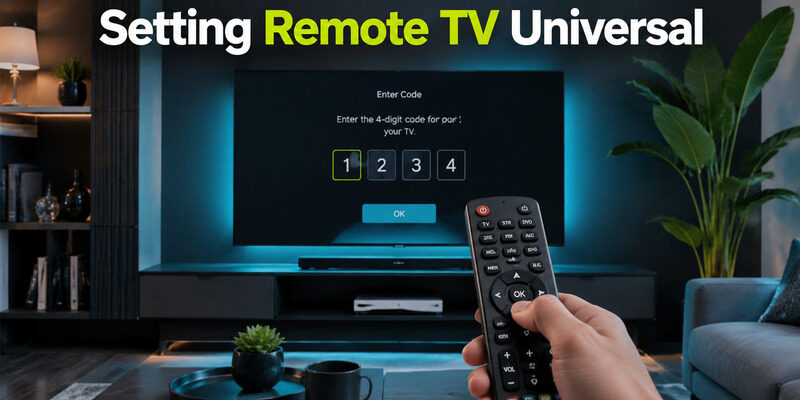
Setting remote tv universal controls succeeds when the handset supports your device type and you use the code list written for that exact remote model. Direct code entry is fastest; automatic search is the fallback when the list is missing or every listed code fails.
The goal is not merely to make the television turn off. A useful setup must also pass volume, input, navigation, and menu tests, because different stored profiles can control different subsets of the same TV.
Confirm What the Universal Remote Can Actually Control
Infrared television control
Most traditional universal remotes send infrared commands and need a clear path to the television’s sensor. They are well suited to power, volume, input, channels, and common menu functions. They do not automatically replace Bluetooth, RF, or Wi-Fi controls used by some streaming sticks and voice remotes. Before setting remote tv universal controls, read the device-mode buttons and product description.
A TV mode can target the display while a separate audio mode targets a receiver or soundbar. If the handset does not list streaming devices, do not expect it to navigate a hidden Roku or Fire TV stick.
Bluetooth or network platform control
- Find the IR window on the handset
- Check TV and audio device modes
- Confirm the remote supports the target device
| Control type | Typical connection | What it usually handles |
|---|---|---|
| Universal TV remote | Infrared | Power, volume, input, channels |
| Voice remote | Bluetooth or RF | Navigation, voice, platform keys |
| Phone remote | Local Wi-Fi | Navigation, playback, keyboard |
Prepare the TV, Remote, and Code List
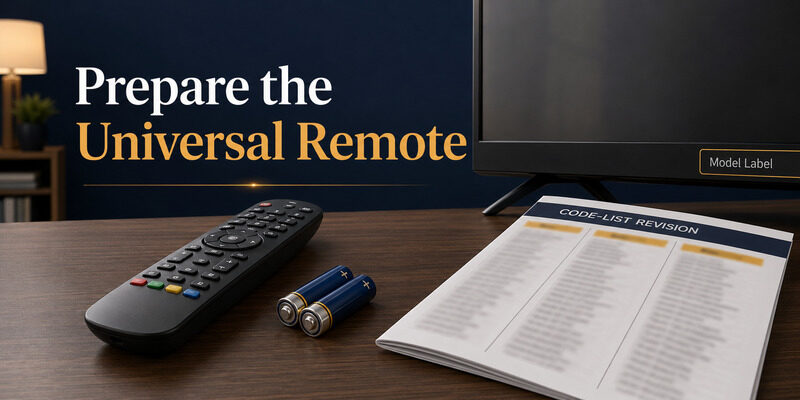
Install a matched set of fresh batteries and turn on the television with its physical button or original handset. Sit within a few feet of the screen and point the universal remote directly at the IR receiver during programming.
Find the model number and code-list version inside the battery compartment or on its cover. Jasco’s official GE remote guidance specifically tells users to locate the model and code-list version before selecting codes. A code copied from a different manual can be valid for the brand yet absent from your handset’s memory.
Write down each code you try. Setting remote tv universal profiles becomes confusing when the same rejected number is entered repeatedly or a partly working profile is discarded without comparison. If the original remote still works, keep it nearby for function comparison.
You need to know whether an input or menu key was already unsupported by the television before blaming the new profile.
- Fresh batteries
- TV powered on
- Correct code-list version
- Clear line of sight
🛠️ Learn with Step-by-Step Guides: Apple remote tv app: Complete Apple TV Remote Guide for iPhone, Siri Remote, Pairing & Fixes
Setting Remote TV Universal Controls by Direct Code Entry
Enter one candidate code
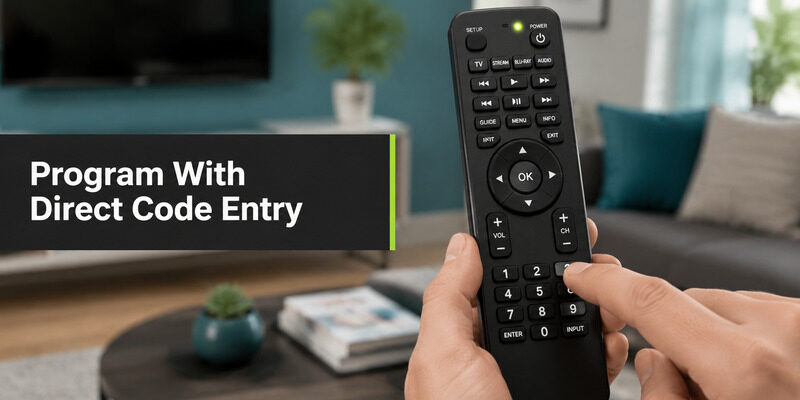
Hold the Setup key until the indicator changes as described in your remote’s manual, choose TV mode, and type the first code listed for the television brand. The indicator should confirm whether the entry was accepted. Different handset families use different light patterns, so follow the manual rather than a generic timing rule. Aim at the TV and press Power once. If the television responds, save the profile if the remote requires a final confirmation, then test the full function set.
If nothing happens, repeat setting remote tv universal control with the next code in the same model-specific list. Do not race through digits. A missed key can leave the remote waiting for another number or exit setup. Pause after the indicator response before testing Power.
Save and verify the profile
- Hold Setup
- Choose TV mode
- Enter one code
- Test and save
💡 Discover Helpful Guides: Apple TV Siri Remote: Complete Guide to Features, Generations, Pairing, and Everyday Use
Use Automatic Code Search When the List Fails
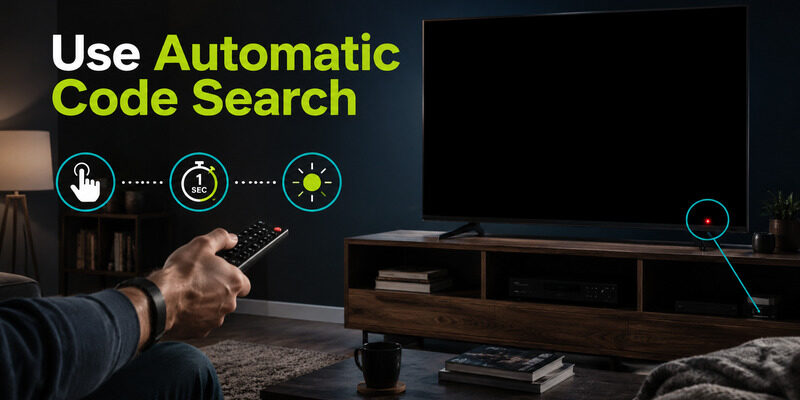
Automatic search moves through the codes stored in the remote. Jasco describes it as a way to locate a compatible code when direct entry is unavailable. Start with the television on and be ready to stop as soon as it reacts.
The exact buttons and search direction differ by model. Follow the handset manual, send the next-code command at a steady pace, and save immediately when the TV turns off or mutes. Moving past the working profile is the most common practical mistake.
Turn the TV back on and test the other buttons. Setting remote tv universal controls through search can land on the first code that handles power but not the profile with the best menu or input coverage. If search loops without a response, recheck device mode, line of sight, battery strength, and whether the target uses infrared.
Repeating the same search with a blocked sensor will not produce a different result.
- Start with the TV on
- Advance one stored code at a time
- Stop at the first response
- Save before continuing
📘 Find the Right Guide: Google Home TV Remote: How to Control Your TV From the Home App
Score the Profile Across Every Important Button
A power-only success is provisional. Test volume up and down, mute, input, Home or Menu, directional navigation, OK, and Back. If the TV uses a soundbar, test audio in the correct device mode instead of expecting one profile to own both products. Setting remote tv universal profiles is complete only after the daily buttons pass.
Record results for each candidate code. One profile may control power and volume, while another also handles input and menus. Keep the profile with the broadest coverage for your daily use, even if it was not the first code listed.
When setting remote tv universal profiles for an older television, channel and number keys may matter more than app shortcuts. For a smart TV, navigation and input are usually more valuable. Your test score should reflect the way the screen is actually used.
Finish by testing from the normal sofa position. A code can be correct while weak batteries, a narrow IR angle, or a blocked sensor makes the remote seem unreliable.
- Power
- Volume and mute
- Input
- Navigation and OK
| Button group | Pass condition | If it fails |
|---|---|---|
| Power | TV toggles once | Try the next code |
| Volume and mute | Correct audio device changes | Check device mode |
| Input and navigation | Menus respond consistently | Compare another profile |
Diagnose Programming by the Failed Layer
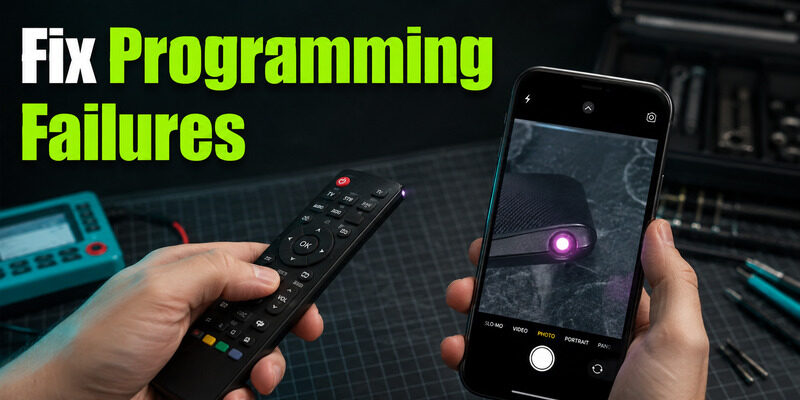
No button responds
If nothing works, verify fresh batteries, TV mode, the correct code-list version, and clear line of sight. Confirm that the setup indicator accepted the code. A rejected entry cannot become functional through repeated Power tests. If only some buttons work, the remote has found a partial code profile. Try the next manufacturer code and compare coverage. Keep notes so you can return to the strongest candidate rather than restarting from memory.
Setting remote tv universal profiles is faster when each result is recorded once. If the television responds only at very close range, clean the remote’s IR window and the TV sensor area, then test another battery set. That symptom is usually signal strength, not a reason to repeat setting remote tv universal controls from the beginning.
Only some buttons respond
- Confirm device mode
- Confirm accepted code
- Try the next profile
- Check IR path
💡 Discover Helpful Guides: Google TV Remote Not Working Light On: LED Meanings and Fast Fixes
Handle Smart TVs Without Assuming Full Universality
A universal remote may control the television layer of a smart TV while leaving voice search, motion pointers, Bluetooth shortcuts, and platform-specific keys unavailable. That is normal when those features use a different connection method. For Hisense, start with the code list for the universal remote manufacturer and model.
The related guide explains why GE, One For All, and Xfinity numbers are not interchangeable. Setting remote tv universal control with a code from the wrong ecosystem is guesswork. For Roku TV or Google TV sets, separate the display from an external streamer.
A TV code may handle the screen’s power and volume, but an attached stick can still require its own remote or phone app. If the universal handset has learning support, copy missing functions only as the manufacturer instructs and only while the original remote still sends a clean signal.
- TV power and volume
- Smart-platform navigation
- Voice and Bluetooth features
Use When Infrared Is the Limitation
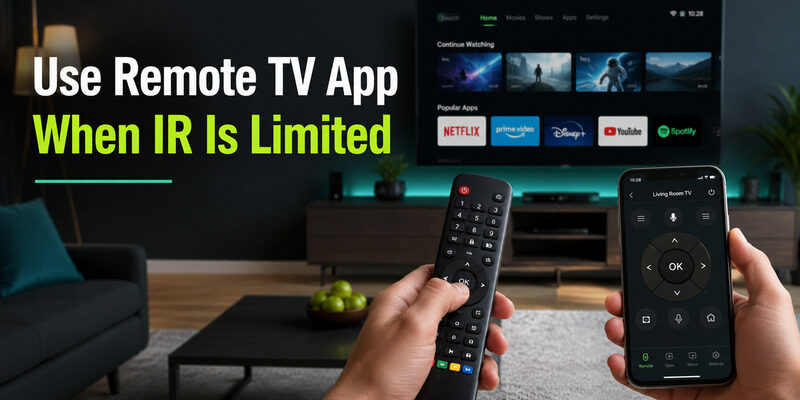
Remote TV App can provide network-based control when a phone and supported television share Wi-Fi. It is a useful complement to an infrared handset because it can restore navigation or typing while the universal remote handles tactile power and volume.
Connect Remote TV App while the TV is online and you can approve any prompt. Setting remote tv universal controls does not have to be an all-or-nothing choice; a two-control setup is often more practical than chasing a single code for every smart feature.
A phone remote still depends on the television being reachable on the network. Keep the TV’s physical power button accessible and retain the universal remote for offline wake or input control when necessary. Review app permissions and keep only a controller that needs reasonable local-network access.
Remote control does not require access to personal messages, contacts, or unrelated media. If a replacement handset is eventually needed, compare its protocol support with the functions missing from your current setup. Buying another basic IR model will not solve a Bluetooth-only requirement.
- Connect while the TV is online
- Test navigation and text entry
- Keep IR control for offline power
🗺️ Browse How-To Guides: Apple TV Remote Volume Not Working? Here’s How to Fix It
Final Thoughts
Setting remote tv universal control is a sequence: confirm protocol compatibility, use the exact model’s code list, try direct entry, fall back to automatic search, and score every candidate across real buttons.
A television that powers off is not fully programmed until volume, input, and navigation also pass. Treat partial response as a clue to try another stored profile, not as proof the remote is defective.
Use Remote TV App beside the infrared handset when smart-platform functions sit outside the universal remote’s capabilities.
Download LG TV Remote