
TCL TV Ka Remote Button and User Guide: Explained for Beginners
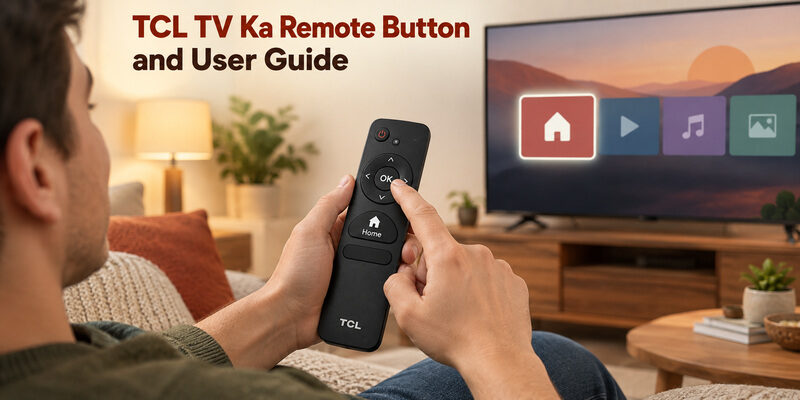
Short answer: Use Home, the direction pad, OK, and Back for everyday TCL TV navigation, and Input or Source to choose HDMI where provided.
“TCL TV ka remote” is a common search phrase for a TCL television’s remote control. The useful instructions depend on the actual television platform and handset: Roku TV, Google TV, Android TV, and Fire TV layouts are not identical. A button missing from one remote may be available through an on-screen menu instead.
This English guide explains the controls by the task you want to complete, from opening a service to changing sound and selecting a connected device. It also shows how to find the correct manual and interpret a remote photograph without assuming every TCL model shares the same buttons.
Learn the Essential TCL TV Ka Remote Controls
Start with the small group of buttons that lets you recover from an unfamiliar screen. The precise symbols and placement vary, so compare the handset with the remote diagram in your television’s manual.
| Control | Usual purpose | What to watch on screen |
|---|---|---|
| Power | Turn TV on or enter standby | Startup or standby response |
| Home | Return to the platform’s main interface | Home screen or launcher |
| Direction pad | Move the highlighted selection | Focus moves between items |
| OK or center select | Open the highlighted item | Selected item opens |
| Back | Leave the current screen or return a level | Previous screen or exit prompt |
| Input or Source where present | Choose television input | Source menu, including HDMI connections |
| Volume and Mute | Adjust the active sound output | Volume indicator and actual sound |
Watch the highlighted item before pressing OK. A TCL TV ka remote can seem unpredictable when the viewer is looking at a different tile from the one currently selected. Move once, observe the focus, then confirm the intended action.
These are starting meanings rather than promises of identical behavior inside every app. A streaming service can handle Back or playback keys differently from the television’s own menus.
💡 Discover Helpful Guides: TCL TV Remote: Complete Setup, App, Codes, Troubleshooting & Replacement Guide
Use Home Back and OK to Move Confidently
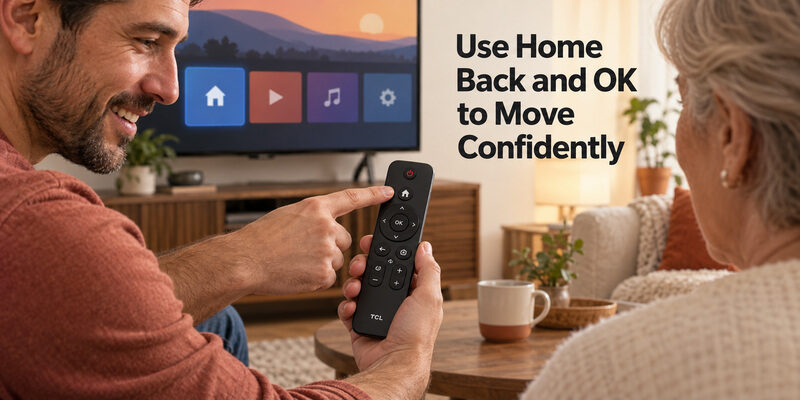
Build a short navigation routine
Press Home to reach a familiar starting point. Use one direction press at a time to highlight a service or setting, then press OK. If you choose the wrong item, use Back and observe whether the television returns a level or asks whether you want to exit.
For how to use TCL TV remote questions, this small routine is more useful than memorizing every shortcut immediately. A TCL TV ka remote becomes easier to operate when you know how to return from a wrong choice without changing unrelated settings.
Distinguish leaving a screen from turning the TV off
Back usually changes the current screen, while Power changes the television’s power state. Home can leave an app’s interface without meaning that you have signed out of its account. Read any confirmation screen before agreeing to an account or settings change.
Use Home as a predictable reference point. If repeated Back presses produce unfamiliar menus, return to the main interface and begin again. This helps you tell whether the remote is sending commands correctly or the app is simply responding in a way you did not expect.
📘 Find the Right Guide: TCL TV Remote Control Replacement Buying Guide
Find HDMI and Select the Connected Device
Identify the television input you need
For how to find HDMI on TCL TV remote, look for an Input or Source control if your handset has one. Other layouts expose inputs through the platform’s home interface or source menu. Follow the diagram and instructions for the exact model rather than searching indefinitely for a button it does not include.
Check which HDMI port the console, player, or receiver is connected to. Choosing HDMI 2 will not display a device connected to HDMI 1 unless your equipment arrangement routes it that way. A TCL TV ka remote selects the TV’s source; it does not physically change cable connections.
Separate a selected input from a working signal
After choosing the input, power the connected device and allow it to start. If the TV says there is no signal, confirm the correct port, cable connection, and source-device power. The remote may have completed input selection successfully even though no picture is available yet.
A no-signal message is not automatically a remote fault. Observe the input label and whether the menu changed. If those respond, investigate the connected equipment before re-pairing the handset or replacing its batteries.
Where supported, give inputs recognizable names such as the room’s console or player. This makes later TCL TV ka remote use easier for someone who does not remember the physical port number.
Adjust Volume and Identify the Actual Speaker
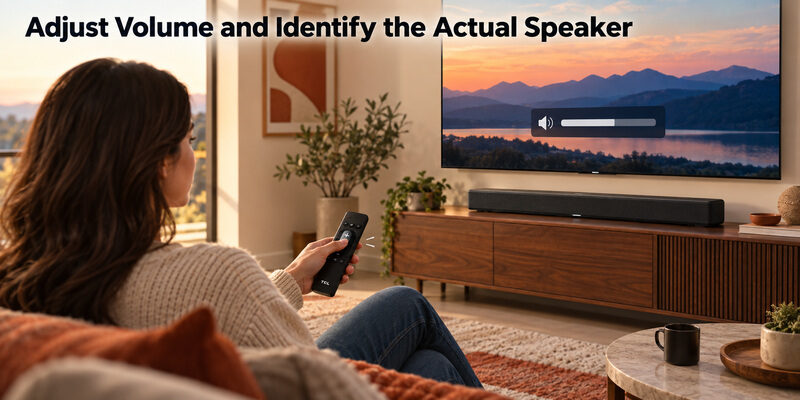
Start with the active audio output
Check whether sound comes from the television, a soundbar, a receiver, or headphones. Volume and Mute may interact with those arrangements differently. A changing on-screen bar is useful evidence, but listen to the device you actually expect to hear.
If the TCL TV ka remote appears to adjust sound without an audible change, confirm that the intended speaker is powered and selected. An external audio device may also have its own controls or configuration that needs to be checked separately.
Restore sound without changing everything
Try a known playing source, check mute, and raise volume gradually from a low level. If only one app is silent, compare another source before altering the television’s complete audio setup. Keep the working result as a reference.
Treat playback, mute, and output selection as separate checks. A paused program, a disconnected headphone cable, and an inactive soundbar can all produce silence for different reasons. The remote’s buttons should be evaluated against the current listening route rather than an assumed default.
If a supported headphone mode is active, finish that listening session according to its instructions before expecting television speakers to resume. This avoids confusing a deliberate private-listening route with failed volume control.
📖 Read More Guides: TCL TV Remote Download: Control Your TCL TV With Your Phone
Open Apps and Use Playback Shortcuts
Navigate to services through the home interface
Use Home and the direction pad to choose an installed service, then select it. A printed shortcut button can provide a faster route where supported, but its presence does not include a subscription or guarantee that the service is available in every region.
A TCL TV ka remote is a controller for the television, not a replacement for streaming-service accounts. If an app asks you to sign in or subscribe, read that service’s screen rather than assuming the remote needs a paid upgrade.
Check playback buttons inside the active app
Play/Pause, rewind, and fast-forward depend on the active content and app support. Live content, an advertisement, and an ordinary on-demand video may offer different controls. Test the command against a source where the relevant action is actually available.
A button’s context matters. If Play/Pause does nothing on the home screen, that alone does not show a broken TCL TV ka remote. Open a known playable item first, observe playback, then test the button once and confirm the result.
Keep shortcut expectations modest when using a replacement handset. A different printed service logo does not prove the remote is incompatible, but the functions you require should still be verified on the actual television.
Use Voice Only When the Remote and TV Support It
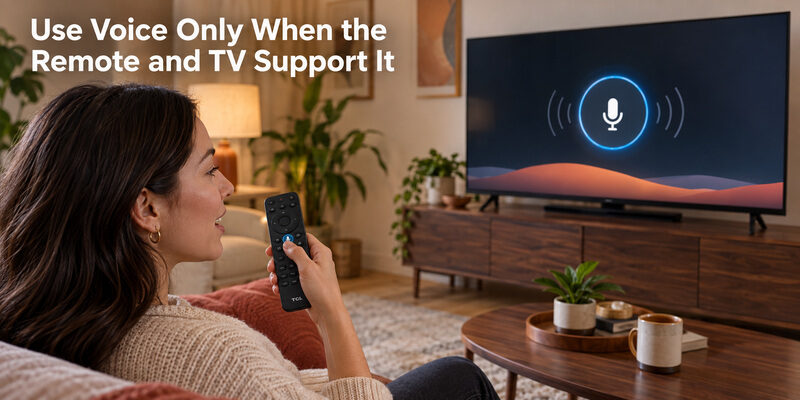
Identify the microphone control and setup requirement
Some TCL handsets include an assistant or microphone button; others do not. On supported Google TV setups, TCL’s official guidance describes holding the relevant button while speaking. The appropriate wireless connection must be established for the supported voice feature.
If a TCL TV ka remote has no microphone hardware, a hidden menu cannot create it. Confirm the remote model and television platform before following a voice tutorial intended for a different controller.
Separate handset voice from hands-free television voice
Some televisions offer hands-free microphones and a separate physical switch. Those are model-dependent TV features, distinct from speaking into a push-button handset. Check which microphone path you are using before changing settings.
A listening prompt and a completed request are different stages. If the TV recognizes your words but cannot open a service, investigate command support, account access, or network conditions. The TCL TV ka remote may have delivered the spoken input correctly even though the requested content is unavailable.
Begin with one short supported request and repeat it under the same conditions. That gives a clearer result than trying several unrelated commands and changing pairing settings after each one.
📖 Explore Articles: TCL TV Remote Battery Size and Replacement Guide
Find the Correct TCL TV Remote Manual
Use the television’s model and region
Locate the complete television model from system information, a purchase record, or an accessible label. Use TCL’s official support or product page for that region and model to find the relevant user guide. The remote instructions may be a section inside the television manual rather than a separate booklet.
A TCL TV remote control manual for a similar screen size can show a different handset. Confirm the covered model family and remote illustration before applying its button sequences. The useful manual is the one that matches the equipment in front of you.
Check the document before saving it
Open the guide and inspect its contents page, remote section, and model scope. For a TCL TV remote manual PDF free download search, a filename containing “TCL” is not enough evidence that it covers your set or comes from the manufacturer.
The model scope inside the document matters. TCL’s C645 Series User Manual, for example, describes controls for that series; it should not be treated as a universal button map for every TCL TV ka remote.
Save the verified guide with the television’s complete model in the filename. Note the page containing the handset diagram and the section covering inputs. This makes later help faster than repeating a broad TCL TV remote manual search whenever a button is unfamiliar.
Match a Remote Photograph to Your Actual Handset
Compare identifying details
A TCL TV remote image can help you recognize a layout, but compare more than the outer shape. Look for the part identifier, microphone button, input control, directional arrangement, and power design. Several controllers can use similar black cases with different capabilities.
For TCL TV ka remote instructions, the photograph should support a model match rather than replace it. If the pictured handset includes a key yours lacks, look for the equivalent documented on-screen route instead of assuming the missing key is hidden under a cover.
Separate replacement photographs from original documentation
Seller images may depict a compatible replacement rather than the original supplied controller. Read the listing’s feature statement and supported-model information. A familiar logo or shortcut arrangement does not establish every function or the item’s provenance.
Use the manual for operation and the listing for the supplied product claim. If you are buying a replacement, ask the seller to confirm the actual part and features. If you are learning an existing remote, begin with the television’s own guide and the handset in your hand.
This distinction keeps TCL TV remote instructions grounded when online images show several alternatives. It also reduces the chance of applying a pairing combination to a simple infrared controller that does not use wireless pairing.
📘 Find the Right Guide: TCL TV Remote Original With Voice Control: Setup, Features & Compatibility
Troubleshoot Buttons by What Still Works
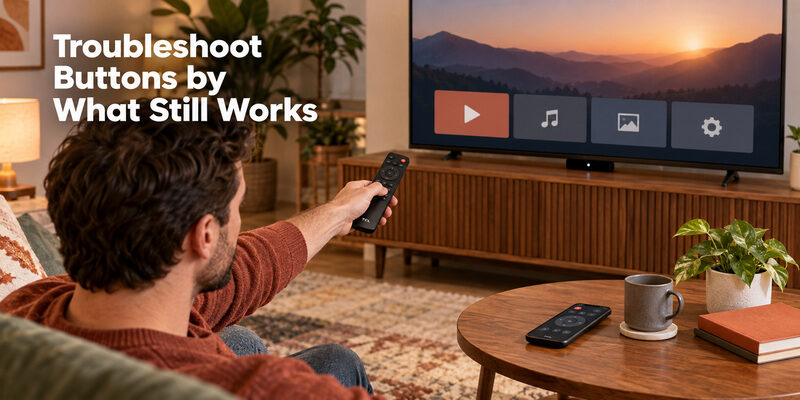
Check power and the basic control path
If no buttons respond, inspect the remote’s specified batteries and polarity, or its charging state where applicable. For infrared control, clear the path to the television and try from a normal close position. Confirm that the TV itself responds to its physical button or another supported controller.
A TCL TV ka remote that operates only at very short range needs a different investigation from one that navigates reliably but cannot use voice. Preserve that distinction instead of treating every failure as a pairing problem.
| Observed behavior | More useful first check |
|---|---|
| No response from any button | Remote power, compatibility, TV responsiveness |
| Basic buttons work, voice fails | Supported wireless pairing and assistant setup |
| Input menu works, connected device is black | Selected port, cable, source-device power |
| Volume indicator moves, no sound | Playback, mute, and active audio output |
| One app handles Back differently | That app’s current screen behavior |
| Selection moves without a press | Stuck key or object pressing the keypad |
Avoid resetting for a single misunderstood button
Read the relevant TCL TV remote instructions and test the button in an appropriate context. If Home works but an app’s playback control does not, first compare another supported playback situation. A factory reset can erase useful setup without changing an app-specific behavior.
Keep the working functions as evidence. When a TCL TV ka remote needs support, report the television and remote models, the exact failed button, and the screens where it happens. That is more useful than saying every control has stopped when several still work.
💡 Discover Helpful Guides: TCL TV Not Responding to Remote Troubleshooting Guide
Keep the Handset Easy to Use and Maintain
Store and power it according to the model
Keep the remote in a known place with the buttons free from pressure. Follow the specified battery or charging instructions and replace a damaged cover through an appropriate parts route. Do not assume that another TCL handset’s cell type or charging accessory is suitable.
A TCL TV ka remote used by several people benefits from a short shared routine: where it is stored, how to reach Home, and which input normally displays the household’s connected device. This prevents avoidable confusion that can look like a technical fault.
Teach the minimum useful controls first
Show a new viewer Home, the direction pad, OK, Back, and sound control. Let them open their usual service and return after making a wrong selection. Add advanced menus and voice only after those basics are comfortable.
Teach tasks rather than every button at once. A concise TCL TV remote how to use explanation should help the person complete an ordinary viewing session. The full manual remains available for the less frequent settings that do not need to be memorized.
Add Phone Control as a Separate Backup
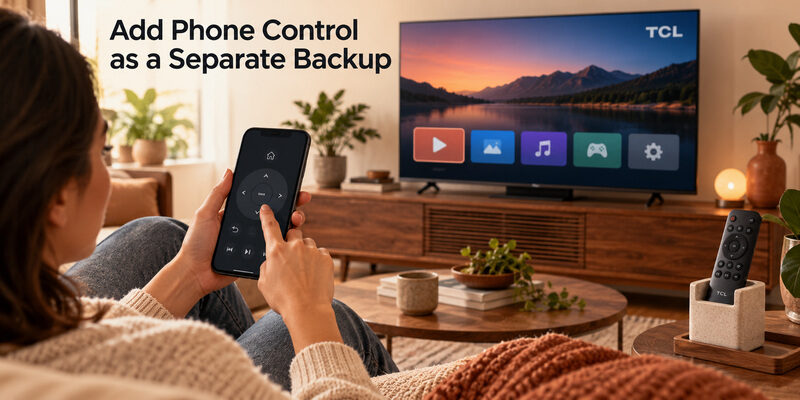
Match the app to the TV platform
A phone app can provide another way to navigate a supported television that is already reachable. Identify the built-in platform, use the required network, and complete the app’s device selection and on-screen approval. Do not assume a phone has infrared hardware simply because it can install a remote app.
For supported models, is an option to evaluate when the physical controller is missing or inconvenient. Test navigation and sound before relying on it. A phone backup does not automatically duplicate every TCL TV ka remote button or voice feature.
Keep a route through first setup
A new, reset, or disconnected television may require a supported physical controller before a network app can operate it. Keep the original or a confirmed replacement for those situations, even after phone control works during ordinary viewing.
Use to choose a phone-control route, or for physical connection methods. Save the successful setup details alongside the manual so another viewer can recover access later.
Common Questions About Everyday TCL Remote Use
Is there one manual for every TCL television remote?
No. Handsets and platform features differ across models and regions. Find the television’s complete model and use the relevant manufacturer guide. Compare the actual remote illustration before following a button sequence copied from a different TCL series.
Where is the HDMI button if my remote has none?
Your model may expose inputs through its home interface or an on-screen source menu. Check the manual’s input-selection section rather than assuming a dedicated HDMI button exists. Confirm the connected device’s actual port when choosing the source.
Does a service shortcut include a subscription?
No. A shortcut provides a supported route to a service; it does not replace that service’s account or payment requirements. Read the app’s current sign-in and viewing screens separately from the television remote’s operating instructions.
Can a phone replace every function of the handset?
Not necessarily. Available controls depend on the TV, app, network, and current setup state. A TCL TV ka remote remains useful for physical recovery and functions the chosen phone app does not support. Test the particular controls you need.
Replace TCL Remote Buttons With a Remote TV App
If your TCL remote feels inconvenient, some buttons are worn out, or you simply do not want to keep searching for the handset, a Remote TV App can provide many of the everyday controls directly on your phone.
The Remote TV App by Begamob gives compatible TCL TV users a simple digital control panel that can replace many commonly used physical buttons during normal viewing.
Use Familiar Controls Directly From Your Phone
Instead of pressing small physical buttons, you can access essential controls from your smartphone, including:
| Physical TCL Remote Button | Remote TV App Alternative |
|---|---|
| Home | Home control on your phone |
| Direction pad | Swipe or tap navigation controls |
| OK / Select | Tap the center/select button |
| Back | Back control |
| Volume + / – | On-screen volume controls |
| Mute | One-tap mute |
| Play / Pause | Playback controls |
| Channel controls | On-screen channel buttons where supported |
This can be especially convenient when a physical button becomes difficult to press or when you want a second remote without buying another handset.
Easier Navigation and Text Input
One advantage of using a phone is the larger touchscreen interface. Instead of repeatedly pressing directional buttons to move through menus, you can use clearly displayed controls on your screen.
For supported TVs and functions, phone control can also make typing searches, entering titles, and navigating streaming apps more comfortable than using a traditional TCL TV remote.
Useful When Your Physical Remote Is Not Nearby
A phone remote is also useful in everyday situations such as:
- The TCL remote is under the sofa or temporarily lost
- The batteries are running low
- Frequently used buttons are worn or unresponsive
- Another person is using the physical remote
- You want a backup controller available immediately
With the Remote TV App by Begamob, your phone can become an additional controller whenever your compatible TCL TV is available on the required network.
Keep the Physical Remote for Backup
A Remote TV App does not necessarily reproduce every function of every TCL handset. Voice controls, first-time setup, network recovery, or certain model-specific features may still require the original or a compatible physical remote.
For everyday navigation, however, using your phone can reduce how often you need the physical TCL remote and make frequently used controls easier to access.
Turn your phone into a convenient TCL TV controller with the Remote TV App by Begamob and keep your most-used controls within reach.
Final Thoughts
Learn a TCL TV ka remote through the tasks you use most: return Home, move the selection, confirm with OK, go Back, choose an input, and adjust the actual sound output. Add voice and shortcuts only where the handset and television support them.
Keep the correct model-specific manual close by. It resolves missing-button questions and prevents instructions for another platform from creating confusion. A familiar control routine and a tested phone backup make TCL TV ka remote use easier for everyone sharing the screen.
Download TV Remote App