
Hisense TV Factory Reset Without Remote: Step-by-Step
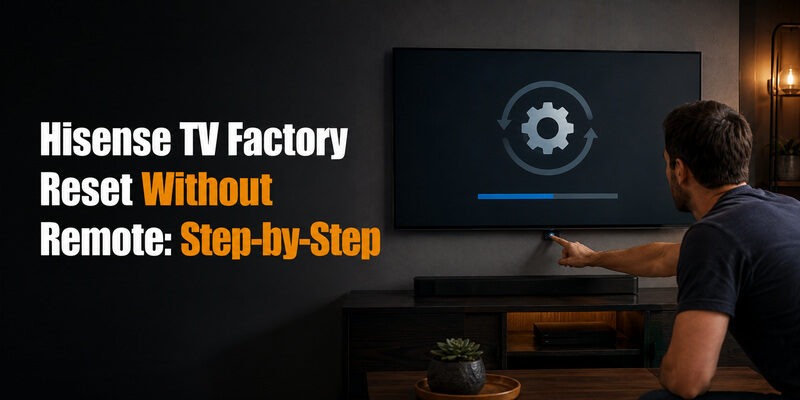
A Hisense TV can be factory reset without a remote using the physical button panel on the TV itself, usually located on the back or underside near the power port.
The exact button layout differs by model — some TVs have a single multi-function joystick button, while others have separate Power, Volume, and Menu buttons — but the reset sequence follows a similar pattern on nearly every Hisense TV.
This guide covers hisense tv factory reset without remote using the physical buttons, plus a separate method for TVs stuck on a black screen and what to do if you have a phone but no remote.
Before You Reset: Know What You’ll Lose
A hisense tv factory reset without remoteerases all installed apps, saved Wi-Fi passwords, picture and sound settings, and any signed-in streaming accounts, returning the TV to its out-of-box state.
It does not fix hardware problems like a cracked screen or failing backlight, and it will not recover content stored only on the TV itself if you haven’t backed it up elsewhere.
Think of a factory reset as the last troubleshooting step, not the first one. If the TV is simply frozen, unresponsive to any button, or stuck loading a menu, a restart usually resolves it faster and without losing any settings.
- Write down your Wi-Fi network name and password before starting, since you’ll need to re-enter it
- Note which streaming apps you had installed so you can reinstall the ones you actually use
- Confirm you actually need a full reset rather than a simple restart — see the next section
Restart vs. Factory Reset: Which Do You Need
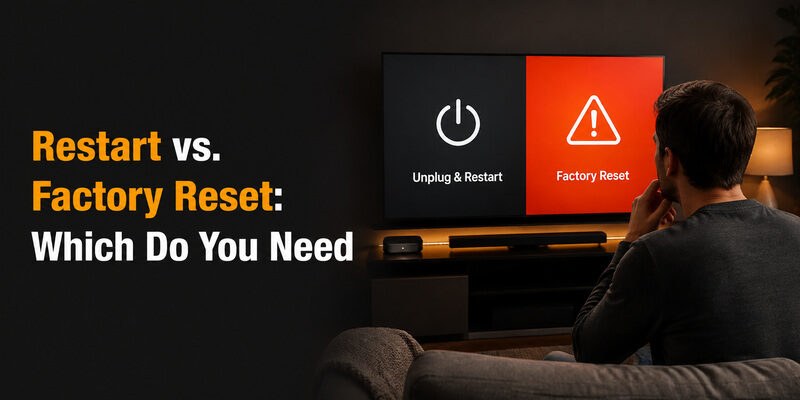
A restart simply power-cycles the TV and clears temporary glitches, without erasing any settings, apps, or accounts.
A factory reset is a more drastic step that wipes everything back to default. Try a restart first for issues like freezing, slow response, or a single app misbehaving — reserve a full factory reset for problems a restart doesn’t fix, such as a corrupted settings menu or persistent login failures.
💡 Discover Helpful Guides: Hisense TV Remote App: Control Your Hisense TV From Your Phone
Hisense TV Factory Reset Without Remote: Button Panel Steps
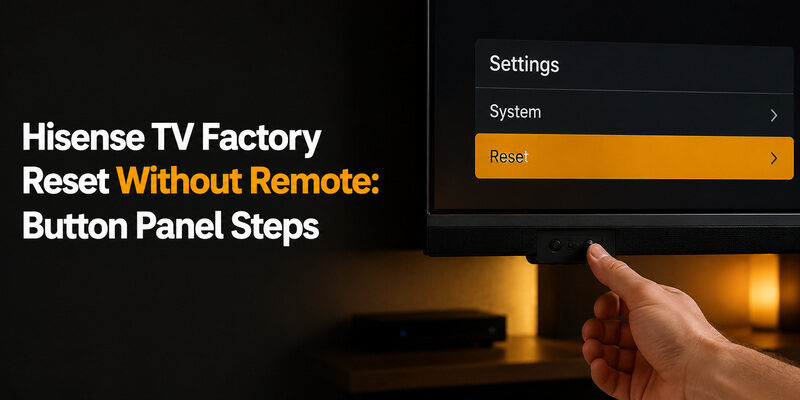
Most Hisense TVs include a small button panel for exactly this situation — no remote required.
Locating the Physical Button Panel
Check the back or bottom-right edge of the TV for a small joystick button or a cluster of Power, Volume, Channel, and Menu buttons. On some models it’s hidden slightly behind the panel and easier to feel than see.
If you can’t locate it visually, run your fingers along the bottom edge of the screen and the back panel near the power cord — that’s where most Hisense models place it.
Running the Reset Sequence
With a joystick-style button, press and hold it in until an on-screen menu appears, then push down repeatedly to navigate to Settings, and select System > Reset to select a factory reset.
With separate physical buttons, hold Menu and Power together for about 10-15 seconds; on some models this opens a system reset menu directly instead of requiring on-screen navigation.
📘 Find the Right Guide: Hisense TV Remote Batteries: Size, Replacement, Drain, and Fixes
How to Reset a Hisense TV Black Screen Without Remote
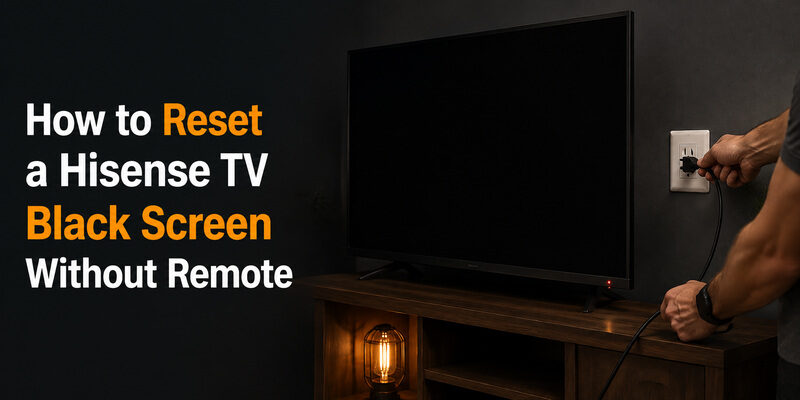
A black screen with no picture but a powered-on indicator light is usually a display or standby issue rather than something a factory reset alone will fix, so start with a hard power cycle before attempting a full reset.
Unplug the TV from the wall outlet completely, wait 60 seconds, then plug it back in and power on using the physical button. If the screen comes back, the earlier black screen was very likely a temporary glitch rather than a hardware fault. If it stays black, the button-panel reset method above is worth trying next, since a corrupted display setting can sometimes cause a black screen that a factory reset clears.
| Symptom | Likely Cause | What to Try |
| Black screen, power light on | Standby/display glitch | Hard power cycle: unplug 60 seconds, then reconnect |
| Black screen, no light at all | Power supply or outlet issue | Test a different outlet and check the power cable |
| Screen flickers before going black | Loose HDMI or internal display fault | Reseat cables; if it persists, this is a hardware issue a reset won’t fix |
| Reset menu won’t open from buttons | Wrong button combo for your model | Check the specific joystick vs. multi-button layout for your model number |
📖 Read More Guides: Hisense TV Code for Universal Remote: Verified Codes and Programming Steps
How to Turn On a Hisense TV Without a Remote First
Before attempting any reset, confirm the TV actually powers on using the physical button — this is a separate check from the reset sequence itself, and skipping it can make a simple power issue look like a reset failure.
Press and release the physical power button once, then wait a few seconds for the Hisense or platform logo to appear. If nothing happens at all, check the power cable and outlet before assuming the TV itself is at fault.
Can You Reset a Hisense TV Remote Instead of the TV
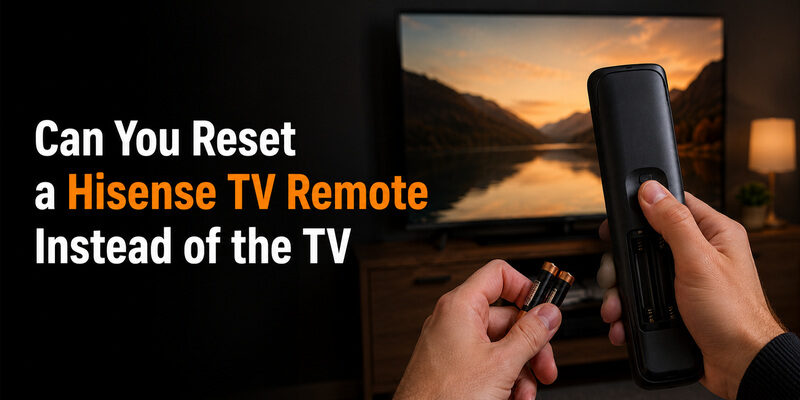
If the remote itself is misbehaving rather than the TV, resetting the remote is a much smaller step: remove both batteries, press and hold any button for 10 seconds to clear residual charge, then reinsert fresh batteries and re-pair it.
This is worth trying before a full TV factory reset if the actual symptom is a remote that responds inconsistently rather than a TV with a genuinely broken settings menu.
📖 Read More Guides: How to Open Hisense TV Remote Safely for Batteries, Cleaning, or Repair
Controlling the Reset Process With Your Phone Instead
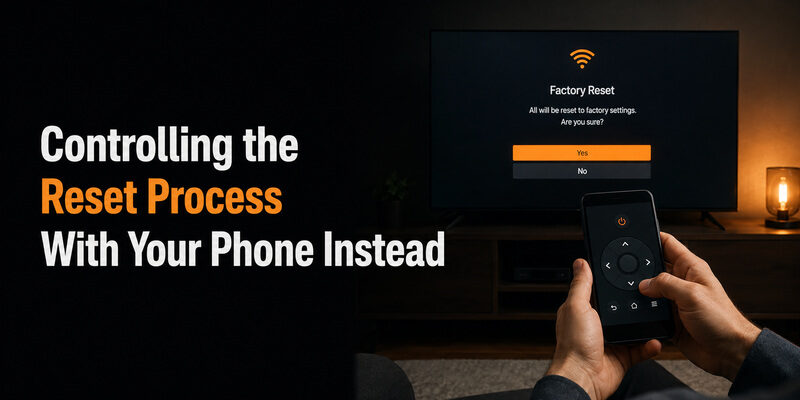
If your Hisense TV and phone are already connected to the same Wi-Fi network before the remote went missing, the Remote TV App can navigate the on-screen settings menu from your phone, which is often easier than counting button presses on a hidden physical panel.
It won’t help if the TV isn’t on the network yet, since setup itself typically requires some navigation first — but for a TV that’s simply lost its remote while still connected, can complete the entire reset without you ever touching the button panel.
🗺️ Browse How-To Guides: Hisense Remote Control Manual: Buttons, Pairing, Apps, and Troubleshooting
FAQs About Resetting a Hisense TV Without a Remote
Can I use my phone instead of a remote to reset a Hisense TV?
Yes, as long as the TV is already connected to Wi-Fi. The Remote TV App can navigate the settings menu and complete a factory reset from a phone.
Is there a free way to reset a Hisense TV without a remote?
Yes. The physical button panel on the TV performs a full factory reset at no cost, and the Remote TV App is also free to use if the TV is already on Wi-Fi.
How do I reset my Hisense TV remote if it stops responding?
Remove the batteries, hold any button for 10 seconds, reinsert fresh batteries, and repeat the standard pairing steps for your remote type.
🗺️ Browse How-To Guides: Hisense TV Remote Replacement: Complete Buying Guide
Final Thoughts
A hisense tv factory reset without remote is straightforward once you locate the physical button panel — most models complete the process with a single button-hold sequence or brief on-screen navigation.
Try a simple restart first for minor glitches, reserve the full reset for persistent problems, and keep the Remote TV App installed on your phone as a faster alternative whenever the TV is already connected to Wi-Fi.
Download LG TV Remote