
Hisense TV Won’t Turn On? Diagnose the Red Light, Power, and Screen First

Quick answer: If your Hisense TV won’t turn on, first check the standby light, disconnect the TV from AC power for 60 seconds, reconnect it directly to a working wall outlet, and try the physical power button on the TV itself.
If there is still no standby light, focus on the outlet, cable, and internal power hardware. If the standby light is on but the screen stays dark, the problem is more likely to involve standby, the remote, firmware, an attached device, or the display rather than a complete loss of power.
Hisense’s own troubleshooting documentation recommends checking the AC connection, unplugging and reconnecting the TV after 60 seconds, then trying both the remote and the physical power button.
The important part is not to try every fix randomly. Identify what your TV is doing first, then follow the matching troubleshooting path below.
1. Hisense TV Won’t Turn On? Diagnose the Problem in 30 Seconds
Before changing settings, resetting the TV, or buying a replacement remote, look at the standby LED.
That one indicator can quickly separate a power problem from a remote, startup, or display problem.
| What you see | What it usually means | Start here |
| No standby light | Power is not reaching the TV, or the power section is not responding | Outlet, cable, wall power |
| Solid red standby light | TV has standby power but is not waking normally | Physical button, remote, power cycle |
| Blinking red light | TV is attempting to start or reporting a fault | Record blink pattern, remove devices, restart |
| Startup sound but black screen | TV may be running without a usable picture | Flashlight/input test |
| Logo appears then freezes | Boot or firmware problem is more likely | Remove devices, wait, then consider reset |
| Turns on then shuts off | Power instability, CEC/device conflict, heat, or hardware | Disconnect accessories and retest |
Do not skip this diagnosis.
A Hisense TV with no light at all presents a fundamentally different problem from one with a solid red light that refuses to leave standby.
Also test what happens when you press the physical power button on the television. If the TV starts from its own button but not from the remote, you have already narrowed the problem considerably.
Download TV Remote App2. No Red Light: Check the Power Path First
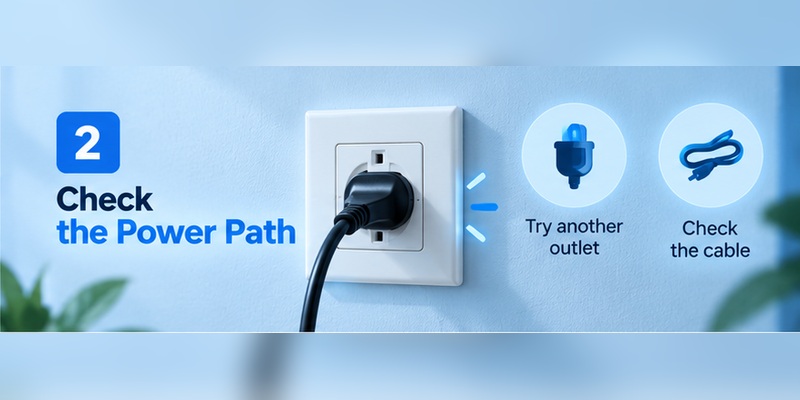
If your Hisense TV won’t turn on and there is no standby light, start outside the television.
A factory reset, remote pairing procedure, or phone remote cannot fix a TV that is not receiving usable power.
Test the wall power first
Plug a lamp, phone charger, or another simple device into the same outlet.
If that device does not work either, the TV may be fine. Check the breaker or GFCI outlet, or test the television from another known-good wall outlet.
For troubleshooting, plug the television directly into the wall rather than through:
- a surge protector;
- an extension lead;
- a smart plug;
- a switched power strip.
This removes another possible failure point.
Check the TV’s power connection
If your model has a detachable power cable, disconnect and reconnect it firmly at both ends.
Look for:
- a loose connector;
- visible cable damage;
- sharp bends;
- heat marks;
- a plug that no longer sits securely.
Then unplug the television from AC power for at least 60 seconds and reconnect it.
This is not just a generic internet trick. Hisense includes the 60-second disconnect-and-reconnect procedure in its own troubleshooting instructions for a TV that cannot be turned on.
If the outlet works, the cable is secure, and the TV still produces absolutely no standby light, stop treating the problem as a remote issue. An internal power fault becomes more plausible.
3. Solid Red Light: The TV Has Power but Is Not Waking
A solid red standby light changes the diagnosis.
The television is receiving at least standby power. Your next job is to determine why it is not transitioning into its normal operating state.
If the TV button works
Find the physical power button and press it normally once.
Depending on the model, it may be:
- underneath the center of the TV;
- near the bottom-right edge;
- on the rear-right side;
- incorporated into a small joystick-style control.
If the TV turns on, the power system is functioning well enough to start the set.
The problem is now much more likely to involve the remote, batteries, pairing, Bluetooth/IR communication, or a remote-specific fault.
Use the dedicated hisense tv remote not working guide instead of factory-resetting the television unnecessarily.
If the TV button does not work
Watch the red LED while pressing the TV’s physical button.
Does it:
- stay exactly the same;
- go dark;
- blink;
- briefly change before returning to red?
Any response means the TV is at least registering part of the startup attempt.
Next, disconnect the TV from AC power for 60 seconds, remove every HDMI and USB accessory, reconnect power, and try the physical button again.
That isolates the television from both a faulty remote and connected-device interference.
4. Blinking Red Light: Treat It as a Diagnostic Clue
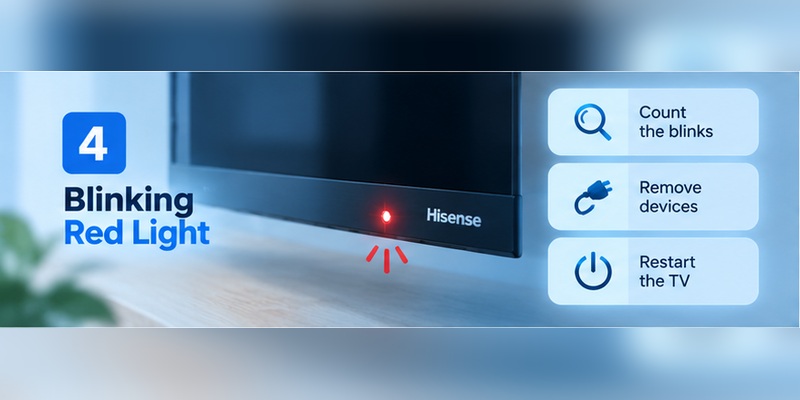
If your Hisense TV won’t turn on and the standby light blinks, resist the temptation to search for one universal table that says:
“2 blinks = this component, 3 blinks = that component.”
Hisense sells multiple TV platforms, generations, firmware versions, chassis designs, and board combinations. A blink sequence should therefore be matched to the exact model and documentation before it is treated as a component-level diagnosis.
Record three things instead.
- Count the flashes
Watch several complete cycles and note how many flashes occur before the pause and repeat.
- Watch the screen
Does it remain completely dark, briefly illuminate, or display the Hisense logo?
- Listen
Note any:
- relay click;
- startup sound;
- repeating click;
- audio followed by shutdown.
Next, disconnect HDMI devices, USB drives, soundbars, consoles, receivers, and streaming sticks.
Retry the television with only its power cable connected.
If the blinking behavior changes when an accessory is removed, that is useful diagnostic information.
If exactly the same blinking sequence remains, write down the complete TV model from the rear label before contacting Hisense or a repair technician.
Do not open the television chassis simply to inspect the power board unless you are qualified to work around mains-powered electronics.
Components inside a TV can remain hazardous after the television has been disconnected.
5. Sound but No Picture: Test for a Black-Screen Problem
Not every Hisense TV won’t turn on case is actually a no-power problem.
If you hear:
- startup audio;
- menu sounds;
- a connected source;
- volume changes;
- accessibility narration;
the TV may already be running.
The problem is the picture.
Darken the room and inspect the screen closely.
Then shine a flashlight at an angle across the display while the TV is supposedly on.
If you can see a faint menu, image, or movement behind the dark panel, the TV may have a backlight-related problem.
That does not prove exactly which component failed, but it immediately changes the troubleshooting direction.
Next, disconnect HDMI devices and try the TV with no external source attached.
If possible, cycle through the TV’s inputs.
A TV that produces audio and responds to controls but never produces a normal visible image should not be repeatedly factory-reset as though it were a software-only problem.
At that point, display or backlight diagnosis becomes more appropriate.
6. Logo Appears, Then the TV Freezes or Restarts
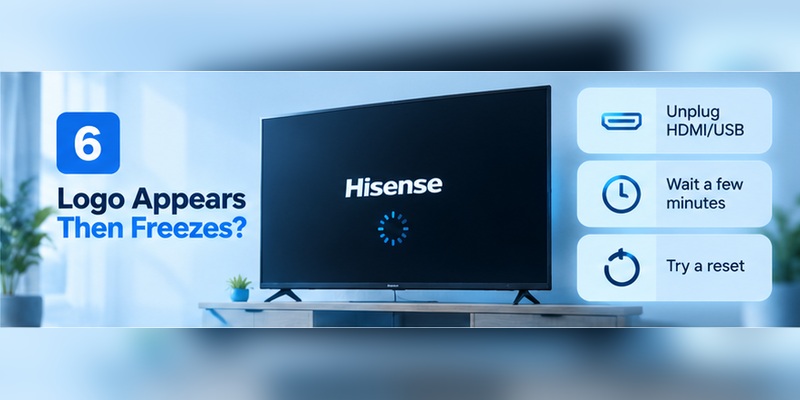
If you can see the Hisense logo, the television has already progressed considerably farther through the power-up process than a totally dead TV.
A set that:
- reaches the logo;
- freezes;
- restarts;
- repeats the logo;
should be treated as a startup or software problem first.
If the logo simply freezes
Remove all HDMI and USB devices.
Then power-cycle the TV and allow it enough time to complete its startup sequence.
Avoid disconnecting and reconnecting the power every few seconds while the television is attempting to boot.
If the TV eventually reaches the home screen, check for available system updates.
Hisense provides model-specific manuals and firmware resources through its official support system, rather than treating every TV as having identical software.
If the TV repeatedly reboots
Watch whether the restart occurs at approximately the same point each time.
That information matters.
A consistent restart point may indicate a different issue from a television that shuts down randomly.
Remove external devices first. If the loop remains, move to the reset section below and use the instructions for your TV’s actual operating system.
Do not use a Roku reset tutorial on a Google TV, or a VIDAA menu path on a Fire TV.
7. TV Turns On and Immediately Shuts Off
A TV that turns on for five seconds is not experiencing the same failure as a television that never receives standby power.
Observe exactly what happens before shutdown.
Does the TV:
- show the Hisense logo;
- show a normal picture;
- illuminate only the backlight;
- produce audio;
- click;
- blink afterward?
Remove all connected equipment first.
Hisense manuals document HDMI-CEC features that allow compatible devices to participate in power behavior, including TV auto power-on and device power control.
Therefore, a connected:
- soundbar;
- console;
- receiver;
- streaming device;
- HDMI switch;
is worth eliminating from the test.
Run the TV with only the power cable connected.
If it now remains on, reconnect one device at a time and retest.
Also allow the TV to cool if the problem appeared after prolonged use. Make sure ventilation openings are not blocked and the rear of the set has adequate airflow.
If the television shuts down at almost exactly the same stage every time with all accessories removed, record that behavior for support rather than continuing to repeat random resets.
8. Test the Physical Power Button Before Blaming the TV
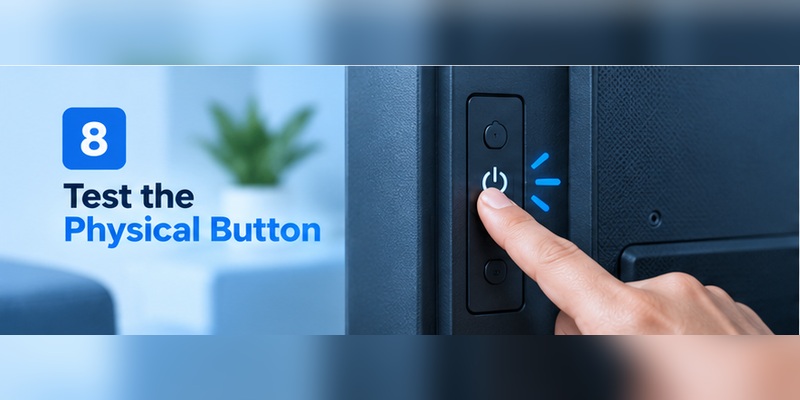
This is one of the most useful dividing lines in the entire troubleshooting process.
If the physical power button turns the TV on, then the television is clearly capable of receiving power and beginning normal operation.
The likely fault shifts toward the remote-control side.
You can then work through:
- batteries;
- battery contacts;
- IR obstructions;
- Bluetooth pairing;
- disconnected remote;
- damaged buttons;
- remote reset or re-pairing.
The existing hisense remote control manual explains the controls, while how to pair hisense remote to tv covers pairing separately.
If you cannot find the TV’s physical button, do not assume there isn’t one.
Check underneath the lower edge and around the rear cabinet. The exact position varies by model.
If the original remote is completely unavailable, see how to turn on hisense tv without remote rather than confusing “lost remote” with “dead TV.”
9. Disconnect HDMI, USB, and CEC Devices
A useful test when a Hisense TV won’t turn on is to simplify the television as much as possible.
You want:
TV + power cable. Nothing else.
Disconnect:
- all HDMI cables;
- game consoles;
- USB drives;
- streaming sticks;
- receivers;
- soundbars;
- USB-powered accessories;
- HDMI switches.
Then reconnect the TV directly to the wall and try its physical power button.
Why?
Because HDMI-CEC allows compatible devices to exchange commands related to input and power behavior. Hisense’s manuals explicitly document these CEC functions.
If the TV starts normally with nothing connected, reconnect devices one by one.
After adding each device, turn the television off and on again.
If one accessory consistently makes the problem return, you have found a much stronger lead than simply assuming the television itself has failed.
If nothing changes with all external devices disconnected, move deeper into software or hardware diagnosis.
10. Use the Correct Reset Path for Roku, Google TV, VIDAA, or Fire TV
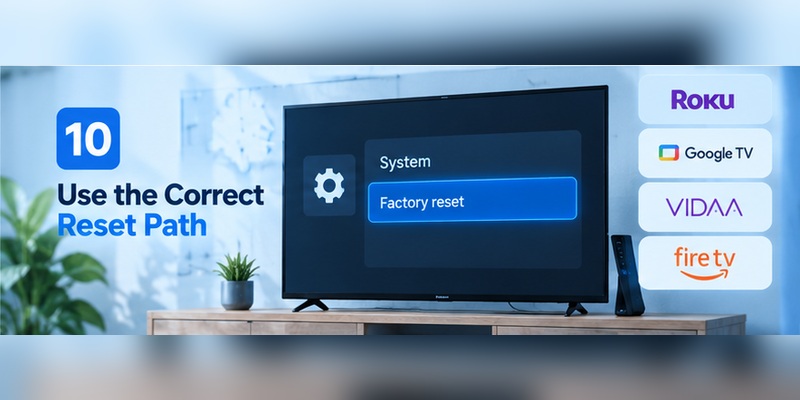
A factory reset should not be your first response to every Hisense startup problem.
It removes accounts, downloaded applications, preferences, and setup data. More importantly, it cannot fix a television that has no usable electrical power.
Use factory reset primarily when the television is reaching the software startup stage but:
- freezes;
- boot-loops;
- becomes inaccessible;
- repeatedly fails during normal startup.
| Hisense platform | Typical reset location | Important note |
| Roku TV | Settings > System > Advanced system settings > Factory reset | Some models include a recessed RESET button |
| Google TV | Settings > System > About > Reset > Factory reset | Wording varies by generation |
| Android TV | Device Preferences/About area > Factory reset | Older models differ |
| VIDAA | Settings > System/About TV > Restore or Reset to Factory Default | Check exact model manual |
| Fire TV | Settings > My Fire TV or Device & Software > reset options | Labels vary by Fire OS version |
Hisense Roku TV
Hisense’s Roku TV user guide places a full reset under:
Settings > System > Advanced system settings > Factory reset
The guide also documents a recessed physical RESET button on supported models for situations in which normal menus cannot be reached. A full factory reset removes setup information and requires the TV to be configured again.
Hisense Google TV
Hisense Google TV documentation shows:
Settings > System > About > Reset > Factory reset
on supported models.
Do not assume that every Android-based Hisense model uses identical wording. Older Android TV generations can use Device Preferences or other menu structures.
Hisense VIDAA TV
Hisense support documentation lists a route through the System/About TV area to restore factory defaults on supported VIDAA-region models.
Menu wording can vary with model, region, and firmware, so the exact model manual should take precedence over a generic internet tutorial.
Hisense Fire TV
Fire TV exposes restart and factory-reset functions under My Fire TV or Device & Software, depending on the current Fire OS interface.
Amazon’s official documentation confirms that this section contains functions such as restart and reset to factory defaults.
Amazon also recommends restart, HDMI/input checks, and CEC troubleshooting for blank or unresponsive Fire TV displays before assuming a full reset is required.
If you cannot operate the menus with the original remote, use the dedicated hisense tv factory reset without remote guide instead of experimenting with button combinations intended for another model.
11. Know When a Remote App Can Actually Help
This is where many troubleshooting articles become overly promotional.
A remote-control app is useful only when the television has enough power and connectivity to receive commands.
If your Hisense TV won’t turn on and has no standby light, installing an app on your phone will not repair the power path.
The TV itself needs to be able to respond.
However, imagine a different case:
- The television turns on from its physical button.
- The picture and operating system work normally.
- The original remote is broken, lost, or not responding.
Now a phone remote makes sense.
Use the hisense tv remote app guide to identify an appropriate control method for the TV platform.
You can also use Remote TV App as a phone-based fallback when the television is already powered, compatible, and available over the required connection.
The distinction is simple:
TV works + remote does not → a remote app can help.
TV has no power → a remote app cannot solve the underlying problem.
That makes the app a contextual solution rather than an interruption to the troubleshooting process.
12. When the Problem Is Probably Hardware
Software troubleshooting has a limit.
If the TV:
- is connected to a verified working outlet;
- has a firmly connected cable;
- remains completely dark;
- shows no standby light;
- does not respond to the physical power button;
- behaves the same with every external device removed;
internal hardware becomes a stronger possibility.
The same applies to a television that repeatedly clicks, shuts down at the same stage, displays a persistent fault pattern, or produces sound but never generates a usable picture.
| Symptom after basic tests | Possible area for professional diagnosis | Stop doing |
| No LED on known-good outlet | Power supply or internal power path | Repeated factory-reset attempts |
| Sound and controls work, no image | Backlight/display path | Treating it as a remote issue |
| Repeating boot/shutdown cycle | Firmware, main board, power/protection circuit | Rapid unplug/replug cycles |
| Same blinking fault with devices removed | Model-specific hardware or firmware fault | Assuming a universal blink-code meaning |
Notice that these are areas for diagnosis, not definitive diagnoses.
For example, a black screen does not automatically mean “replace the LED strips,” and a blinking light does not automatically prove that the main board has failed.
That distinction improves both accuracy and trust.
Do not remove the TV’s rear cover simply to “look for bad capacitors” unless you have the training and equipment to work safely around high-voltage electronics.
The exact model number also matters more than screen size.
Two 55-inch Hisense televisions may use different:
- operating systems;
- power boards;
- main boards;
- firmware;
- remotes;
- reset procedures.
13. What to Record Before Contacting Hisense Support
When basic troubleshooting does not solve the problem, collect useful evidence before contacting support or a technician.
Record:
- the full model number;
- serial number if requested;
- standby LED state;
- number of flashes if blinking;
- whether the blink pattern repeats;
- whether the physical power button works;
- whether audio is present;
- whether the backlight appears;
- whether a logo appears;
- whether external devices change the behavior;
- what happened after the 60-second power disconnect;
- whether the issue started after an update, outage, storm, or new HDMI device.
Hisense’s support system provides model-specific documentation, which is another reason the complete model number is important. Hisense also explains that the serial number is normally available on the rear product label beneath the barcode.
Instead of telling support only:
“My TV doesn’t work.”
you can report:
“The TV has a solid red standby LED. The physical power button causes the LED to go dark for three seconds, but the screen does not illuminate. I tested a known-good wall outlet, disconnected HDMI devices, and performed the 60-second AC disconnect.”
That information makes the next troubleshooting step far more targeted.
14. Frequently Asked Questions
Why won’t my Hisense TV turn on but the red light is on?
A solid red light normally indicates that the TV is receiving standby power. Test the physical power button, then disconnect AC power for 60 seconds and retry with HDMI and USB devices removed. If the physical button works but the remote does not, troubleshoot the remote rather than resetting the TV.
Why won’t my Hisense TV turn on and there is no red light?
Test the outlet with another device, bypass any power strip, check the power cord, and disconnect the television from AC power for 60 seconds. If a confirmed working outlet still produces no light or physical-button response, internal power hardware may require professional diagnosis.
How do I force restart a Hisense TV?
For a basic power restart, disconnect the television from AC power for about 60 seconds, reconnect it, and press the physical power button. Hisense documents this disconnect-and-reconnect procedure as a troubleshooting step. A factory reset is different because it erases configuration and account data.
Will a factory reset fix a Hisense TV that won’t turn on?
Only when the underlying issue is software-related. A reset may help a TV that freezes, boot-loops, or becomes stuck during startup. It cannot repair loss of electrical power or a failed display component. Always use the reset method for your exact Roku, Google TV, VIDAA, Android TV, or Fire TV model.
Can I turn on my Hisense TV with my phone if the remote is broken?
Yes, in compatible situations. The television must already be powered and able to communicate over the required network or platform connection. If the physical button works but the remote does not, a phone remote can be useful. It cannot revive a television with no standby power.
Why does my Hisense TV show the logo and then turn off?
That behavior points more toward a boot, firmware, protection, or power-stability issue than a completely dead TV. Remove HDMI and USB devices, retry a clean startup, and record whether shutdown happens at the same point each time before performing a platform-specific reset.
15. Final Thoughts
When a Hisense TV won’t turn on, the fastest route to the correct fix is not a list of 15 random tricks.
It is diagnosis.
No standby light? Start with AC power, the outlet, and power cable.
Solid red light? The TV has standby power, so test the physical button and remote.
Sound but no picture? Treat the case as a display problem rather than complete power loss.
Logo, restart loop, or blinking light? Record what happens during startup and investigate software, connected devices, or a model-specific fault.
The most useful first steps remain straightforward: verify the outlet, disconnect AC power for 60 seconds, remove external devices, and test the physical power button. Those steps align with Hisense’s own troubleshooting guidance rather than relying only on generic TV advice.
Only move to a factory reset when the television is reaching the software startup stage, and use instructions for the correct Hisense operating system.
If the TV works normally from its physical controls but the original remote does not, troubleshoot the remote or use a compatible Remote TV App rather than treating the television itself as dead.
If the set remains completely unresponsive on a known-good power source or repeatedly shows the same hardware-like fault behavior, stop cycling through software fixes and use the exact model number to get model-specific Hisense support or professional service.
Sources consulted: Hisense TV E-Manual; Hisense Roku TV User Guide; Hisense Google TV User Manual; Hisense UK TV Support and FAQs; Amazon Fire TV Support.
Download TV Remote App