
Philips Smart TV Remote App for iPhone: Download and Setup Guide
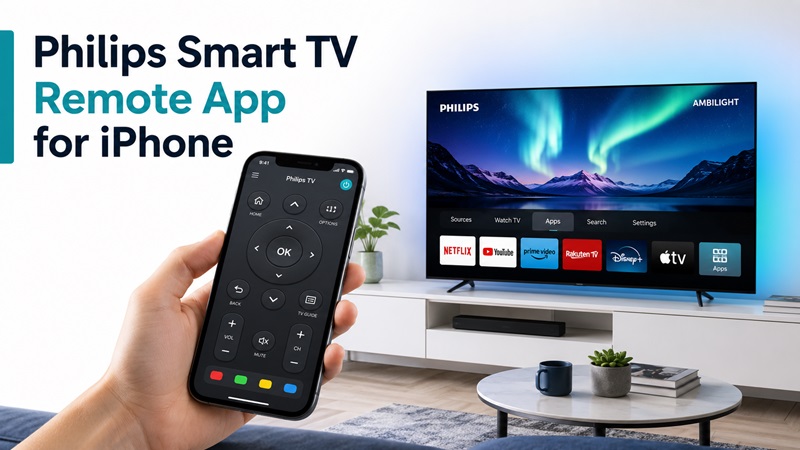
A missing or damaged physical remote can make it difficult to adjust the volume, switch inputs, search for a movie, or open your favorite streaming service. Fortunately, a philips smart tv remote app for iphone can turn a compatible iPhone into a practical touchscreen controller.
The correct app depends on the operating system inside your television. Some Philips models work with the Philips Smart TV app, while others run Google TV, Android TV, or Roku TV and require the mobile app created for that platform. A universal remote application may also work with selected Philips televisions.
In most cases, the iPhone and TV must be connected to the same local Wi-Fi network. The app then discovers the television and may ask you to enter a code shown on the TV screen. Once connected, a philips smart tv remote app for iphone may provide Volume, Channel, Home, Back, keyboard input, playback controls, and Ambilight features on supported models.
This guide explains how to choose, download, connect, and troubleshoot a philips smart tv remote app for iphone, including what to do when the application cannot find your television.
1. Is There a Remote App for Philips TV on iPhone?
Many users ask, is there a remote app for philips tv when the physical controller is lost or stops responding. The answer is yes, but no single app works with every Philips television.
The most common options include:
- Philips Smart TV app for compatible Philips models
- Google TV app for Philips Google TV
- Google Home for supported Google TV devices
- Roku mobile app for Philips Roku TV
- A third-party universal TV remote application
A philips smart tv app for iphone normally connects over Wi-Fi. The television needs to support network control, and both devices usually need to be on the same router.
Before choosing a tv remote app for philips tv, identify the operating system shown on the television. Look for:
- Google TV branding
- Android TV branding
- Roku home-screen tiles
- Philips Smart TV menus
- Saphi, Titan OS, or another Philips platform
Do not choose an application only because its title contains “Philips.” Check the developer name, supported platforms, privacy details, recent updates, and subscription terms.
A free download may still include advertisements, a limited trial, or premium controls. A philips smart tv remote app iphone listing should clearly explain which models and features it supports.
For many recent compatible televisions, the official platform app is the best place to start. A universal app becomes more useful when you own televisions from several brands or prefer one remote interface for multiple rooms.
📖 Read More Guides:
Remote TV App: How to Control Your Smart TV From Your Phone
2. Choose the Right iPhone Remote App for Your Philips TV
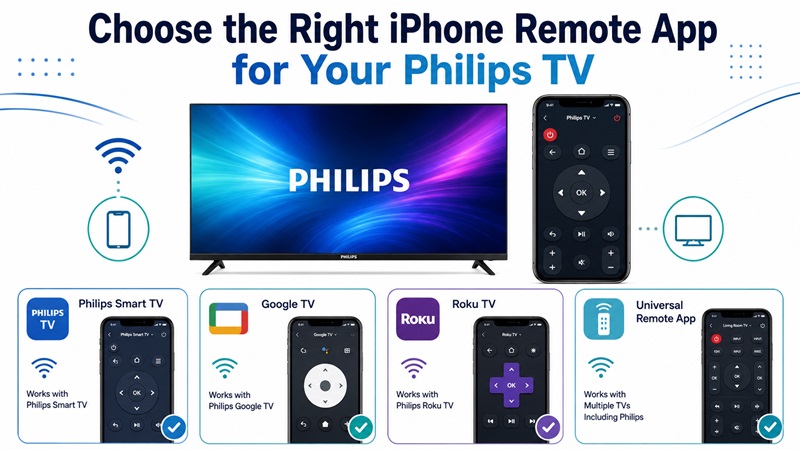
Choosing the correct philips smart tv remote app for iphone is the most important part of the setup. An application made for Philips Roku TV will not directly control a Philips Google TV, even though both displays carry the Philips brand.
| Philips TV type | Recommended starting app | Connection | Main consideration |
| Philips TV supported by Philips app | Philips Smart TV app | Same Wi-Fi | May support Volume, Channel, keyboard, and Ambilight |
| Philips Google TV | Google TV or Google Home | Same Wi-Fi | Pair using the code shown on the TV |
| Philips Android TV | Google TV app where supported | Same Wi-Fi | Compatibility varies by model |
| Philips Roku TV | Roku mobile app | Same Wi-Fi | Open Devices, select the TV, then tap Remote |
| Multiple television brands | Universal Remote TV App | Same Wi-Fi | Check compatibility and subscription terms |
| Non-smart Philips TV | Physical or universal remote | Infrared | iPhone has no built-in IR blaster |
Philips Smart TV App
The Philips Smart TV app is designed for compatible Philips televisions. Depending on the TV model and app version, it may provide:
- Volume controls
- Channel controls
- Home and Back
- Directional navigation
- Text entry
- Playback controls
- App launching
- Ambilight adjustment
A philips smart tv remote app for iphone may offer only partial support for older models. Check the app description and the television documentation before relying on a particular feature.
Philips Google TV
For a Philips Google TV, the Google TV app is normally the first option to test.
The app can provide:
- Directional navigation
- Touchpad navigation
- Home and Back
- Keyboard input
- Google Assistant access on supported configurations
- Playback controls
Google Home may also provide a remote interface for compatible Google TV devices.
Philips Android TV
Some Philips Android TV models can be controlled through the Google TV app, but availability and features may depend on the TV generation, region, and current software.
If the television does not appear, check whether it is running an older Android TV version and whether a platform-specific remote option is recommended in its manual.
Philips Roku TV
A Philips Roku TV should normally use the Roku mobile app. Once the iPhone and television are connected to the same Wi-Fi, open Devices, select the TV, and choose Remote.
Universal Remote Applications
A universal Remote TV App can be useful when you own multiple brands or want a consistent interface.
Before installing a universal philips tv remote control app for iphone, confirm that it supports:
- Your Philips TV platform
- Your model year
- Wi-Fi control
- Volume and input commands
- Keyboard or casting features
- The iOS version on your iPhone
📘 Find the Right Guide
How to Connect Firestick to New WiFi Without a Remote
3. How to Download a Philips Smart TV Remote App for iPhone
The safest way to install a philips smart tv remote app for iphone is through the Apple App Store.
Download the App Step by Step
- Unlock the iPhone.
- Open the App Store.
- Tap Search.
- Search for the app matching your TV platform.
- Open the application listing.
- Check the developer name.
- Read the compatibility section.
- Review the privacy information.
- Check for in-app purchases.
- Tap Get.
- Authenticate with Face ID, Touch ID, or your Apple ID.
- Open the application.
Possible searches include:
- Philips Smart TV
- Google TV
- Google Home
- Roku
- Universal TV Remote
When selecting a philips tv remote app for iphone, check whether the developer clearly explains which Philips operating systems are supported.
Review the App Permissions
The application may request:
- Local Network access
- Bluetooth
- Microphone access
- Photos and Videos
- Notifications
Local Network permission is usually essential. Without it, the app may have internet access but remain unable to discover the television.
On iPhone, open:
Settings > Privacy & Security > Local Network
Make sure the remote application is enabled.
Check Whether the App Is Really Free
A philips smart tv remote app free listing may be free to install but require payment for:
- Unlimited remote sessions
- Keyboard input
- Casting
- Ad removal
- Multiple televisions
- Premium layouts
Read the subscription screen before beginning a trial. Check whether the plan renews automatically and whether the basic controls remain available without payment.
Avoid Unverified Downloads
Do not install configuration profiles or applications from unofficial websites. App Store installation provides a safer and easier way to manage updates and subscriptions.
Once the philips smart tv remote app for iphone is installed, keep the TV turned on before opening the app for the first time.
💡 Discover Helpful Guides: How to Reset a VIZIO Smart TV Without a Remote
4. How to Connect Your iPhone to a Philips Smart TV Step by Step
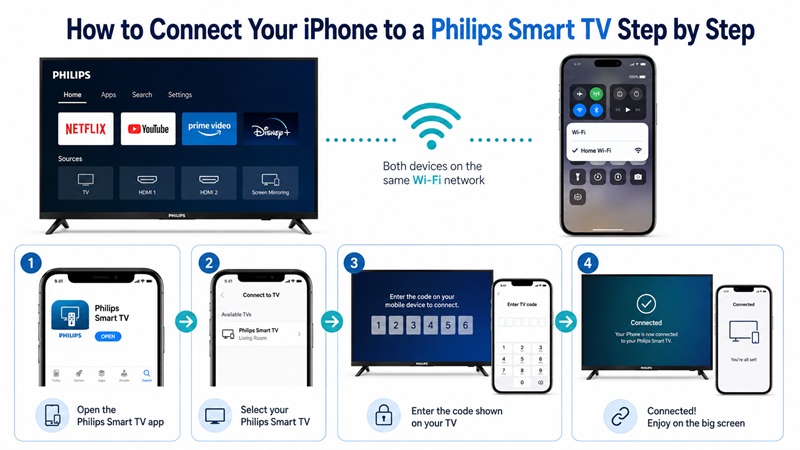
After installing the philips smart tv remote app for iphone, connect the television and iPhone through the same local network.
Connect Both Devices to the Same Wi-Fi
On the television:
- Turn on the Philips TV.
- Open Settings.
- Select Network or Wireless Settings.
- Check the connected Wi-Fi name.
On the iPhone:
- Open Settings.
- Tap Wi-Fi.
- Select the same network used by the TV.
- Wait for the Wi-Fi symbol to appear.
Avoid guest networks because they often prevent connected devices from seeing one another.
Networks with similar names may still be separate. For example:
- Home Wi-Fi
- Home Wi-Fi 5G
- Home Guest
The iPhone and TV should use the same local network whenever possible.
Connect With the Philips Smart TV App
To use the official-style Philips connection:
- Open the app.
- Keep the Philips TV powered on.
- Allow Local Network access.
- Wait while the app scans for televisions.
- Select your Philips TV.
- Look for a pairing code on the screen.
- Enter the code on the iPhone.
- Wait for confirmation.
- Open the remote interface.
- Test Volume, Home, Back, and navigation.
If the code expires, restart the pairing process and use the new code.
This is the standard approach for how to use phone as remote for philips tv when the television supports the Philips mobile application.
Connect a Philips Google TV
For a Philips Google TV:
- Open the Google TV app on the iPhone.
- Tap TVs nearby or the remote icon.
- Select the Philips television.
- Wait for a code to appear on the TV.
- Enter the code on the iPhone.
- Tap Pair.
- Test navigation and keyboard input.
Both devices must be on the same network.
Connect a Philips Roku TV
For a Philips Roku TV:
- Open the Roku mobile app.
- Allow Local Network access.
- Tap Devices.
- Wait for the Philips Roku TV to appear.
- Select the television.
- Wait for the status to show Connected.
- Tap Remote.
- Test navigation, playback, and Volume.
Test the Remote Controls
After connecting the philips smart tv remote app for iphone, test:
- Power, when supported
- Volume
- Mute
- Channel
- Home
- Back
- Directional pad
- Input
- Playback
- Keyboard
- Ambilight, where available
Some TVs disable their network connection when powered off. In that situation, the app may not turn on the TV unless network standby or a similar option is enabled.
📖 Read More Guides: How to Pair a New Roku Remote Without the Old One
5. What Can a Philips TV Remote App on iPhone Do?
The features available in a philips smart tv remote app for iphone depend on the television platform and model.
Control Basic TV Functions
Common controls include:
- Volume Up and Down
- Mute
- Channel changes
- Home
- Back
- Menu navigation
- Input selection
- Play and Pause
- Fast-forward and Rewind
These controls make the app useful when the physical remote is temporarily unavailable.
Type With the iPhone Keyboard
Typing a movie title with a traditional TV remote can be slow. A supported app may let you use the iPhone keyboard for:
- Search terms
- Email addresses
- App names
- Wi-Fi passwords
- Login details
Keyboard input may not work inside every app or protected password field.
Control Ambilight
Selected Philips televisions allow Ambilight adjustments through a compatible philips smart tv remote app for iphone.
Possible controls may include:
- Turning Ambilight on or off
- Choosing an Ambilight mode
- Adjusting intensity
- Synchronizing lighting with content
Availability depends on the TV and application.
Launch TV Applications
A compatible tv remote app for philips tv may provide shortcuts for installed streaming applications.
The app usually cannot open a service that is not already installed or supported by the television.
Control Playback
Playback controls can include:
- Play
- Pause
- Rewind
- Fast-forward
- Stop
- Previous
- Next
The exact controls differ between the Philips app, Google TV, Roku, and universal applications.
Cast Photos, Videos, or Music
Some remote applications include media-sharing or casting tools. Support depends on:
- TV platform
- File format
- App version
- Local network
- Content protection
A philips smart tv remote app free may offer basic remote controls while reserving casting for a paid version.
💡 Discover Helpful Guides: Roku Remote App Not Connecting to Your TV? How to Fix It
6. What to Do When the Philips TV Remote App Cannot Find Your TV
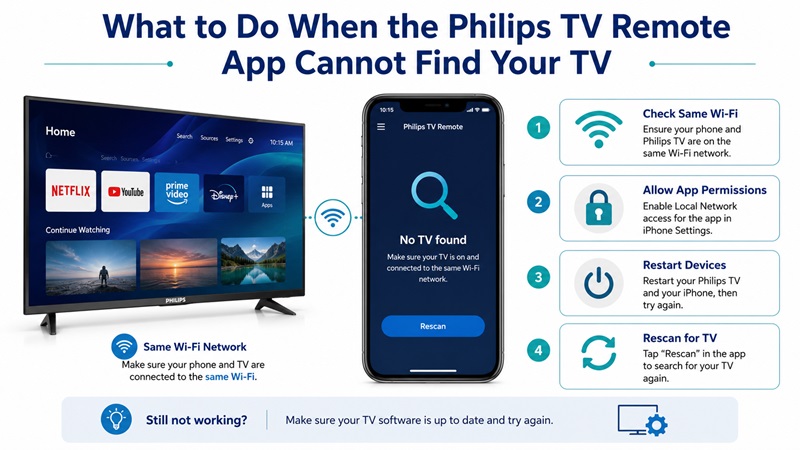
When a philips smart tv remote app for iphone cannot find the television, the most common causes are a network mismatch, missing permission, or incompatible app.
| Problem | Likely cause | Recommended fix |
| Philips TV does not appear | Different Wi-Fi networks | Connect both devices to the same network |
| App sees TV but pairing fails | Expired code | Restart pairing and enter the new code |
| No devices are discovered | Local Network access is disabled | Enable permission in iPhone Settings |
| App repeatedly disconnects | Weak Wi-Fi or VPN | Restart router and disable VPN temporarily |
| Volume works but navigation does not | Partial app compatibility | Use the app for the correct TV platform |
| Philips app does not support the TV | Model or regional limitation | Try Google TV, Roku, or a universal app |
| TV is offline | Network connection failed | Reconnect the television first |
| App freezes during setup | App data or software issue | Update or reinstall the app |
Confirm the Same Wi-Fi Network
Compare the full network name on the television and iPhone.
If the TV uses Ethernet, the iPhone should connect to Wi-Fi from the same router.
Avoid:
- Guest Wi-Fi
- Public Wi-Fi
- Hotel networks
- Separate mesh networks
- Isolated smart-device networks
Enable Local Network Access
On iPhone:
- Open Settings.
- Select Privacy & Security.
- Tap Local Network.
- Enable the remote app.
- Return to the Home Screen.
- Reopen the application.
You can also open the app’s individual Settings page and enable Local Network there.
Disable VPN Temporarily
A VPN may prevent local discovery by routing app traffic away from the home network.
Turn off the VPN, reconnect the iPhone to Wi-Fi, and scan again. Restore the VPN after testing.
Restart Everything
Use this order:
- Force-close the app.
- Restart the iPhone.
- Turn off the Philips TV.
- Unplug the TV for about 30 seconds.
- Restart the router.
- Wait for Wi-Fi to return.
- Connect the TV.
- Connect the iPhone.
- Open the app and scan again.
Update the App and TV
Open the App Store and install any available update for the philips smart tv app for iphone.
Then check the TV settings for a software update. Restart the television after installation.
Reinstall the Application
When the philips tv remote app for iphone remains frozen or cannot pair:
- Delete the application.
- Restart the iPhone.
- Reinstall it from the App Store.
- Allow Local Network access.
- Connect both devices to the same Wi-Fi.
- Start a new pairing session.
Confirm the Correct TV Platform
A philips smart tv remote app for iphone cannot control every Philips operating system.
If the Philips app does not support the television, try:
- Google TV app
- Google Home
- Roku mobile app
- A compatible universal Remote TV App
🧭 Explore Guides: Why Does the Firestick Remote App Keep Disconnecting?
7. Can You Use an iPhone Remote App With a Non-Smart Philips TV?
A philips tv remote app for non smart tv usually cannot control the television directly because a non-smart TV lacks Wi-Fi remote support.
An iPhone also does not contain a built-in infrared blaster. Installing an infrared app does not add the missing hardware.
For direct phone control, the television normally needs:
- A network connection
- Compatible remote-control software
- A supported operating system
- A discoverable local-network interface
Options for a Non-Smart Philips TV
Use:
- The original Philips remote
- A replacement remote
- A programmable universal remote
- A compatible external IR accessory
- A streaming device with its own mobile app
Add a Streaming Device
Connecting a Roku, Fire TV, Google TV, or Apple TV device can give the iPhone a mobile remote for that streaming platform.
However, the app may control only the streaming device. Television functions such as Power, Volume, and Input depend on:
- HDMI-CEC
- Infrared commands
- The physical streaming-device remote
- TV compatibility
Therefore, how to use phone as remote for philips tv is much easier with a Smart TV than with a traditional offline television.
When users ask is there a remote app for philips tv without smart features, the practical answer is that an app alone is usually insufficient.
🗺️ Browse How-To Guides: LG ThinQ App Not Finding TV: Complete Fix Guide
8. Which Philips TV Remote App Should You Use?
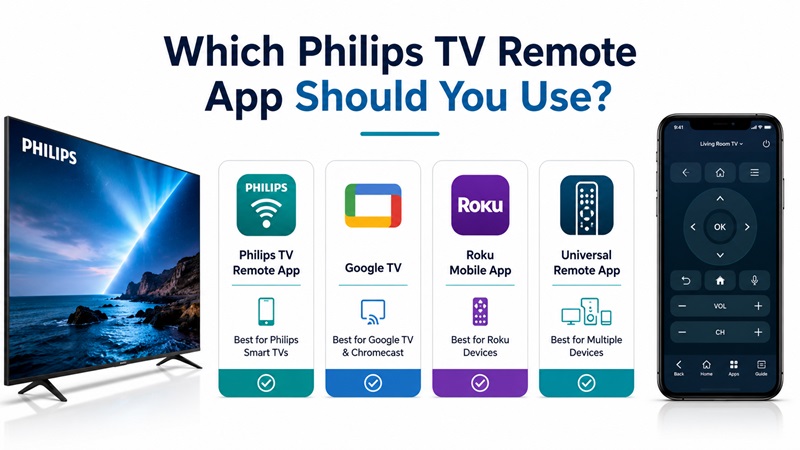
The best philips smart tv remote app for iphone depends on the television’s operating system.
| Your Philips TV | Recommended starting option |
| Philips Smart TV supported by Philips app | Philips Smart TV app |
| Philips Google TV | Google TV or Google Home |
| Philips Android TV | Google TV app where supported |
| Philips Roku TV | Roku mobile app |
| Several television brands | Universal Remote TV App |
| Non-smart Philips TV | Physical or universal remote |
Start with the official app for the TV platform. It is more likely to support the correct navigation system, keyboard input, and platform-specific features.
Use a universal philips tv remote control app for iphone when:
- You own televisions from multiple brands.
- You want one interface for several rooms.
- You need casting and keyboard tools.
- The official app is unavailable in your region.
- You prefer a different remote layout.
Before installing any Remote TV App, review:
- Developer identity
- Supported Philips models
- App Store rating
- Recent update history
- Subscription pricing
- Free feature limits
- Local Network permission
- Privacy information
The best philips smart tv remote app for iphone should reliably control the features you use most. Test Volume, Home, Back, navigation, keyboard input, Power, and Input before considering the setup complete.
A philips smart tv remote app iphone solution is especially useful when the physical controller is missing, but it also provides faster text entry and convenient access to streaming services.
For the most reliable connection, keep the iPhone and television on the same Wi-Fi network, enable Local Network permission, and use the application made for the TV platform.
Once paired successfully, a philips smart tv remote app for iphone can become a convenient backup or everyday controller for a compatible Philips television.
