
Remote TV App: How to Control Your Smart TV From Your Phone
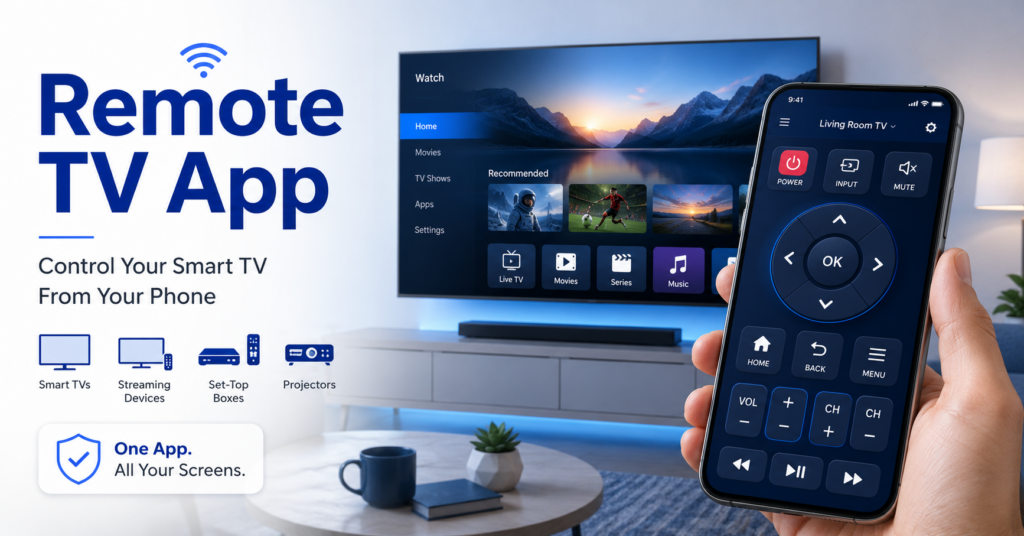
A missing remote can interrupt a movie night, make it difficult to change the volume, or leave you unable to switch inputs. Even when the original controller is nearby, entering passwords, searching for a show, or managing several TVs with different remotes can feel unnecessarily slow.
A remote TV app turns a compatible smartphone or tablet into a virtual television controller. Depending on the TV and connection method, it may let you adjust the volume, change channels, open apps, switch inputs, navigate menus, control playback, and type with your phone’s keyboard.
Most smart TV control apps connect through the same Wi-Fi network as the television. Some devices also use Bluetooth, infrared, or HDMI-CEC. The available controls depend on the television’s brand, model, operating system, and network settings.
This guide explains how a remote TV app works, how it compares with a physical remote, which features to look for, and how to choose an option for Android, iPhone, or popular smart TV platforms.
1. What Is a Remote TV App?
A remote TV app is mobile software that sends control commands from a phone or tablet to a television, smart monitor, streaming player, or media box.
Instead of pressing buttons on a traditional controller, you interact with a virtual remote displayed on the phone screen. A typical interface includes a power button, navigation pad, volume controls, channel buttons, playback tools, and shortcuts to the TV’s Home screen.
Some apps are developed for a specific manufacturer or smart TV platform. Others are designed as universal controllers that can connect to several brands.
A television control app can serve several purposes:
- Replace a lost or damaged physical remote
- Provide a second controller for the household
- Make searching and typing faster
- Control several televisions from one phone
- Launch streaming apps more quickly
- Navigate with a touchpad instead of arrow buttons
- Manage compatible streaming devices
- Cast photos or videos to the television
Not every app provides every function. A basic infrared controller may only offer power, volume, channels, and input selection. A Wi-Fi-based remote TV app may provide a keyboard, touchpad, voice features, app shortcuts, and device profiles.
Compatibility depends on more than the logo on the television. Two TVs from the same manufacturer may run different operating systems or use different connection protocols. Always check the full model number, software platform, and app requirements before installing a controller.
💡 Discover Helpful Guides
How to Connect Firestick to New WiFi Without a Remote
2. Remote TV App vs. Physical Remote
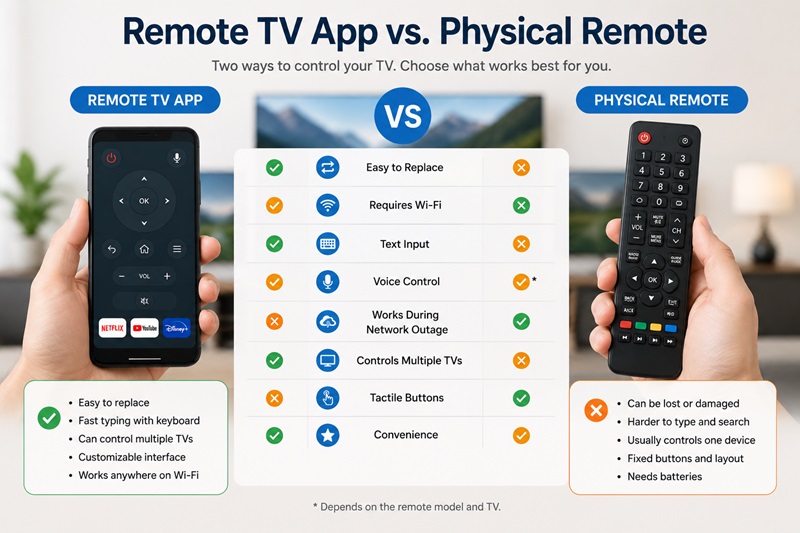
A remote TV app and a physical controller can perform many of the same basic actions, but they offer different advantages.
| Feature | Remote TV App | Physical Remote |
| Easy to replace | Downloadable | Requires another device |
| Text input | Fast phone keyboard | Often slow |
| Requires Wi-Fi | Usually | Usually not |
| Requires phone battery | Yes | Uses separate batteries |
| Tactile buttons | No | Yes |
| Controls multiple TVs | Sometimes | Usually one |
| Customizable layout | Often | Rarely |
| Works during network problems | Limited | Usually |
| App shortcuts | Common | Model-dependent |
| Easy to locate | Usually | Can be misplaced |
A mobile controller is especially useful when the original remote is missing or its batteries are dead. Most people already keep their phones nearby, so opening an app can be faster than searching between couch cushions.
Phone-based controls are also better for text entry. Typing an email address, Wi-Fi password, or movie title with a standard directional pad can take time. A mobile keyboard makes the same task much easier.
A physical remote still has important advantages. It usually works immediately, does not depend on the home network, and provides tactile buttons that can be operated without looking at a screen. It is also more convenient for guests, children, or anyone who does not want to unlock a phone before adjusting the volume.
The best setup is often to keep both. Use the physical controller for everyday actions and the remote TV app for typing, advanced navigation, multi-device control, or situations where the original remote is unavailable.
📘 Find the Right Guide: How to Reset a VIZIO Smart TV Without a Remote
3. What Can You Do With a Remote TV App?
The exact capabilities vary, but most apps begin with the essential controls found on a standard television remote.
Control power and sound
A compatible app may let you:
- Turn the television on or off
- Increase or decrease the volume
- Mute or unmute the sound
- Control a connected soundbar
- Adjust playback volume
Power-on support can be limited. When a television is fully powered down, it may disconnect from Wi-Fi and become unavailable to the app. Some TVs include settings such as Network Standby, Quick Start, Mobile Power On, or Wake-on-LAN to maintain a limited connection.
Change channels and inputs
A remote TV app may provide channel buttons, a numeric keypad, or a program list. It may also let you switch between HDMI ports, live television, game consoles, streaming sticks, and other connected devices.
Navigate the TV interface
Most smart TV controllers include:
- Directional navigation
- Select or OK
- Home
- Back
- Menu
- Exit
- Playback controls
Some replace the directional pad with a touch-sensitive trackpad. Swiping on the phone then moves the selection around the television interface.
Type with a phone keyboard
Keyboard support is one of the most useful app features. It can simplify:
- Streaming-service searches
- Wi-Fi passwords
- Account logins
- Web browsing
- App-store searches
- Long text fields
Keyboard input may not work in every app or protected password field.
Open favorite services
Some controllers include customizable shortcuts for frequently used streaming platforms. Others automatically display the apps installed on the television.
Use voice and casting features
Depending on the TV and mobile platform, an app may include voice search, media casting, photo sharing, or screen mirroring. These are related features, but they are not guaranteed in every remote TV app.
📖 Explore Articles: How to Control a Samsung TV With Your Phone Without WiFi
4. How Does a Remote TV App Connect to Your Television?
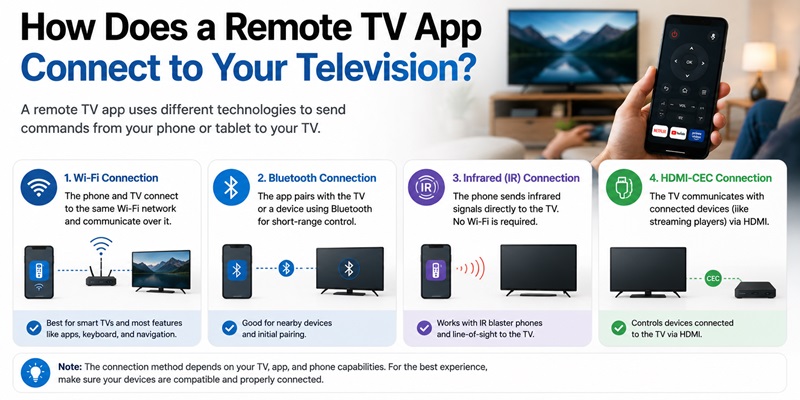
A mobile controller must have a way to transmit commands to the television. The four most common methods are Wi-Fi, Bluetooth, infrared, and HDMI-CEC.
Wi-Fi connection
Wi-Fi is the most common method for modern smart TVs.
The phone and television usually need to be connected to the same local network. When the app opens, it searches for compatible devices and displays the TVs it can find. The user selects a television and approves the connection.
A typical pairing process looks like this:
- Connect the television to your home Wi-Fi.
- Connect the phone to the same network.
- Open the remote TV app.
- Allow local-network or nearby-device access.
- Select the television from the device list.
- Accept the pairing request on the TV.
- Enter a code if one appears.
- Test the basic controls.
Wi-Fi provides more than simple button commands. It can support text entry, app information, device names, thumbnails, touchpad navigation, and other smart features.
Bluetooth connection
Bluetooth may be used to discover nearby devices, complete initial pairing, or communicate directly with selected TVs and media players.
The phone must remain within Bluetooth range. You may also need to allow nearby-device permissions before the app can detect the television.
Bluetooth support varies significantly. An app using Bluetooth with one platform may still require Wi-Fi for advanced features.
Infrared connection
Infrared control works more like a traditional remote. The phone sends a line-of-sight signal directly to the TV.
For this method, the phone must have a built-in IR blaster. The user selects the television brand, tests several command profiles, and points the phone toward the TV.
Infrared has several benefits:
- It may work without Wi-Fi
- No network pairing is required
- It can support older televisions
- Basic commands respond quickly
However, many modern phones do not include infrared hardware. iPhones do not have a built-in traditional IR blaster, so an iPhone-based remote TV app normally relies on Wi-Fi or Bluetooth.
HDMI-CEC control
HDMI-CEC allows a television to send commands to compatible devices connected through HDMI.
For example, a mobile app may control the TV, while the television passes navigation or power commands to a streaming player. Feature names vary across manufacturers, and not every device supports the same set of commands.
5. How to Set Up a Remote TV App Step by Step
The setup process is usually simple, but checking compatibility first can prevent connection problems.
Step 1: Identify the television
Find the TV’s:
- Brand
- Full model number
- Manufacturing year
- Smart operating system
- Current software version
- Wi-Fi or Bluetooth capabilities
The model number is usually printed on the back of the television or available under Settings, Support, About, or Device Information.
Step 2: Identify the smart TV platform
The platform can be more important than the manufacturer. A television may run Google TV, Android TV, Roku TV, Fire TV, webOS, Tizen, VIDAA, or another system.
Manufacturers such as TCL and Hisense sell televisions with different platforms. An app designed for one TCL model may not work with another TCL television running a different operating system.
Step 3: Choose the app type
You generally have three choices:
- Manufacturer-specific app
- Platform-specific app
- Universal controller
A manufacturer app is often the safest place to start when you own one supported TV. A platform app may be more suitable when the television uses a major ecosystem such as Google TV or Roku. A universal remote TV app is convenient when the home contains several brands.
Step 4: Install the app
Use the Apple App Store or Google Play. Confirm the developer name and check the compatibility description before installing.
After installation, the app may request access to:
- Local network
- Nearby devices
- Bluetooth
- Microphone
- Notifications
Only enable permissions needed for the features you plan to use.
Step 5: Connect the phone and TV
Connect both devices to the same Wi-Fi network. Avoid placing one device on a guest network because guest networks often prevent devices from communicating with each other.
Open the app and wait for the television to appear.
Step 6: Complete pairing
Select the TV and approve the connection request. Some televisions display a four-digit or six-digit pairing code. Enter it into the phone when requested.
Step 7: Test the controls
Before relying on the app, test:
- Power
- Volume
- Mute
- Home
- Back
- Navigation
- Input selection
- Playback
- Keyboard
Save the device with a clear name such as “Living Room TV” or “Bedroom TV.”
📖 Read More Guides: How to Pair a New Roku Remote Without the Old One
6. Universal Remote TV Apps vs. Brand-Specific Apps
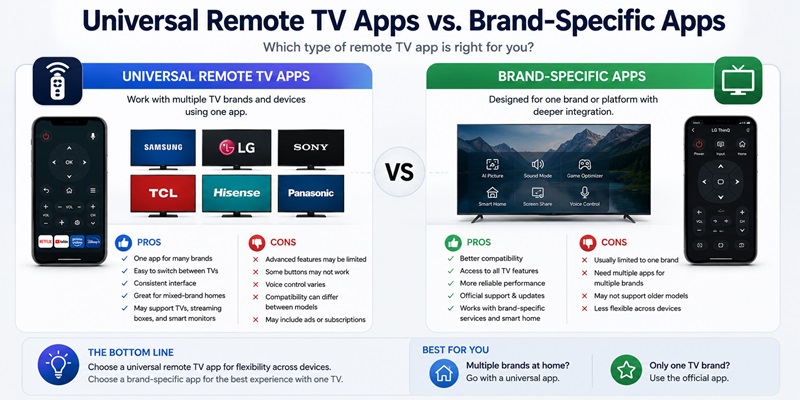
Choosing between a universal controller and an official app depends on the devices you own and the features you need.
Universal remote TV apps
A universal remote TV solution aims to control multiple television brands or smart platforms through one interface.
This approach is useful in homes containing different TVs. Instead of opening one app for the living room and another for the bedroom, users can save both devices in a single controller.
Advantages may include:
- Support for multiple brands
- One consistent interface
- Quick device switching
- Custom button layouts
- Saved rooms or device profiles
- Support for TVs and streaming players
- Fewer apps installed on the phone
Potential limitations include:
- Advanced functions may be unavailable
- Some buttons may work differently by model
- Voice control may not be supported
- Compatibility may vary between TV generations
- A subscription may be required
- Official technical support may be limited
A universal remote TV app is most valuable when it clearly lists supported platforms and provides a reliable device-selection system.
Brand-specific apps
Brand-specific apps are developed for one manufacturer or ecosystem. They may integrate more closely with the television’s settings, smart-home controls, account system, casting features, or installed apps.
Potential benefits include:
- Better model-specific compatibility
- More reliable device discovery
- Official documentation
- Deeper television settings
- Smart-home integration
- Better access to platform features
The main disadvantage is fragmentation. If the household owns several brands, users may need several different apps.
| Feature | Universal App | Brand-Specific App |
| Multiple brands | Usually | Rarely |
| Basic controls | Usually | Usually |
| Advanced TV settings | Varies | More likely |
| Unified interface | Yes | No |
| Official support | Limited | More likely |
| Best for | Mixed-device homes | One ecosystem |
📘 Find the Right Guide: Why Does the Firestick Remote App Keep Disconnecting?
7. Remote TV Apps for Android and iPhone
Both major mobile platforms can control smart TVs, but their hardware and permission systems differ.
Android remote TV options
An android remote TV solution may communicate through Wi-Fi, Bluetooth, or infrared, depending on the phone.
Android users can choose among:
- Manufacturer apps
- Platform controllers
- Universal apps
- Google TV controls
- Infrared controllers on supported phones
- Quick Settings shortcuts on compatible devices
The availability of an IR blaster is the main hardware advantage on selected Android phones. With compatible hardware, the phone can send basic commands to older televisions without using the local network.
For Wi-Fi control, Android may request Nearby Devices, Bluetooth, or local-network permissions. The exact wording depends on the Android version and phone manufacturer.
iPhone and iPad options
An iOS remote TV app generally communicates through Wi-Fi or Bluetooth. iPhones do not include a built-in traditional infrared transmitter.
An iPhone or iPad may control:
- Compatible smart TVs
- AirPlay-enabled televisions
- Apple TV devices
- Manufacturer-supported televisions
- Multiple brands through a universal controller
The apple remote TV experience is closely integrated with Apple TV hardware through the remote available in Control Center. Other television brands usually require their platform app, manufacturer app, or a compatible third-party controller.
On iOS, users may need to enable Local Network access. Without that permission, a remote TV app may open normally but fail to discover televisions on the home Wi-Fi.
💡 Discover Helpful Guides: LG ThinQ App Not Finding TV: Complete Fix Guide
8. Remote TV App Compatibility by Brand
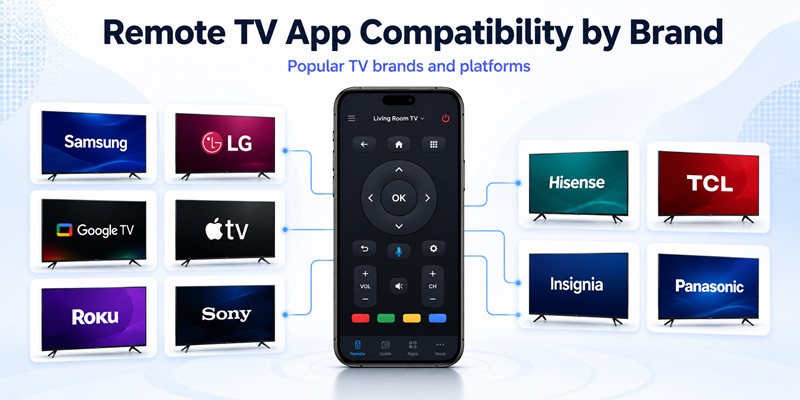
A television’s brand is a useful starting point, but the model and operating system determine the best control method.
Samsung Remote TV
A compatible samsung remote TV setup may use Samsung’s connected-device ecosystem or a supported universal controller.
Depending on the model, common features can include power, volume, channel selection, input switching, navigation, installed apps, and text entry.
Older Samsung televisions may offer fewer network controls than newer smart models. Confirm the TV’s model year and whether mobile control is enabled in its connection settings.
LG Remote TV
An lg remote TV controller commonly communicates through the same Wi-Fi network as an LG smart television.
Feature support can depend on the webOS generation. Compatible models may offer directional controls, volume, inputs, app launching, keyboard entry, or a touchpad-style interface.
A brand-specific controller may provide deeper integration, while a universal app may be preferable in a mixed-brand household.
Google Remote TV
A google remote TV experience usually refers to controlling a Google TV or Android TV device from a compatible mobile controller.
Common functions include directional navigation, volume, Home, Back, playback controls, and phone keyboard input. The phone typically discovers nearby compatible devices and pairs using a code displayed on the television.
Some television brands use Google TV on selected models, so the platform may determine compatibility more than the logo on the front of the TV.
Roku Remote TV
A roku remote TV solution can control a Roku streaming player or a television running Roku TV.
Depending on the supported device and app, users may access navigation, playback, keyboard entry, voice features, channel launching, and private listening.
The phone and Roku device usually need to be connected to the same network. A universal controller may provide basic functions, while a platform-focused app may include more Roku-specific features.
Hisense Remote TV
Choosing a hisense remote TV controller requires identifying the television’s operating system first.
Hisense sells models running platforms such as Google TV, Android TV, Roku TV, Fire TV, and VIDAA. Each platform may use a different official or compatible app.
Do not choose a controller based only on the Hisense name. Check the Home screen, model information, or product documentation to determine the correct ecosystem.
Sony Remote TV
Many current Sony smart televisions use Google TV or Android TV. A sony remote TV solution may therefore connect through platform-level controls rather than a Sony-only protocol.
Supported features may include volume, inputs, navigation, keyboard entry, playback, and voice commands. Compatibility varies across older Sony smart TV generations.
TCL Remote TV
A tcl remote TV app must match the platform installed on the television.
TCL sells models using Roku TV, Google TV, Android TV, and Fire TV. A controller designed for a Roku-based TCL television may not work with a Google TV model, even though both carry the same manufacturer name.
Check the platform logo or software information before selecting an app.
Insignia Remote TV
An insignia remote TV solution may be linked to the platform built into the television, such as Fire TV on supported models.
Find the model number and platform name, then choose the relevant official or universal controller. Basic functions may include power, volume, navigation, input selection, and playback.
Panasonic Remote TV
Support for a panasonic remote TV app can vary significantly by model year and region.
Some Panasonic televisions support control over Wi-Fi, while older models may require infrared. Check the product documentation for mobile control, network remote, or companion-app compatibility before installing a controller.
🗺️ Browse How-To Guides: Philips Smart TV Remote App for iPhone: Download and Setup Guide
9. How to Choose the Best Remote TV App
The best controller is not necessarily the one with the longest feature list. It is the one that works reliably with your television and includes the functions you use most often.
Confirm compatibility first
Before installing a remote TV app, check:
- Television brand
- Full model number
- Smart operating system
- Manufacturing year
- Phone operating system
- Wi-Fi or Bluetooth requirements
- Supported countries
- Required TV settings
Avoid apps that promise complete support for every television without explaining how compatibility works.
Check the essential controls
A practical controller should provide:
- Power
- Volume
- Mute
- Navigation
- Home
- Back
- Input selection
- Playback
Channel buttons and a numeric keypad are important for live television users but may be less relevant for streaming-only households.
Look for convenience features
Useful optional features include:
- Phone keyboard
- Touchpad
- Voice search
- Favorite channels
- Streaming shortcuts
- Multiple TV profiles
- Custom layouts
- Widgets
- Lock-screen access
- Haptic feedback
A feature is only valuable when it works with your television. Check whether the developer labels features as universal or model-dependent.
Review privacy and permissions
A TV controller usually needs local-network access. Bluetooth, microphone, or notification permissions may support optional features.
Be cautious when a remote TV app requests access to unrelated data such as contacts, precise location, photos, or messages without a clear reason.
Review:
- Developer identity
- Privacy policy
- Data collection
- Advertising
- Subscription terms
- Free-trial conditions
- In-app purchases
- Recent user reviews
Compare pricing
TV remote apps may be:
- Free
- Ad-supported
- Freemium
- One-time purchase
- Monthly subscription
- Annual subscription
Check whether basic functions such as volume and navigation require payment. Also confirm how to cancel a free trial before starting one.
10. Can One Remote TV App Control Multiple TVs?
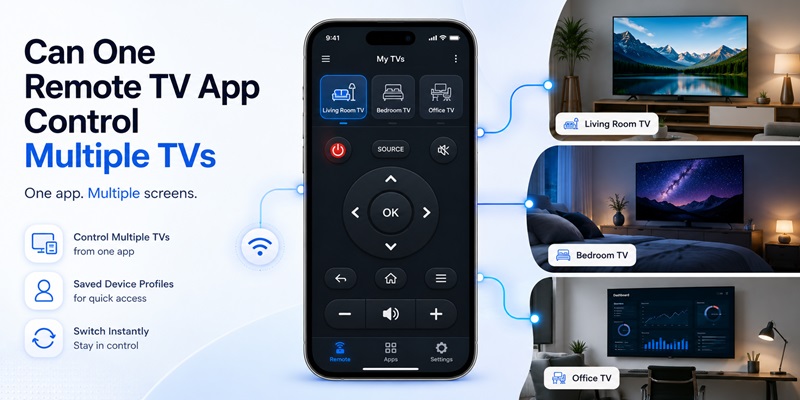
Some universal apps can save several televisions or media devices under one account or interface.
This is useful when a home contains:
- A Samsung TV in the living room
- An LG TV in the bedroom
- A Roku device in another room
- A smart monitor in an office
- Several rental or hospitality televisions
A multi-device remote TV app may allow users to name each device, assign it to a room, save a custom layout, and switch controllers without repeating the pairing process.
Look for features such as:
- Device profiles
- Custom names
- Room groups
- Connection history
- Automatic brand detection
- Favorite devices
- Quick switching
Support for multiple devices does not mean every television receives the same features. One TV may support power, keyboard, and app shortcuts, while another only supports basic navigation and volume.
Network configuration also matters. Devices on a separate guest Wi-Fi, isolated network, or different physical location may not be available in the same session.
For mixed-brand homes, a universal remote TV controller can reduce app clutter, but users should still keep official apps available when they need platform-specific settings.
11. How to Download a Remote TV App
Before you download remote TV app software, identify the television’s brand, model, and smart platform. This prevents you from installing an app that looks appropriate but uses an incompatible control system.
Use a trusted app store
Download apps through:
- Apple App Store
- Google Play
- An official manufacturer page that redirects to a verified store listing
Avoid unofficial APK sites, modified app packages, or download pages that imitate a television brand.
Verify the developer
Check the developer name carefully. Fake controllers may use familiar logos, product images, or brand names without being affiliated with the manufacturer.
Read the app description to confirm:
- Supported TV platforms
- Compatible model years
- Required connection method
- Android or iOS requirements
- Free and paid features
- Subscription terms
Review recent feedback
Recent reviews are more useful than the total rating. Look for comments from people using a TV similar to yours.
Pay attention to reports about:
- Device discovery
- Connection stability
- Excessive advertising
- Unexpected subscriptions
- Delayed button response
- Missing controls
- Customer support
Check permissions and payment terms
A Wi-Fi-based remote TV app normally needs local-network access. Some features may also require Bluetooth, microphone, or notifications.
Do not approve unrelated permissions without understanding why they are needed.
Before starting a trial, confirm:
- Trial length
- Renewal price
- Billing frequency
- Cancellation process
- Included features
Install and connect
After installation:
- Connect the phone and TV to the same Wi-Fi.
- Open the app.
- Allow necessary local-network access.
- Select the television.
- Approve the pairing request.
- Enter the displayed code if required.
- Test power, volume, navigation, playback, and input controls.
- Save the device with a clear name.
A well-matched remote TV app can replace essential remote functions, simplify typing, and keep several televisions within reach from one phone.
Download a trusted remote TV app, connect your television, and start controlling your TV from your phone
