
Turn Off Audio Guidance on LG TV Remote: Step-by-Step Guide for LG Smart TVs
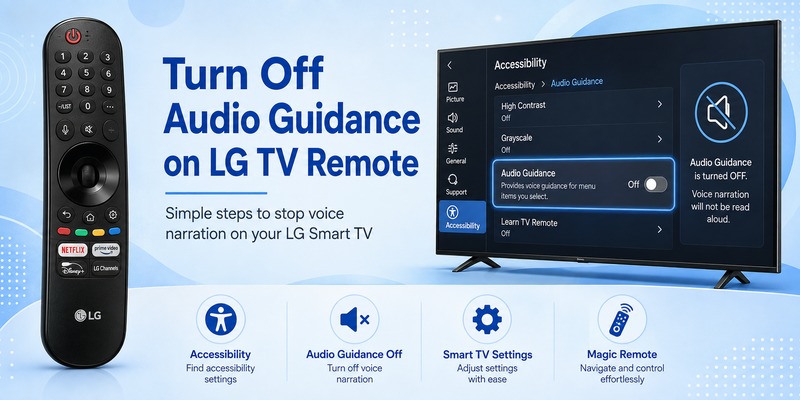
If your LG TV suddenly starts reading menu items, volume levels, channel information, settings, or other on-screen text aloud, Audio Guidance has probably been enabled. The good news is that you can usually turn off audio guidance on LG TV remote in less than a minute.
Audio Guidance is an accessibility feature designed to help visually impaired users navigate LG TV menus. When enabled, the television can speak menu names and other interface information as you move around webOS. LG allows the feature to be enabled or disabled from the Accessibility settings.
However, users often confuse Audio Guidance with Audio Description. The two features sound similar but solve different accessibility needs. Audio Guidance generally reads the TV interface, while Audio Description may narrate visual events taking place in a movie, TV show, or broadcast.
Understanding that difference is important when trying to turn off audio guidance on LG TV remote, because changing the wrong setting may leave the unwanted voice playing.
This guide explains the quickest methods for current LG TVs, older webOS models, Magic Remote users, and situations where narration continues even after Audio Guidance is disabled.
Why Is Your LG TV Talking?
Before you turn off audio guidance on LG TV remote, determine what type of voice you are hearing.
If the TV says things such as menu names, volume levels, selected settings, or navigation options when you use the remote, Audio Guidance is probably active.
LG describes Audio Guidance as an accessibility function that reads on-screen menus and device status information aloud.
It can sometimes be activated accidentally. For example, LG notes that pressing and holding the Mute button can access or activate accessibility-related Audio Guidance functionality on compatible Magic Remote setups.
This explains why someone may suddenly search for how do i turn off audio guidance on lg tv even though they never intentionally changed an accessibility setting.
Another possibility is that you hear narration only during movies or programs. For example, a voice might describe a person entering a room, facial expressions, scenery, or actions that are not explained in dialogue.
That is more likely Audio Description rather than Audio Guidance.
Knowing which feature is active makes it much easier to turn off audio guidance on LG TV remote successfully.
Download LG TV RemoteHow to Turn Off Audio Guidance on LG TV Remote
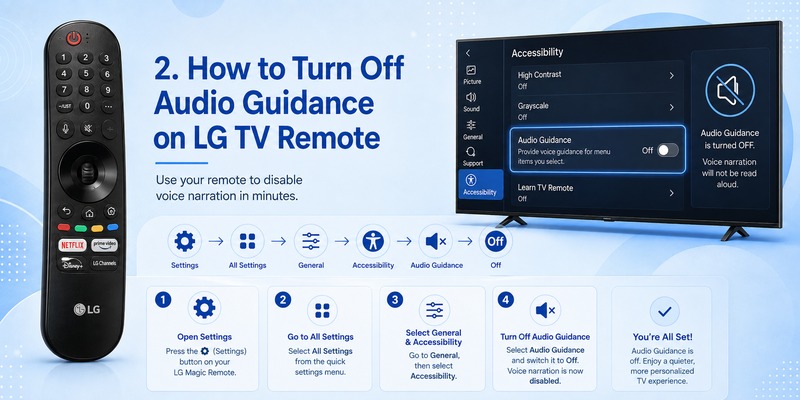
For most modern LG Smart TVs, use this path:
Settings → All Settings → General → Accessibility → Audio Guidance → Off
LG’s current support documentation lists this route for TVs using recent versions of webOS.
To turn off audio guidance on LG TV remote, follow these steps:
- Turn on your LG TV.
- Press the Settings button on your LG remote.
- Select All Settings from the on-screen quick settings panel.
- Select General.
- Open Accessibility.
- Select Audio Guidance.
- Change Audio Guidance from On to Off.
Once the setting is disabled, move through several menu items using your remote.
The spoken navigation should stop immediately.
This method is the most reliable answer to how to turn off audio guidance on lg tv and how to turn audio guidance off on lg tv because it directly changes the accessibility setting rather than simply reducing the TV volume.
Muting the television’s normal audio is not the same thing as disabling Audio Guidance.
If you want to turn off voice guidance on lg tv, make sure you disable the accessibility feature itself.
Explore Related Articles: LG TV Remote Volume Button Not Working? 12 Practical Fixes to Restore Volume Control
Use the Mute Button to Turn Off Audio Guidance Faster
On many compatible LG televisions, there is an even faster way to turn off audio guidance on LG TV remote.
Press and hold the Mute button on your LG remote until an Accessibility menu appears.
LG’s support guidance instructs users to press and hold Mute to display the Accessibility menu, then change Audio Guidance from On to Off.
Try these steps:
- Point your LG remote toward the TV.
- Press and hold Mute.
- Wait for the Accessibility menu to appear.
- Find Audio Guidance.
- Switch it to Off.
This shortcut can be particularly useful when you want to turn off audio guidance on LG TV remote without navigating several levels of the Settings interface.
It is also helpful if the spoken navigation makes going through the complete settings menu frustrating.
If you searched for how to turn off voice guidance on lg tv remote, this shortcut should be one of the first options to try.
Menu appearance can vary depending on the LG TV model and webOS version, so your screen may not look exactly like LG’s examples. LG specifically notes that menu layouts can differ between models and software versions.
If holding Mute does not display the expected menu, use the standard Settings method instead.
How to Disable Audio Guidance on Newer LG Smart TVs
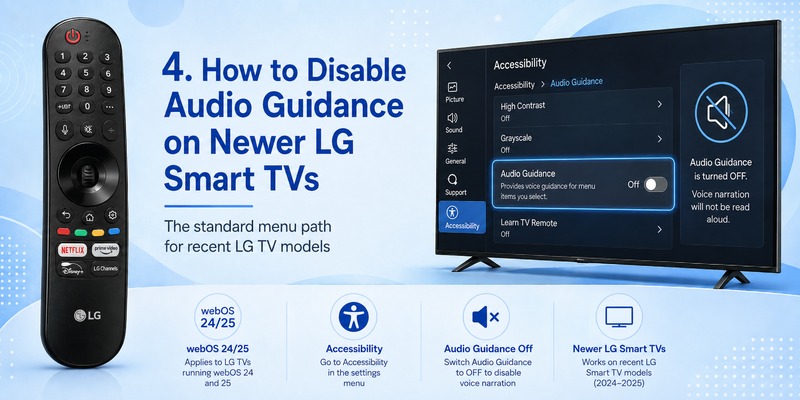
If you own a recent LG OLED, QNED, NanoCell, UHD, or other webOS TV, the process to turn off audio guidance on LG TV remote is generally straightforward.
For webOS 24 and webOS 25 TVs, including models released from 2024 onward, LG currently provides the following sequence:
Settings → All Settings → General → Accessibility → Audio Guidance → Off.
This same general route is also used by many TVs running webOS 23 and later.
Therefore, if you need to know how to turn off audio guidance on lg smart tv, start with the Settings button rather than searching through Sound settings.
Audio Guidance is an accessibility feature, so it usually appears under Accessibility, not the regular Sound output menu.
To turn off audio guidance on LG TV remote on a newer model:
Press Settings and open All Settings. Choose General, then Accessibility. Open Audio Guidance and disable the main Audio Guidance toggle.
Depending on your TV and software version, you may also see additional options related to voice speed, volume, pitch, or accessibility configuration. These options control how guidance behaves while it is enabled.
If your goal is simply lg tv audio guidance turn off, disable the main feature rather than adjusting its speech settings.
Users searching for lg turn off audio guidance sometimes lower Audio Guidance volume instead. That can make the voice quieter, but it does not actually disable the feature.
Switch Audio Guidance completely to Off if you do not need it.
View Related Articles: LG TV Remote iOS: Official iPhone Setup and Control Guide
How to Turn Off Audio Guidance on Older LG TVs
The menu path can be slightly different on older televisions.
LG states that TVs using webOS 6.0 through webOS 22 generally use:
Settings → All Settings → General → Accessibility → Audio Guidance
For earlier webOS versions, Accessibility may appear directly under All Settings rather than inside General.
So if you cannot turn off audio guidance on LG TV remote using instructions designed for a recent television, do not assume your TV lacks the feature.
Look for one of these paths.
For many newer models:
Settings → All Settings → General → Accessibility → Audio Guidance
For some older models:
Settings → All Settings → Accessibility → Audio Guidance
Then switch Audio Guidance to Off.
This distinction is useful for users searching how to turn off audio guidance on lg smart tv but following screenshots from a different LG model year.
LG periodically changes the webOS interface, while the underlying accessibility function remains similar.
If you want to turn off audio guide on lg tv and cannot locate “Audio Guidance,” also inspect the Accessibility section for similarly named accessibility options.
Do not randomly disable every voice-related setting. Voice recognition for remote commands is different from spoken menu guidance.
Turning off Audio Guidance should not mean that you have to stop using all voice features available on your Magic Remote.
Explore Related Articles: LG Magic Remote Lagging: 12 Fixes for Slow or Delayed Response
Audio Guidance vs Audio Description: Know the Difference
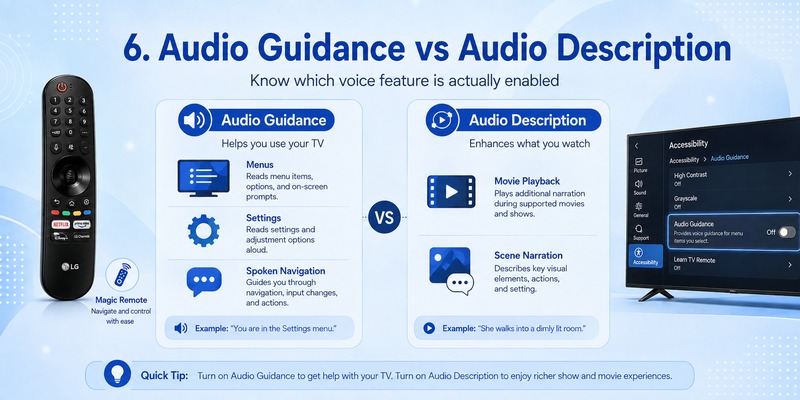
This is the most important troubleshooting step after attempting to turn off audio guidance on LG TV remote.
Audio Guidance
Audio Guidance helps users navigate the television.
You might hear:
- Menu names
- Settings
- Volume information
- Interface selections
- TV status information
If this is what you hear, use Accessibility → Audio Guidance → Off.
Audio Description
Audio Description describes visual elements of entertainment content.
You might hear narration such as:
“She walks across the room.”
“The car stops outside the house.”
“He looks toward the window.”
If this voice appears mainly while watching a particular movie, program, streaming service, broadcast, or external device, Audio Description may be enabled.
LG notes that if narration describes the program being watched rather than TV menus, the source may be Audio Description from the app or connected external device. In those cases, the relevant audio or caption setting may need to be changed within that source.
LG also documents Video/Audio Description settings on supported TV models and notes that availability can depend on broadcasts and connected equipment.
Therefore, someone searching for how to turn off audio description on lg tv remote may actually need a different setting from someone trying to turn off audio guidance on LG TV remote.
If you already disabled Audio Guidance but narration continues only during content playback, inspect:
- The TV’s Accessibility or Audio Description setting
- The streaming app’s audio language menu
- The program’s audio track
- Your cable or satellite box
- Your connected set-top box
- Other external media devices
The search lg remote turn off audio description commonly leads users to Audio Guidance instructions even though the unwanted narration is coming from the content source.
Identifying where the voice appears is therefore critical.
Explore Related Articles: How to Connect LG Remote to TV: Complete Pairing and Recovery Guide
What to Do If Audio Guidance Will Not Turn Off
You followed the steps to turn off audio guidance on LG TV remote, but the TV is still talking.
Do not immediately reset the television.
Instead, test what the voice is actually saying.
Check whether it speaks only while navigating menus
Press Settings.
Move through several options.
Adjust the volume.
Return to the Home screen.
If the TV speaks each highlighted interface item, Audio Guidance may still be enabled.
Open:
Settings → All Settings → General → Accessibility → Audio Guidance
Confirm that the main switch says Off.
Try the Accessibility shortcut
Press and hold the Mute button until the Accessibility menu opens.
Check Audio Guidance again.
This is an easy way to confirm that you really did turn off audio guidance on LG TV remote.
Check the content you are watching
If menu narration has stopped but a movie is still being narrated, Audio Description may be active.
This is an important distinction for anyone searching how to remove audio guidance from lg tv.
Audio Guidance and program narration are not always controlled by the same setting.
Check external devices
A cable box, set-top box, streaming box, or other connected device can provide its own accessibility narration.
LG advises users to check the connected set-top box if descriptive narration remains active.
In this situation, attempting to turn off audio guidance on LG TV remote repeatedly will not solve the problem because the narration originates outside the LG TV interface.
Restart the TV
After confirming that Audio Guidance is Off, turn off the television, wait briefly, and turn it back on.
Then test the menus again.
A full factory reset should generally be a last resort because it can remove customized settings and require you to configure the television again.
🧭 Explore Guides: LG MR26GA vs MR25GA: Which LG Magic Remote Should You Choose in 2026?
Why the LG Magic Remote Pointer May Disappear
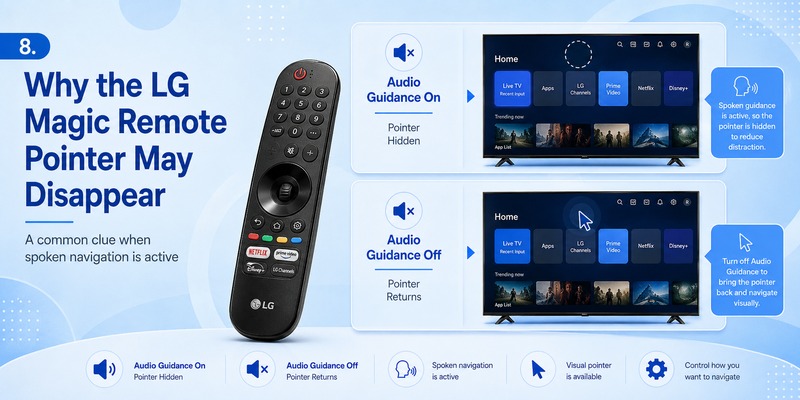
There is another clue that Audio Guidance may be active: the Magic Remote pointer can disappear.
LG explains that when Audio Guidance is enabled on relevant Magic Remote setups, the pointer may be removed while the TV provides spoken menu navigation. Turning Audio Guidance off can allow the pointer to appear again.
Therefore, if your TV suddenly starts talking and your Magic Remote cursor disappears at the same time, try to turn off audio guidance on LG TV remote before troubleshooting the remote itself.
Navigate to:
Settings → All Settings → General → Accessibility → Audio Guidance → Off
Then shake or move the Magic Remote again.
If the pointer returns, Audio Guidance was likely responsible.
This can prevent unnecessary attempts to re-pair the Magic Remote, replace batteries, or purchase a new remote.
The connection between the missing pointer and spoken menus is particularly useful when diagnosing the problem because both symptoms can occur together.
Can You Turn Off Audio Guidance Without the Original Remote?
The normal way to turn off audio guidance on LG TV remote is with the physical LG remote because it gives direct access to Settings and the Accessibility shortcut.
However, losing the original remote does not necessarily mean you must leave Audio Guidance enabled.
Depending on your LG TV model and network setup, you may be able to control basic TV functions from a compatible smartphone solution or remote TV App.
A phone-based remote may provide navigation controls that allow you to reach:
Settings → General → Accessibility → Audio Guidance.
The available functionality depends on the app and television model, so a mobile remote should not automatically be considered a complete replacement for every Magic Remote function.
Still, it can be useful when the physical remote is missing, damaged, or temporarily unavailable.
You may also have limited controls directly on the TV, although navigating a complete accessibility menu with physical TV buttons can be less convenient.
Once you regain menu control, follow the same process used to turn off audio guidance on LG TV remote and disable Audio Guidance from Accessibility.
🛠️ Learn with Step-by-Step Guides: LG Remote TV: Complete Guide to Setup, Apps, Pairing, Codes, and Troubleshooting
Frequently Asked Questions
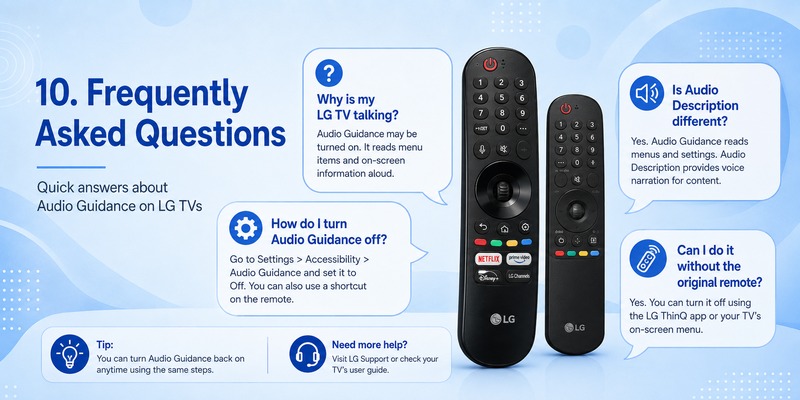
Why did my LG TV suddenly start talking?
Audio Guidance may have been turned on accidentally.
On compatible LG TVs, accessibility controls can be reached using the remote, including by holding the Mute button on supported setups.
To turn off audio guidance on LG TV remote, open Accessibility and switch Audio Guidance to Off.
How do I turn off voice guidance on lg tv?
Press Settings → All Settings → General → Accessibility → Audio Guidance and turn the feature off.
On some older TVs, Accessibility may appear directly under All Settings.
What is the fastest way to turn off audio guidance on lg tv?
Try holding the Mute button until the Accessibility menu appears.
Then highlight Audio Guidance and change it to Off.
If the shortcut does not work on your TV, use the complete Settings menu.
Why can I still hear a narrator after Audio Guidance is off?
If you successfully turn off audio guidance on LG TV remote but hear descriptions during a movie or TV program, you may be hearing Audio Description.
Check the audio track or accessibility settings in the streaming app, channel, set-top box, or external device.
How do I turn off voice guidance on lg smart tv if the menus look different?
LG’s interface varies between model years and webOS versions.
Look for Accessibility under General or directly inside All Settings.
The destination you need is Audio Guidance.
Can I use the Settings button to turn off audio guidance on LG TV remote?
Yes.
Press Settings → All Settings → General → Accessibility → Audio Guidance → Off on many current LG televisions.
Does turning off Audio Guidance disable Magic Remote voice commands?
Not necessarily.
Audio Guidance is the accessibility narration feature that reads interface information aloud. Voice-control capabilities on compatible remotes are separate functions.
You can therefore turn off audio guidance on LG TV remote without assuming that every other voice-related function must also be disabled.
How can I tell whether I have Audio Guidance or Audio Description?
If the voice reads menus while you navigate the TV, it is likely Audio Guidance.
If the voice describes visual events in a show or movie, it is likely Audio Description.
This distinction should be checked before repeatedly trying to turn off audio guidance on LG TV remote.
📘 Find the Right Guide: How to Set Quick Access on LG TV Remote: Complete Shortcut Setup Guide
Final Thoughts on How to Turn Off Audio Guidance on LG TV Remote
For most LG Smart TVs, the simplest solution is:
Settings → All Settings → General → Accessibility → Audio Guidance → Off
That is the main process you need to turn off audio guidance on LG TV remote on current webOS televisions. LG’s official support information confirms this path for recent models, while some older TVs place Accessibility directly inside All Settings.
If you want an even faster method, press and hold the Mute button on compatible LG remotes to open Accessibility, then switch Audio Guidance off.
Remember that spoken menu navigation and narration during movies are not always the same feature.
If you turn off audio guidance on LG TV remote and menu narration stops but a narrator continues describing a program, check Audio Description settings in the TV, streaming app, broadcaster, set-top box, or connected device.
Once you identify the source of the voice, the fix is usually simple.
For users who simply need to turn off audio guidance on LG TV remote, start with Accessibility, disable Audio Guidance, and test the TV menus again before changing any other sound or remote settings.
Download LG TV Remote