How to Reset Google TV Remote: Chromecast & Google TV Streamer Guide
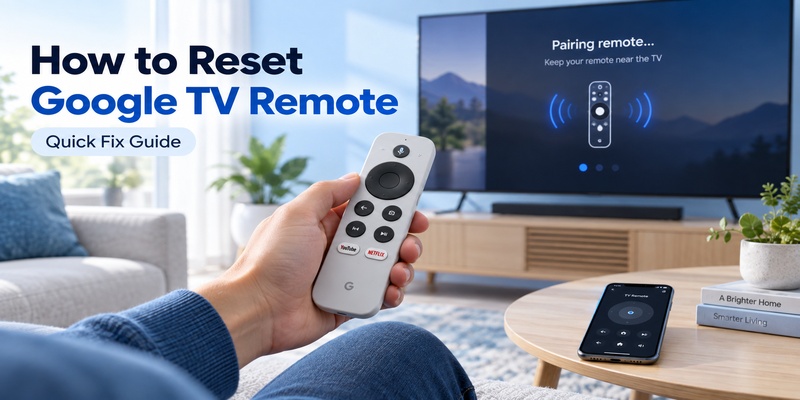
Reset a Chromecast Voice Remote by holding Home while reinserting its batteries; reset a Google TV Streamer Voice Remote by holding Mute + Center until its LED turns solid white.
The correct procedure depends on which Google remote you own. Do not use the same button sequence for both models. Google’s official Streaming Help documentation gives separate factory-reset instructions for the Chromecast Voice Remote and the newer Google TV Streamer Voice Remote.
For Chromecast with Google TV, the reset uses the Home button and battery compartment. For Google TV Streamer, it uses Mute + Center/Select, with the process normally beginning within about 10–12 seconds.
If the remote does not reconnect automatically after you learn how to reset Google TV remote controls, you can usually pair it again by holding Back + Home for several seconds.
1. Identify Your Google TV Remote Before Resetting It
Before following any instructions for how to reset Google TV remote hardware, identify the remote model first.
This matters because Google’s two current Voice Remote designs do not use the same factory-reset procedure.
The two models most users encounter are:
- Chromecast with Google TV Voice Remote
- Google TV Streamer Voice Remote
They may look similar at first glance, but their button layouts are different.
Chromecast with Google TV Voice Remote
The older Chromecast Voice Remote has a compact oval design with a circular directional pad near the top.
Its factory reset depends on:
Home button + removing and reinserting the batteries.
This is the model commonly supplied with Chromecast with Google TV HD and Chromecast with Google TV 4K.
Google TV Streamer Voice Remote
The newer Google TV Streamer remote includes additional controls, including a dedicated Mute button and a customizable button.
Google’s official documentation identifies Mute as one of the buttons in the left column.
Its factory-reset sequence is:
Mute + Center/Select.
That physical difference makes identification easy. If your remote has a dedicated Mute button and matches the newer Google TV Streamer design, use the Streamer instructions.
If you are unsure, do not repeatedly try random combinations. Check your streaming device model or compare the button layout first.
The biggest mistake people make when searching how to reset Google TV remote controls is assuming that every Google Voice Remote uses the older Chromecast battery-reset method.
📖 Read More Guides: Google Remote TV: Complete Guide to Apps, Pairing, Fixes, Phone Control, and Replacement
2. How to Reset Google TV Remote: Quick Methods
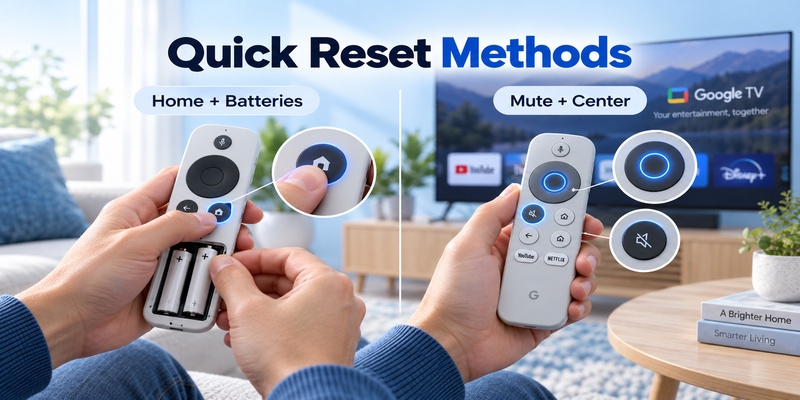
If you already know which remote you own, use this quick reference.
| Remote Model | Reset Method | What to Watch For | Typical Timing |
| Chromecast Voice Remote | Hold Home while reinserting batteries | LED solid, then pulsing | Release when LED pulses |
| Google TV Streamer Voice Remote | Hold Mute + Center/Select | LED blinks, then solid white | About 10–12 seconds |
For people who simply need the answer to how to reset Google TV remote hardware, that table covers the essential procedure.
However, the exact order matters.
Chromecast quick reset
Remove the batteries, hold Home, reinstall the batteries while continuing to hold Home, and wait until the status LED changes from solid to pulsing.
Release Home only when the LED starts pulsing.
Google’s dedicated factory-reset documentation confirms this sequence.
Google TV Streamer quick reset
Press and hold:
Mute + Center/Select
Keep both buttons pressed.
Google says the LED will blink white and a countdown sound begins after roughly 10 seconds. Continue holding the buttons until the LED becomes solid white.
Google notes that the reset normally takes no more than around 12 seconds to initiate.
If the remote still behaves normally after only two or three seconds, keep holding. Releasing the buttons too early is one of the easiest ways to think the reset “didn’t work.”
Download TV Remote App3. How to Reset a Chromecast With Google TV Voice Remote
For the Chromecast Voice Remote, how to reset Google TV remote hardware requires accessing the battery compartment.
Google’s official factory-reset instructions use the Home button rather than a menu inside Google TV.
Step 1: Check the batteries
If the remote is behaving erratically, battery condition is worth checking before performing a factory reset.
Google’s troubleshooting documentation recommends two fresh 1.5-volt AAA batteries when the existing batteries may be weak.
A battery problem can look surprisingly similar to a Bluetooth problem:
- Delayed commands
- Random disconnects
- No LED
- Remote refusing to pair
- Buttons responding intermittently
If new batteries fix the problem, you may not need a factory reset at all.
You can also read the dedicated Google TV Remote Battery guide before resetting a remote that only appears to have a power issue.
Step 2: Remove both AAA batteries
Open the rear battery cover and remove both batteries.
Google’s dedicated factory-reset instructions let you move directly to the reset sequence.
However, Google’s broader troubleshooting workflow recommends leaving the batteries out for about five minutes when troubleshooting a Chromecast Voice Remote that is completely unresponsive.
That longer wait is therefore worth trying when a normal reset has already failed.
Step 3: Hold the Home button
With the batteries removed, press and hold Home.
Keep the button pressed while moving to the next step.
Step 4: Reinsert the batteries while holding Home
Put both batteries back into the remote.
Do not release Home when the batteries make contact.
Continue holding it.
The LED should turn on and remain solid.
Step 5: Wait for the LED to pulse
Watch the remote’s status LED.
The common practical mistake here is releasing Home as soon as the LED turns on.
Do not.
Keep holding Home while the LED is solid. Release the button only when the light begins pulsing.
At that point, the google tv remote factory reset has been triggered.
The remote has returned to its default configuration and may need to pair with the Chromecast again.
💡 Discover Helpful Guides: How to Pair and Reconnect a Google TV Remote
4. How to Reset a Google TV Streamer Voice Remote
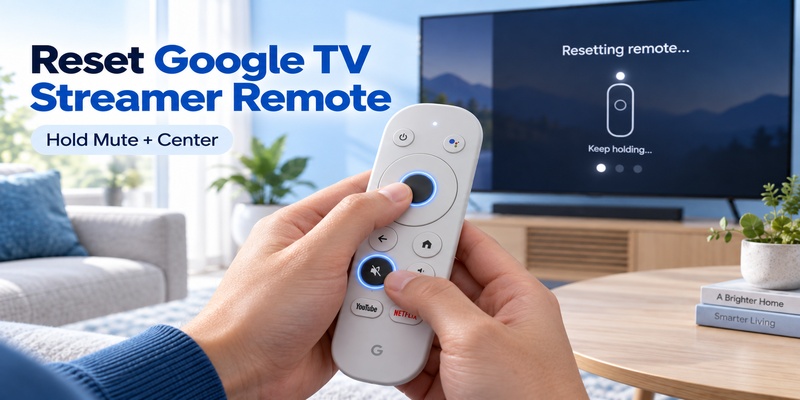
The newer Google TV Streamer uses a much simpler physical sequence.
You do not need to remove the batteries to initiate its normal factory reset.
When learning how to reset Google TV remote hardware on a Google TV Streamer, remember these two buttons:
Mute + Center.
Step 1: Find the Mute button
The Google TV Streamer Voice Remote has a dedicated Mute button.
Google’s current remote documentation places Mute in the left-side button column below the Assistant/Mic control.
Step 2: Press Mute and Center together
Press and hold:
Mute + Center/Select
Center means the Select button in the middle of the circular directional pad.
Both buttons need to remain pressed simultaneously.
Step 3: Watch the LED
While the buttons are held down, Google’s official Streaming Help instructions say the remote LED will blink white.
Keep holding.
Step 4: Listen for the countdown
After approximately 10 seconds, the remote should play a countdown sound.
Do not release the buttons when the countdown begins.
Continue holding them.
Step 5: Release when the LED turns solid white
The reset is complete when the remote LED changes to solid white.
Google states that it usually takes no more than approximately 12 seconds to initiate this process.
So the full sequence is easy to remember:
Mute + Center → blinking white → countdown → solid white → release.
This newer procedure is one of the most important distinctions in any accurate guide explaining how to reset Google TV remote devices.
Trying the Chromecast Home-and-battery sequence on the newer Streamer remote is unnecessary.
💡 Discover Helpful Guides: Google TV Remote Not Working? 15 Fixes for Pairing, Volume, Buttons, Voice, and Power
5. How to Re-Pair Your Google TV Remote After a Reset
Completing a google tv remote reset does not always mean the remote will immediately start controlling your device again.
A reset returns the remote to its factory state. It may automatically rediscover the streaming device, but if it does not, you need to pair it again.
Try automatic pairing first
Leave the remote close to the Chromecast or Google TV Streamer for a short period after the reset.
Google says Voice Remotes pair automatically in many situations.
If the pairing succeeds, you can test the D-pad, Home and Back buttons immediately.
Manually enter pairing mode
If nothing happens, hold:
Back + Home for approximately 3 seconds.
Google documents this combination when a Voice Remote does not automatically reconnect.
Keep the remote fairly close to the streaming device during pairing.
You may see a remote appear on the television screen or hear a pairing confirmation.
For a full walkthrough rather than a reset-focused explanation, see How to Pair Google TV Remote.
Start pairing from the streaming device
For replacement-remoter setup, Google also documents pressing the physical button on the back of the Google streaming device for approximately 5–10 seconds to start pairing mode.
That can be useful if the remote and streaming device are both waiting for the other side to initiate Bluetooth discovery.
After learning how to reset Google TV remote hardware, always complete this final verification:
D-pad works → Home works → Back works → volume/power works.
Navigation can reconnect successfully while TV power or volume controls still require additional configuration.
🗺️ Browse How-To Guides: Google TV Remote Battery: Type, Life, Drain and Replacement Guide
6. What the Google TV Remote LED Means During Reset
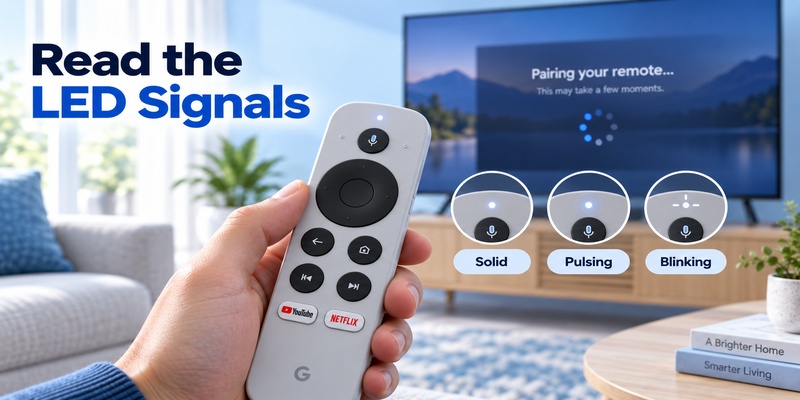
The LED is one of the best diagnostic tools when working out how to reset Google TV remote controllers.
Google’s Voice Remotes do not have a large display telling you what is happening. Instead, the status LED changes during battery detection, pairing and factory reset.
That means you should watch the light rather than relying only on how long you have held a button.
Chromecast Voice Remote LED
During a Chromecast reset:
- Hold Home.
- Reinsert the batteries.
- The LED turns on and stays solid.
- Continue holding Home.
- The LED starts pulsing.
- Release Home.
The pulsing LED is the signal you are waiting for.
If you release Home when the LED first becomes solid, the reset sequence may not finish.
Google TV Streamer Voice Remote LED
The Google TV Streamer behaves differently.
When you hold Mute + Center:
- The LED begins blinking white.
- A countdown follows after roughly 10 seconds.
- The LED eventually becomes solid white.
- You can then release the buttons.
Again, the LED state matters more than counting seconds perfectly.
If your remote shows unusual LED behavior outside the reset process, do not assume another factory reset is automatically necessary. Battery condition, Bluetooth pairing and firmware can produce different symptoms.
For LED-specific troubleshooting, see Google TV Remote Not Working Light On.
7. Remote Reset vs Restart vs Factory Resetting Google TV
One of the most important things to understand about how to reset Google TV remote controls is what not to reset.
Resetting the remote and factory-resetting the Chromecast or Google TV Streamer are two very different operations.
| Action | What It Affects | When to Use It |
| Restart streaming device | Temporary system state | Connection glitches |
| Reset Voice Remote | Remote settings/pairing state | Persistent remote problems |
| Factory reset streaming device | Google TV device data/settings | Last-resort device troubleshooting |
Restarting is the least destructive option
If the remote suddenly disconnects, restart the Google streaming device before wiping anything.
Unplug the Chromecast or Google TV Streamer from power, wait briefly and reconnect it.
A temporary Bluetooth or system issue can disappear after a restart.
Remote factory reset affects the controller
A reset google tv remote procedure returns the Voice Remote to its default configuration.
You should expect to pair it again afterward if it does not reconnect automatically.
Device factory reset is different
Factory-resetting the Chromecast or Google TV Streamer resets the streaming device itself.
Google warns that a device factory reset clears data and returns its settings to factory defaults.
Do not factory-reset the entire Google TV device simply because one remote button stopped working.
Google places a streaming-device factory reset much later in its troubleshooting sequence, after rebooting, unpairing and factory-resetting the Voice Remote.
That order is sensible because it preserves your Google TV setup whenever the problem is limited to the remote.
🗺️ Browse How-To Guides: Google TV Remote Not Working Light On: LED Meanings and Fast Fixes
8. What to Do If the Google TV Remote Will Not Reset
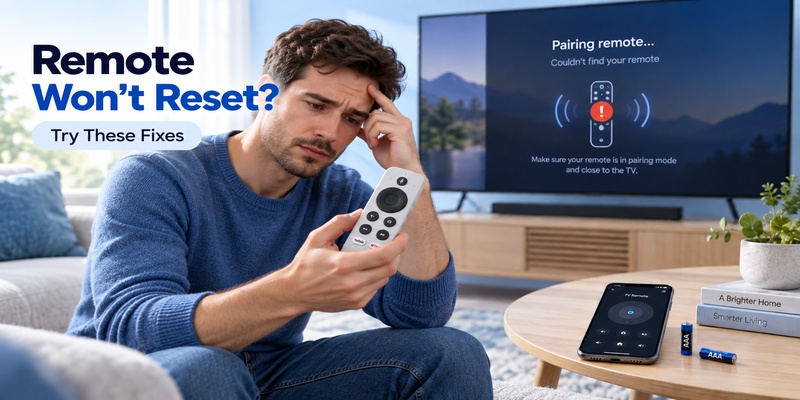
If you follow how to reset Google TV remote instructions exactly but nothing changes, diagnose the failure instead of repeating the same reset indefinitely.
Start with power and pairing.
| Problem | Likely Cause | Next Step |
| No LED at all | Weak/dead batteries | Install two fresh AAA batteries |
| LED works but no control | Pairing lost | Hold Back + Home |
| Reset LED sequence never appears | Buttons/battery contact issue | Reinsert batteries and retry |
| Remote pairs then disconnects | Bluetooth/device issue | Reboot streaming device |
| Navigation works, volume doesn’t | TV-control setup | Reconfigure remote buttons |
| Reset repeatedly fails | Possible hardware problem | Test phone control or replacement |
Try fresh batteries before another reset
Google specifically recommends two fresh 1.5V AAA batteries when troubleshooting a Voice Remote.
This sounds basic, but it is important.
A remote with enough battery power to flash an LED may still behave unreliably during Bluetooth communication.
Reboot the streaming device
If the remote appears healthy but will not reconnect, restart the Chromecast or Google TV Streamer.
Then attempt pairing again.
Unpair the remote from settings
If you can navigate Google TV with your phone, open:
Settings → Remotes & Accessories
Select the Voice Remote and choose the option to forget or unpair it.
Google’s troubleshooting process specifically recommends unpairing the remote before factory-resetting it in persistent failure cases.
Check whether the problem is broader than reset
If the remote has power and completes its reset sequence but buttons still fail, the issue may no longer be a reset problem.
Use the dedicated Google TV Remote Not Working guide for a broader diagnosis rather than repeatedly performing the same factory reset.
💡 Discover Helpful Guides: How to Control Google TV With Phone on Android and iPhone
9. Use Your Phone While the Physical Remote Is Being Reset
A failed physical remote creates an awkward problem: you often need access to Google TV’s settings to repair the physical remote.
Fortunately, your phone can serve as a temporary controller.
Google officially supports using a phone as a virtual remote for compatible Google TV and Android TV devices.
This is especially useful after you learn how to reset Google TV remote hardware but the remote does not automatically reconnect.
Use the phone to open pairing settings
Connect the phone and Google TV to the same Wi-Fi network.
Then use Google’s virtual remote functionality to navigate to:
Settings → Remotes & Accessories → Pair remote or accessory
Put the physical remote into pairing mode and select it from the television interface.
This lets you recover from a failed reset without needing a second physical Voice Remote.
For complete phone setup instructions, see How to Control Google TV With Phone.
Keep a phone-based backup ready
It is worth setting up a mobile remote before the physical controller fails.
That gives you an immediate way to:
- Open settings
- Start pairing
- Navigate apps
- Enter text
- Continue watching TV
For households with several compatible smart TV brands, a Remote TV App can also provide a convenient phone-based backup alongside the original physical remotes.
The key point is simple: do not let one failed piece of hardware become your only route into the TV settings.
🗺️ Browse How-To Guides: How to Connect Google TV to WiFi Without Remote: 5 Working Methods
10. When Should You Replace the Google TV Remote?
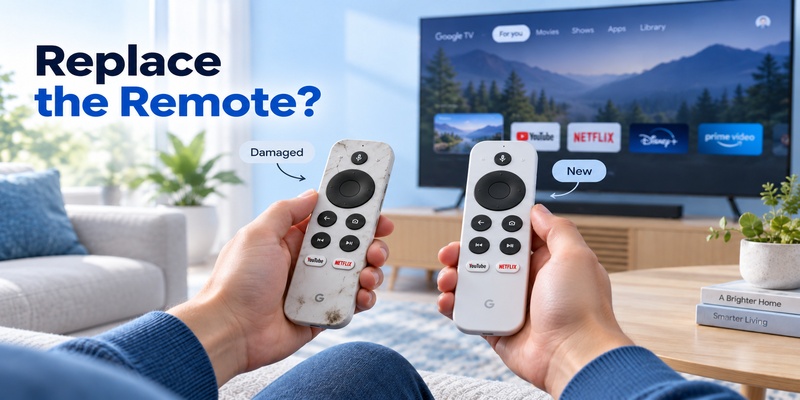
Knowing how to reset Google TV remote controls is useful, but a factory reset cannot repair physical damage.
Replacement becomes reasonable when the controller continues failing after you have tested:
Fresh batteries → reboot → unpair → factory reset → re-pair.
If all five steps fail consistently, hardware should move higher on your list of possible causes.
Signs of a hardware problem
Consider replacement if:
- The LED never activates with confirmed fresh batteries.
- Battery contacts are damaged or corroded.
- Buttons are physically stuck.
- The remote has suffered liquid damage.
- The casing or circuit board is damaged.
- Bluetooth pairing fails repeatedly after successful resets.
- Certain buttons never register despite software troubleshooting.
Do not replace a remote merely because volume control stopped working.
Google Voice Remotes can use Bluetooth for Google TV navigation while TV power and volume may rely on other configuration, including IR or HDMI-CEC.
If the D-pad and Home button work but only volume is broken, check remote-button settings first.
Google also states that the Google TV Streamer Voice Remote automatically receives software updates while paired with a compatible Google TV Streamer or Chromecast with Google TV.
Allow normal pairing and updating to complete before concluding that the remote needs replacement.
A successful google tv remote factory reset followed by repeated hardware-like failures is a much stronger replacement signal than a single temporary disconnect.
11. Frequently Asked Questions
How do I reset my Chromecast with Google TV remote?
Remove the batteries, hold the Home button and reinstall the batteries while continuing to hold Home. Keep holding while the LED remains solid. Release Home when the LED begins pulsing. Google’s troubleshooting flow also recommends a five-minute battery-out wait for persistent remote problems.
How do I reset a Google TV Streamer remote?
Press and hold Mute + Center/Select simultaneously. The LED should blink white and a countdown should begin after approximately 10 seconds. Continue holding until the LED becomes solid white. Google says the process normally begins within around 12 seconds.
Will resetting the Google TV remote erase my Google TV apps?
No, resetting the Voice Remote is different from factory-resetting your Chromecast or Google TV Streamer. The remote reset restores the controller’s configuration. A factory reset of the streaming device itself is the operation that clears device settings and data.
Why won’t my Google TV remote pair after resetting?
Try holding Back + Home for about three seconds to enter pairing mode. If that does not work, use a phone remote to open Settings → Remotes & Accessories → Pair remote or accessory and select the physical controller when it appears.
What batteries should I use before resetting the remote?
Google recommends two fresh 1.5-volt AAA batteries during Voice Remote troubleshooting. Weak batteries can cause disconnects, failed pairing or missing LED behavior that may look like a reset problem.
Should I reset the whole Google TV if the remote still does not work?
Usually no. Google recommends troubleshooting the remote first: batteries, rebooting, unpairing, factory-resetting the remote and re-pairing. Factory-resetting the Chromecast or Google TV Streamer should be a later step because it resets the streaming device itself.
📘 Find the Right Guide: Google TV Remote Finder: How to Find a Lost Remote
12. Final Thoughts
The most important rule when learning how to reset Google TV remote hardware is to identify your remote before pressing anything.
For a Chromecast with Google TV Voice Remote, remove the batteries, hold Home while reinserting them and release Home when the LED begins pulsing.
For a Google TV Streamer Voice Remote, hold Mute + Center/Select, wait through the white flashing LED and countdown, and release the buttons when the LED becomes solid white. Google says this reset normally begins within approximately 10–12 seconds.
After either process, give the remote a chance to reconnect automatically. If it does not, hold Back + Home for about three seconds or use your phone to open the Google TV pairing menu.
Most importantly, do not confuse a remote reset with factory-resetting the entire streaming device. Reset the smallest part of the system that is actually causing the problem.
For a remote connection problem, the best troubleshooting order is:
Fresh AAA batteries → restart Google TV → unpair the remote → reset the remote → pair again.
Only move toward replacing hardware or factory-resetting the full Google TV device when those simpler steps fail.