
Mi Remote Controller for TV iOS: Control Mi TV and Mi TV Stick from iPhone
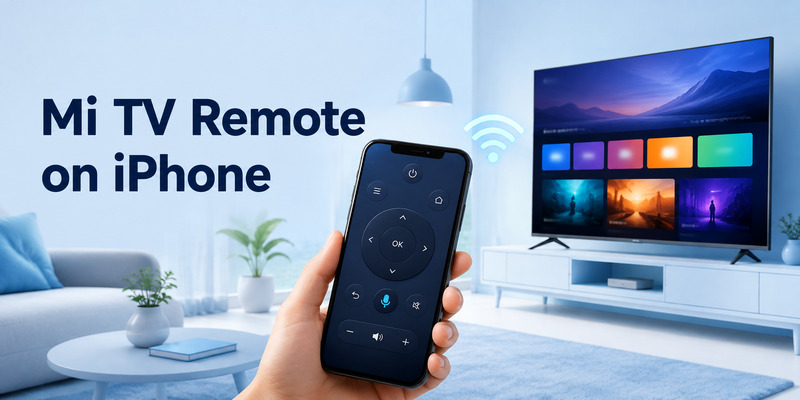
Lost your Mi TV or Mi TV Stick remote? A mi remote controller for tv ios app lets you control a compatible Xiaomi device directly from your iPhone or iPad. Connect both devices to the same Wi-Fi network to browse apps, manage playback, type faster, and keep watching without the physical remote.
1. Quick Answer: Can You Control Mi TV from an iPhone?
Yes. A mi remote controller for tv ios solution can let you use your iPhone or iPad to control a compatible Mi TV, Xiaomi TV, or Mi TV Stick when the physical remote is unavailable, has a dead battery, or is simply inconvenient for typing.
The key requirement is that your iPhone and TV or streaming device are connected to the same Wi-Fi network. Once paired, an app can usually provide navigation, playback, keyboard input, volume controls, and app shortcuts.
Xiaomi’s official support guidance confirms that Mi smart devices can be linked and controlled through the Mi Home app on iOS, with the device added through nearby-device detection or manual setup. Xiaomi’s Mi Home guide explains this general iPhone pairing process.
A mi remote controller for tv ios app is a practical backup, but compatibility can vary by TV model, region, software version, and whether you use a Mi TV or a Mi TV Stick.
Download LG TV Remote2. What Is a Mi Remote Controller for TV iOS?
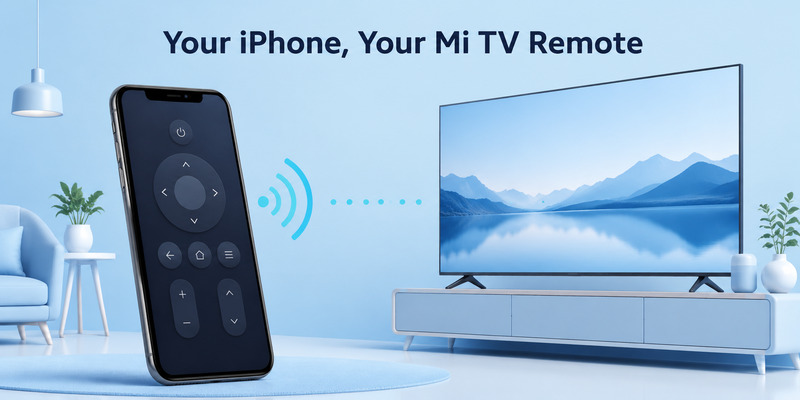
A mi remote controller for tv ios app turns an iPhone or iPad into a network-based remote control. Instead of sending infrared signals like a traditional remote, the app communicates with the TV or streaming stick through your local Wi-Fi connection.
This type of remote can be especially helpful because iPhones do not normally include an infrared emitter. Wi-Fi allows the phone to control a compatible smart device without needing extra hardware.
A typical mi remote controller for tv ios interface may include:
- Directional arrows or a touchpad
- Select, Back, Home, and Menu buttons
- Play, pause, rewind, and fast-forward controls
- Volume and mute buttons
- A keyboard for text entry
- App-launch shortcuts
- Voice-search access where supported
- Device discovery and pairing tools
For many users, the best feature is the keyboard. Entering a streaming password or searching for a long title is much faster on an iPhone than selecting one letter at a time on the TV.
🛠️ Learn with Step-by-Step Guides: Apple remote tv app: Complete Apple TV Remote Guide for iPhone, Siri Remote, Pairing & Fixes
3. What You Need Before Connecting Your iPhone
Before trying a mi remote controller for tv ios setup, check a few basics. Most connection problems come from the network or device settings rather than the app itself.
A Compatible Mi TV or Mi TV Stick
You need a Mi TV, Xiaomi smart TV, Mi TV Stick, or compatible Xiaomi streaming device with active network connectivity. Some devices use Android TV or Google TV, while others may use a different Xiaomi interface depending on the model and region.
Do not assume every Mi-branded television has identical app support. Check the device’s settings, model information, and supported mobile-app options before relying on an iPhone remote.
An iPhone or iPad
Your iPhone or iPad should run a supported version of iOS or iPadOS. Update the phone before troubleshooting more complex issues, especially if the remote app has recently changed.
One Shared Wi-Fi Network
Your phone and TV must use the same local Wi-Fi network. This is essential for a mi remote controller for tv ios connection.
If your iPhone is on mobile data or the TV is connected to a guest network, the app may not discover the device. Even if both devices have internet access, they may still be unable to communicate locally.
Permission to Find Local Devices
When an app asks for Local Network permission, select Allow. This permission enables the iPhone to locate compatible TVs and streaming devices on your home network.
You may also be asked to allow Bluetooth access during discovery. Allow it only if it is required for the feature you are using.
💡 Discover Helpful Guides
Apple TV Siri Remote: Complete Guide to Features, Generations, Pairing, and Everyday Use
4. How to Set Up Mi Remote Controller for TV iOS
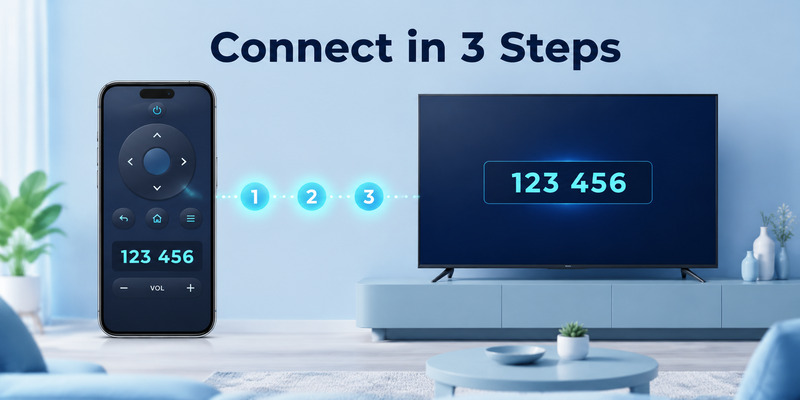
The setup process for a mi remote controller for tv ios app is usually simple if your TV is online and accessible.
Step 1: Choose the Right App
Start with Xiaomi Home, also known as Mi Home in many regions, if your device is listed as supported. You can also consider an official Google TV remote option for Android TV or Google TV-based Mi devices.
A mi tv remote app for ios should clearly state whether it supports your exact television or Mi TV Stick model. Read the compatibility information before downloading an app or starting a trial.
Step 2: Connect Both Devices to the Same Wi-Fi
Open Wi-Fi settings on your iPhone and confirm the network name. Then check the network settings on the Mi TV or Mi TV Stick.
If you have multiple routers, mesh Wi-Fi nodes, or guest networks, make sure both devices are on the same primary network. A mismatched network is the most common reason why a mi remote controller for tv ios app cannot find the TV.
Step 3: Open the App and Add Your Device
Open Xiaomi Home, Google TV, or another compatible remote app. Look for options such as Add Device, Nearby Devices, Remote, or TV Control.
If the TV does not appear automatically, use the manual add-device feature. Search for your device category and follow the instructions shown by the app.
Step 4: Confirm Pairing
Your TV may display a pairing code or request approval. Enter the code into the iPhone app, or approve the connection on the television.
This step prevents nearby users from connecting to your TV without permission.
Step 5: Test the Core Controls
After pairing, test the following controls:
- Navigation arrows and Select
- Home and Back
- Play and pause
- Volume and mute
- Keyboard input in a search field
If these features work, your mi remote controller for tv ios setup is ready to use.
🛠️ Learn with Step-by-Step Guides: Apple TV Remote App Not Working: Fast Fixes for iPhone and Siri Remote Issues
5. Main Features of an iPhone Mi TV Remote
A reliable mi remote controller for tv ios solution can do more than replace the physical remote. It can simplify everyday streaming and account management.
Navigation Controls
Navigation is the core feature of any remote app. You can move around the Mi TV home screen, choose apps, change settings, and browse streaming content.
Some apps offer a directional pad. Others use a swipe-based touchpad. Use the layout that feels most comfortable, but remember that a D-pad is often easier when adjusting detailed system settings.
Keyboard Input
Typing on a television can be slow. A connected iPhone can display a normal keyboard when the TV opens a text field.
This is useful for:
- Entering Wi-Fi passwords
- Logging in to YouTube or Netflix
- Searching for films and series
- Entering activation codes
- Signing in to streaming services
- Updating account details
A mi remote controller for tv ios tool is often worth keeping installed for keyboard input alone.
Playback Controls
Most remote apps include play, pause, rewind, and fast-forward buttons. These controls can help with video playback in compatible streaming apps.
Features may vary by TV platform. A button that works in one app may not work in another, especially when the streaming service uses a custom video player.
Volume and Mute
Volume controls depend on your device setup. If audio is played through the TV speakers, controls may work directly. If the Mi TV is connected to a soundbar, receiver, or Bluetooth speaker, volume behavior can differ.
If the app navigates menus but cannot control the sound, check the TV’s audio-output and HDMI-CEC settings.
💡 Discover Helpful Guides: Fire TV Remote iOS: How to Control Fire TV and Fire Stick From iPhone
6. How to Control Mi TV Stick from iOS
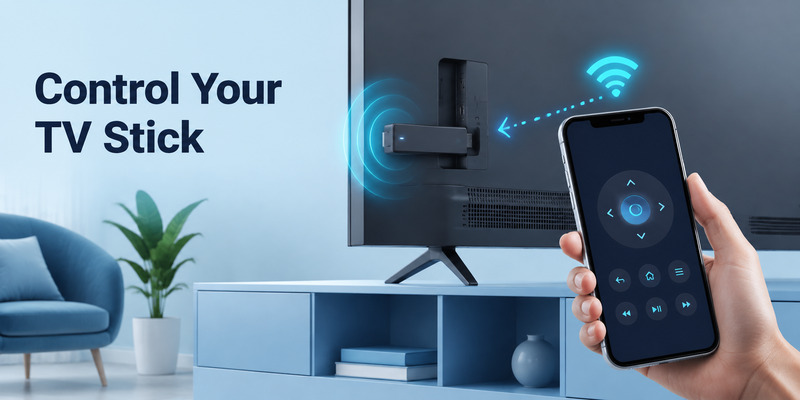
A Mi TV Stick is a compact streaming device that connects to a television through HDMI. Because it relies on a remote for setup and navigation, losing that remote can be inconvenient.
A mi tv stick remote app ios option may work when your iPhone and Mi TV Stick are connected to the same Wi-Fi network. If the stick runs Android TV or Google TV, an appropriate remote function may be available through a compatible Google TV app.
The setup steps are similar:
- Connect the Mi TV Stick to your TV and power source.
- Confirm it is connected to home Wi-Fi.
- Connect your iPhone to the same Wi-Fi network.
- Open a compatible remote app.
- Select the Mi TV Stick from the device list.
- Enter the pairing code shown on the TV screen.
A mi remote controller for tv ios connection is especially valuable for Mi TV Stick users because the original remote is small and easy to misplace.
However, there is one important limitation: if the Mi TV Stick is not connected to Wi-Fi and the physical remote is lost, your iPhone may not be able to discover it. You may need a temporary Bluetooth mouse, USB input device, replacement remote, or a known Wi-Fi hotspot setup to restore network access first.
7. Compatibility: Mi TV, Mi TV Stick, and iPhone
Not every Mi TV product works in exactly the same way. Before installing several apps, identify the operating system on your device.
Mi TV and Xiaomi Smart TV
Many Mi and Xiaomi televisions use Android TV, Google TV, or a regional Xiaomi smart-TV system. This affects which remote app can pair successfully.
For Android TV or Google TV-based models, the Google TV remote function may be a useful option. For Xiaomi smart-home compatible models, Xiaomi Home may provide additional pairing and management features.
Mi TV Stick
Mi TV Stick models often run Android TV or Google TV-style software. They can usually be controlled with compatible network remote tools after they are connected to Wi-Fi.
iPhone Compatibility
Most recent iPhones can use a mi remote controller for tv ios app as long as the app supports the installed version of iOS. iPads can also be useful because the larger screen gives you more room for touch controls and keyboards.
Always check the App Store listing and your device model before assuming an app will support every remote feature.
📘 Find the Right Guide: Fios Remote TV Codes: Find, Program, and Fix Your Verizon Fios Remote
8. Fix Mi Remote Controller for TV iOS Not Connecting
If a mi remote controller for tv ios app cannot find your Mi TV or Mi TV Stick, start with the simplest checks.
Confirm the Wi-Fi Network
Check that your iPhone and TV use the exact same Wi-Fi network. Do not rely only on the internet connection indicator.
Guest networks often block local connections. Turn off mobile data temporarily to make sure the iPhone stays on Wi-Fi during setup.
Restart Your Phone and TV
Restart the iPhone, then restart the Mi TV or Mi TV Stick. Reopen the remote app after both devices are fully connected again.
This simple step can refresh local network discovery and fix temporary app errors.
Enable Local Network Access
Open iPhone Settings, find the app you are using, and confirm that Local Network access is enabled.
Without this permission, a mi remote controller for tv ios app may appear to work normally but show no available devices.
Update the App and Device Software
Check the App Store for app updates. Then check the Mi TV or Mi TV Stick settings for system updates.
Outdated software can cause pairing issues, especially after an iOS update or a change in Wi-Fi security settings.
Temporarily Disable VPNs
VPNs, private relay services, and router isolation features can interfere with device discovery. Disable them temporarily and try pairing again.
Remove and Pair Again
If the TV was once connected but no longer responds, remove it from the app’s device list. Then repeat the pairing process from the beginning.
📘 Find the Right Guide: Apple TV Remote iOS: Set Up, Connect, and Fix Common iPhone Remote Problems
9. When to Use a Third-Party Remote App
Official tools should be your first choice, but a third-party mi remote controller for tv ios app can be useful if you want a different design, extra shortcuts, or support for several TV brands.
Remote TV App may be a practical alternative for users who want an iPhone remote interface and a backup way to control compatible smart TVs. Before relying on it, confirm that your exact Mi TV or Mi TV Stick model is supported.
When comparing apps, look for:
- Clear device compatibility
- Recent updates
- Transparent pricing
- Reliable Wi-Fi discovery
- Keyboard support
- Useful navigation controls
- A clear privacy policy
- App Store reviews from recent users
Avoid apps that make unrealistic promises, such as controlling every TV without pairing, Wi-Fi, or setup. A legitimate mi remote controller for tv ios solution should explain its requirements clearly.
📖 Explore Articles: Google TV Remote iOS: How to Control Google TV from Your iPhone or iPad
10. Tips for Better Mi TV Control from iPhone
Once your mi remote controller for tv ios connection works, use these habits to keep it dependable.
Keep the App Installed
Do not remove the app after finding your physical remote. It is a useful backup when the remote battery dies or gets lost.
Keep Devices on Your Main Wi-Fi
Use one stable primary Wi-Fi network for your phone and TV. Moving devices between guest networks, mobile hotspots, and separate routers can break automatic reconnection.
Give Your Devices Clear Names
If you own more than one Xiaomi TV or streaming stick, use names such as “Living Room Mi TV” and “Bedroom Mi TV Stick.” This reduces accidental connections to the wrong device.
Keep a Physical Backup
An iPhone remote requires battery power and Wi-Fi. Keep the original remote, spare batteries, or a compatible replacement controller nearby for emergency setup.
Use the Keyboard for Search
Typing from your iPhone is faster than entering text through an on-screen TV keyboard. Use your mi remote controller for tv ios app for searches, login details, and passwords whenever possible.
📖 Explore Articles: iOS Remote Control: Turn Your iPhone or iPad Into a Smart TV Remote
11. FAQs About Mi Remote Controller for TV iOS
Can I control Mi TV from my iPhone?
Yes, if the TV supports network control and both devices are connected to the same Wi-Fi network. The exact app depends on your Mi TV model and operating system.
Is there a free Mi TV remote for iOS?
Some official and third-party options may offer free remote features. Check the App Store listing carefully because free apps can still include ads, trials, or optional subscriptions.
Why can’t my iPhone find my Mi TV Stick?
The most common causes are different Wi-Fi networks, missing Local Network permission, an offline Mi TV Stick, outdated software, or a VPN blocking local discovery.
Can I use my iPhone keyboard on Mi TV?
In many supported setups, yes. A mi remote controller for tv ios app can provide faster keyboard input when a compatible text field appears on the TV.
Does the iPhone remote work without Wi-Fi?
Normally, no. A mi remote controller for tv ios solution needs local network access to communicate with the TV or streaming stick.
12. Final Thoughts
A mi remote controller for tv ios setup is an easy way to control a compatible Mi TV or Mi TV Stick from your iPhone or iPad. It gives you a backup remote for navigation, streaming playback, app access, and much faster text entry.
Start by confirming Wi-Fi, model compatibility, and Local Network permission. Then try Xiaomi Home or another compatible remote option for your TV platform. If you want a different remote layout, compare alternatives such as Remote TV App after checking support for your device.
With the right app and a stable home network, an mi remote controller for tv ios solution can keep your entertainment setup usable even when the original remote is unavailable.
Download LG TV Remote