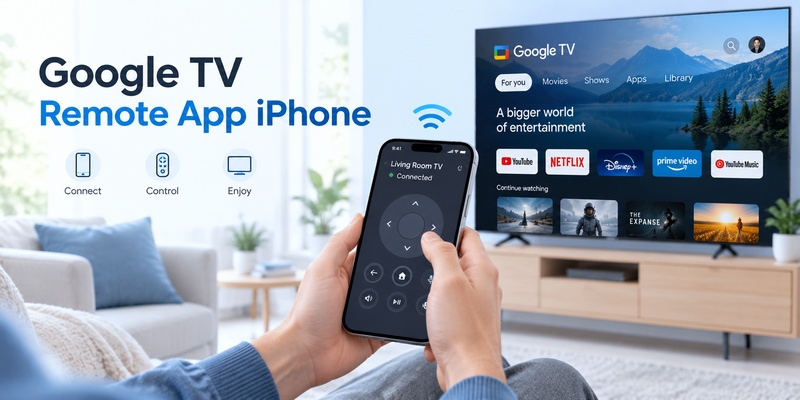
Google TV Remote App iPhone: How to Use Your iPhone as a Google TV Remote
By the Remote TV App Team
Last updated: September 2026
Quick answer: Yes, you can use an iPhone as a Google TV remote by installing the Google TV app, connecting the iPhone and TV to the same Wi-Fi network, selecting the TV, entering the pairing code shown on screen, and tapping Pair.
The google tv remote app iphone feature can replace many everyday functions of a physical remote, including navigation, playback, volume adjustment, text entry, Google Assistant, and supported power controls.
Google’s official iPhone documentation confirms that the Google TV app can control both Google TV and Android TV devices. As of September 2026, Apple’s App Store lists the Google TV app as requiring iOS 17.0 or later, with a download size of approximately 73.9 MB.
So if you’re asking can i use my iphone as a tv remote, the answer is yes — and for a compatible Google TV, you may not need the physical remote for normal everyday control at all.
1. Google TV Remote App iPhone: Quick Answer
The easiest way to use the google tv remote app iphone feature is through Google’s official Google TV app.
The complete setup is only five basic steps:
- Install or open the Google TV app on your iPhone.
- Make sure your iPhone and Google TV are on the same Wi-Fi network.
- Tap TVs nearby near the bottom-right of the app.
- Select your television.
- Enter the code displayed on the TV and tap Pair.
Google documents this pairing workflow for iPhone and iPad.
Once connected, your iPhone becomes an on-screen remote.
You can use it to move around the Google TV interface, select apps, control playback, type search terms, adjust supported volume controls, and access Google Assistant.
That makes the google tv remote app iphone especially useful when:
- your physical remote is lost;
- its batteries are dead;
- some remote buttons no longer work;
- you need to type a long password;
- several people want access to the TV;
- you simply prefer controlling the TV from your phone.
For many households, the phone remote is useful enough to keep configured even when the physical remote works perfectly.
📖 Read More Guides: Google Remote TV: Complete Guide to Apps, Pairing, Fixes, Phone Control, and Replacement
2. What You Need Before Using an iPhone as a Google TV Remote
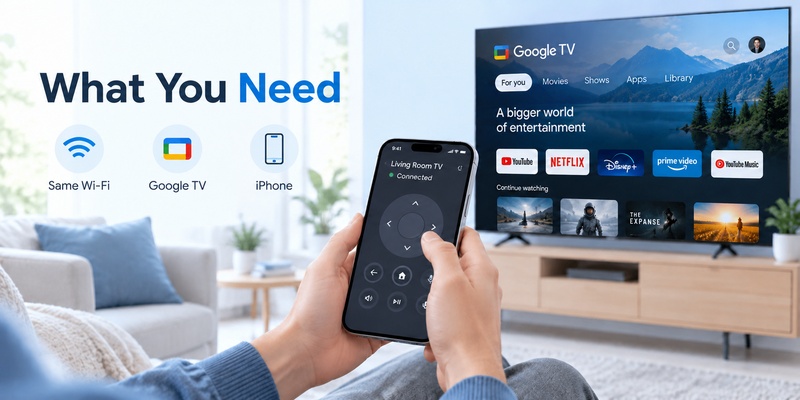
Before setting up the google tv remote app iphone, check three things.
First, your TV must use Google TV or a compatible Android TV platform.
The Google TV app is not a universal controller for every television simply because it is installed on an iPhone.
Second, the TV and iPhone should be connected to the same Wi-Fi network.
Google explicitly states that this is required when using a phone as the Google TV virtual remote.
Third, make sure your iPhone supports the current Google TV app.
As of September 2026, the App Store listing states:
| Requirement | Current information |
| Platform | iPhone / iPad |
| iPhone requirement | iOS 17.0 or later |
| iPad requirement | iPadOS 17.0 or later |
| Approx. app size | 73.9 MB |
| Developer | Google LLC |
| Category | Entertainment |
If someone asks can i use my phone as a tv remote, these requirements are the first compatibility checks worth making.
An older iPhone that cannot run the current Google TV app may need another compatible remote solution.
💡 Discover Helpful Guides: How to Pair and Reconnect a Google TV Remote
3. How to Set Up Google TV Remote App iPhone
Setting up the google tv remote app iphone takes only a few minutes when both devices are already online.
Step 1: Install Google TV
Open the App Store and search for Google TV.
Make sure the developer is Google LLC rather than downloading an unrelated app with a similar name.
Step 2: Connect to the same Wi-Fi
Your iPhone and television should be on the same local network.
For example:
iPhone → HomeWiFi
Google TV → HomeWiFi
If your phone is using cellular data while the television is on Wi-Fi, discovery may fail.
Step 3: Open the virtual remote
Launch Google TV.
Near the lower-right area, select TVs nearby.
Step 4: Choose your Google TV
Your compatible televisions should appear in the device list.
Tap the one you want to control.
Step 5: Enter the pairing code
A code appears on the television.
Enter that code on your iPhone and tap Pair.
Google specifies this pairing procedure in its official Google TV Help documentation for iOS devices.
Once complete, the google tv remote app iphone interface should become available.
4. What Can You Control From Your iPhone?
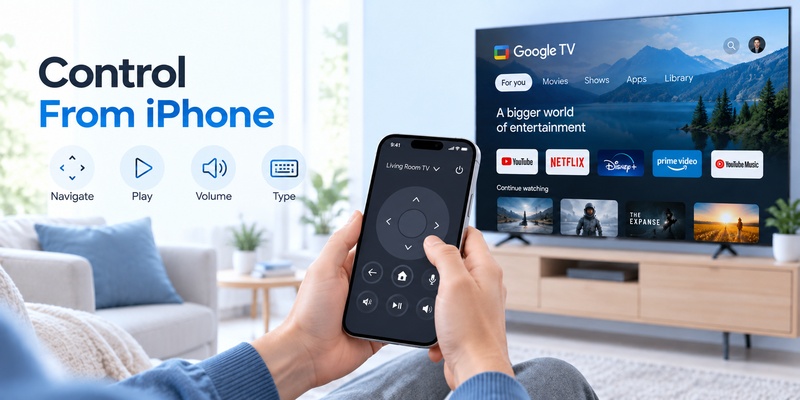
The google tv remote app iphone does much more than move a cursor around the screen.
According to Google, the virtual remote connection can support:
- media playback control
- TV power
- Google Assistant
- volume adjustment
- text input
- navigation and content selection
Google also states that the app can be used to play movies and television shows and control media playback.
Navigation
Use the virtual navigation pad to move between:
For You → Apps → Library → Settings
You can also open streaming apps and choose content.
Playback
Depending on the app and device, common controls include:
- Play
- Pause
- Rewind
- Fast-forward
Voice control
Google Assistant can be accessed from supported configurations without reaching for the physical TV remote.
That means the google tv remote iphone app can handle most routine viewing tasks from a single screen.
For someone asking can i use my phone as a remote, this is much closer to a real remote replacement than a simple casting controller.
Download TV Remote App5. How the iPhone Remote Connects to Google TV
Understanding how the google tv remote app iphone communicates with your TV helps explain why some common problems occur.
A traditional television remote often uses infrared.
The iPhone Google TV remote primarily relies on your local network connection instead.
This distinction matters.
With an infrared remote, you normally need:
Remote → clear line of sight → TV IR receiver
With an iPhone remote, communication is closer to:
iPhone → Wi-Fi router/local network → Google TV
That is why you don’t normally need to point your phone toward the television.
You can sit at an angle or elsewhere in the room and still control the interface.
It also explains why an iphone google tv remote may stop working immediately when your phone moves onto a different Wi-Fi network.
Google specifically says that the phone and TV must be on the same Wi-Fi network when using the virtual remote.
For most connectivity problems, checking the network should therefore come before reinstalling the app or resetting the television.
💡 Discover Helpful Guides: Google TV Remote Not Working? 15 Fixes for Pairing, Volume, Buttons, Voice, and Power
6. Can You Use the Google TV Remote Without the Physical Remote?
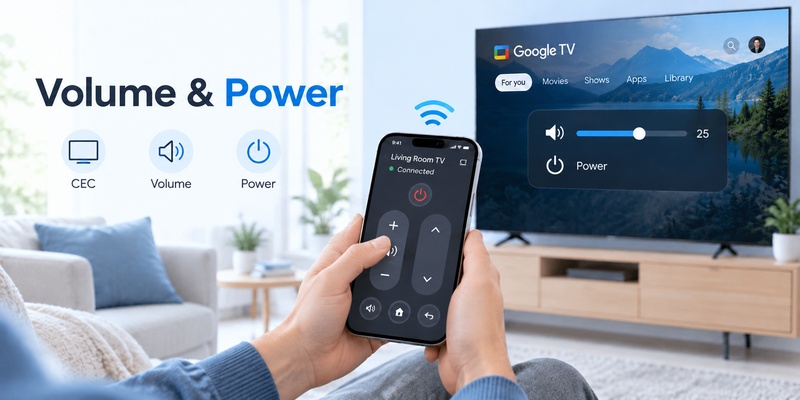
Yes, in many situations.
One major reason people search for google tv remote app iphone is that their original remote is already missing or broken.
If your Google TV is already powered on, connected to Wi-Fi, and visible to the Google TV app, you can often connect from the iPhone without using the physical remote.
This answers two common questions:
can i use my phone as a remote?
Yes, for a compatible TV.
can i use my phone as a tv remote if the original remote is lost?
Usually yes, provided the TV is already connected to your network and supports phone control.
The difficult situation is a TV that has:
- never been connected to Wi-Fi;
- changed to a new router;
- been factory-reset;
- become completely disconnected from the network.
In those situations, you may need a physical remote, compatible replacement, TV buttons, Ethernet connection, or another setup method to get the television back online first.
Once Wi-Fi access is restored, the google tv remote app iphone becomes much more useful.
🗺️ Browse How-To Guides: Google TV Remote Battery: Type, Life, Drain and Replacement Guide
7. How to Use iPhone Keyboard With Google TV
One underrated benefit of the google tv remote app iphone is text input.
Entering a 16-character Wi-Fi password or a long movie title with arrow buttons is tedious.
Using the iPhone keyboard is significantly easier.
Google specifically highlights the ability to enter text for searches and login information from the phone remote.
This is particularly helpful for:
- Wi-Fi passwords;
- email addresses;
- streaming-service login information;
- YouTube searches;
- movie titles;
- app searches.
For example, instead of moving through an on-screen keyboard one letter at a time, select the TV text field and type from your phone when the keyboard option becomes available.
This is one reason the google tv remote app for iphone can actually be more convenient than the physical remote.
If you’re wondering how do you use your phone as a remote control efficiently, use the physical remote for quick tactile navigation and your iPhone whenever text entry becomes cumbersome.
That combination works particularly well.
🗺️ Browse How-To Guides: Google TV Remote Not Working Light On: LED Meanings and Fast Fixes
8. How to Control Volume and Power From iPhone
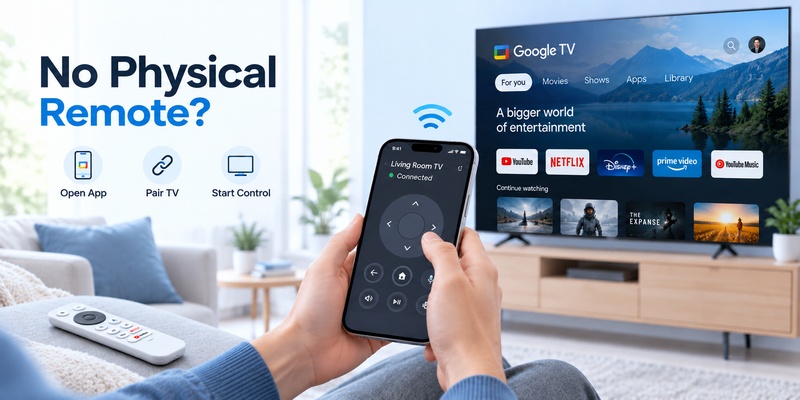
Volume control sometimes creates confusion with the google tv remote app iphone because different TV setups handle volume differently.
Google’s documentation says the virtual remote can change volume and perform supported power functions.
However, these functions may depend on how your television and connected hardware are configured.
If navigation works but volume doesn’t, Google recommends checking:
Settings → Remotes & Accessories → Set up remote buttons → Volume control
Then confirm that volume control is configured appropriately, including Auto (CEC) where applicable.
HDMI-CEC allows connected devices to exchange certain control commands through HDMI.
That can affect power and volume behavior.
If the google tv remote app iphone can navigate menus but cannot change volume:
- Confirm the TV itself supports network/CEC volume control.
- Check HDMI-CEC.
- Check the selected audio output.
- Determine whether a soundbar or AV receiver controls volume instead.
- Restart the TV after changing settings.
Do not assume the iPhone connection has failed just because one control is unavailable.
💡 Discover Helpful Guides: How to Control Google TV With Phone on Android and iPhone
9. TCL Google TV Remote App for iPhone
Owners searching for a tcl google tv remote app for iphone have another official option: Google Home.
TCL’s current support documentation confirms that the Google Home app on iPhone and iPad can control key TCL Google TV functions.
TCL lists capabilities including:
- menu navigation;
- volume adjustment;
- launching apps;
- Back and Home controls;
- iPhone keyboard input.
TCL says both devices should be connected to the same Wi-Fi network, and recommends using the latest Google Home app.
Set it up on TCL Google TV
Install or update Google Home on the iPhone.
Then:
Google Home → Devices → Add → Set up device → New device
Choose your home and select your TCL Google TV.
After setup:
Devices → TCL Google TV → Remote
You should then see the virtual remote interface.
This means TCL owners have more than one potential google tv remote app iphone workflow depending on the device configuration: Google’s Google TV app and Google Home integration.
TCL also notes that network-based power controls may vary by setup, even when navigation and volume work correctly.
🗺️ Browse How-To Guides: How to Connect Google TV to WiFi Without Remote: 5 Working Methods
10. Google TV App vs Google Home App
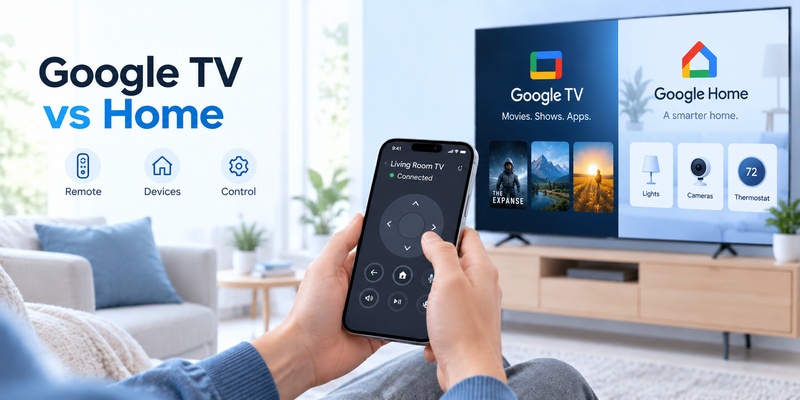
The google tv remote app iphone and Google Home can overlap, but they are designed around slightly different experiences.
| Feature | Google TV app | Google Home |
| Google TV navigation | Yes | Supported devices |
| Virtual remote | Yes | Yes |
| Search entertainment | Strong focus | Not primary focus |
| Watchlist/content discovery | Yes | No |
| Smart-home management | Limited | Strong |
| TCL Google TV support | Yes/compatible | Official TCL guidance |
| Keyboard input | Yes | Supported |
For most people who mainly want an iphone google tv remote, start with Google TV.
The app is specifically designed around entertainment discovery and Google TV control.
If your TV is already deeply integrated into Google Home — particularly TCL Google TV or a smart-home setup — Google Home may be more convenient.
TCL specifically documents its Google Home remote workflow for iPhone, while Google documents the Google TV app workflow for Google TV and Android TV generally.
There is no rule saying you must choose only one.
Keeping both available gives you a useful backup if one remote interface temporarily has trouble discovering the TV.
11. Google TV Remote App iPhone Not Finding Your TV
If the google tv remote app iphone cannot find your television, check Wi-Fi first.
Google identifies the same-network requirement as the primary condition for using the phone remote.
Start with these checks:
Confirm the network on Google TV
Open:
Settings → Network & Internet
Verify Wi-Fi is enabled and the correct network is selected.
Check the iPhone
Open iPhone Settings and verify that the phone is connected to the same local Wi-Fi.
Disable cellular-only operation
Being connected to the internet is not enough.
Your iPhone and television need local network access to discover one another.
Restart the television
Google recommends:
- Unplug Google TV.
- Wait 10 seconds.
- Reconnect power.
- Set up the virtual remote again.
Also restart the google tv remote app ios if device discovery appears frozen.
Close it completely, reopen it, and tap TVs nearby again.
📘 Find the Right Guide: Google TV Remote Finder: How to Find a Lost Remote
12. Can You Use an iPhone as a Universal TV Remote?
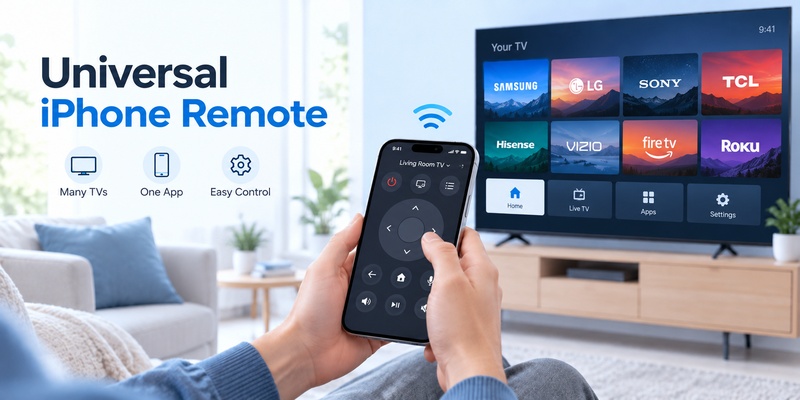
A common follow-up is is there a universal remote app for iPhone that works beyond Google TV.
Yes, but compatibility depends heavily on the TV and the connection method.
Modern iPhones do not function like traditional universal IR remotes because they do not provide a general-purpose infrared transmitter for controlling arbitrary televisions.
Most iPhone TV remote apps therefore communicate through:
- Wi-Fi;
- local network protocols;
- smart-TV APIs;
- streaming-device integrations.
A compatible Remote TV app can be useful if your home contains televisions from different manufacturers and you want a more unified interface rather than separate brand apps.
This is especially convenient when your physical remotes are lost or you frequently switch between TVs.
The important distinction is that a universal phone app is not automatically compatible with every television.
Check supported brands, TV models, operating systems, and network requirements before relying on one as your only controller.
For Google TV specifically, the official google tv remote app iphone remains one of the best starting points because the remote capability is documented directly by Google.
13. Best Ways to Use Your iPhone Remote
Once the google tv remote app iphone is paired, a few habits make it considerably more useful.
Keep your iPhone and TV on the same primary home network.
This avoids most discovery problems.
Leave the Google TV app installed even if you normally use the physical remote.
When batteries die or the remote disappears between sofa cushions, you immediately have a backup.
Use the iPhone keyboard for long searches and passwords.
It is one of the strongest advantages of the phone remote.
Use both Google TV and Google Home when useful.
For example, TCL officially documents remote functionality in Google Home for iPhone and iPad.
Keep a universal Remote TV App option available if you own different TV brands.
That can reduce the need to install a separate remote application for every television.
And if you’re researching how to use apple phone as tv remote, remember that the best application depends on the television platform: Google TV, Roku, Fire TV, Samsung, LG, and Apple TV don’t all use the same remote system.
🧭 Explore Guides: Google TV Remote Replacement: Compatibility, Buying, and Pairing Guide
14. FAQ
Can I use my iPhone as a TV remote?
Yes. If your television supports network-based remote control, your iPhone can act as a remote through a compatible app. For Google TV and Android TV, Google officially supports remote control through the Google TV app on iPhone.
Can I use my phone as a TV remote without the physical remote?
Yes, if the TV is already connected to your network. The google tv remote app iphone can pair using the code shown on your TV. If the television is offline or has never been configured, however, you may need another method to connect it first.
Does the Google TV remote app work on iPhone?
Yes. Google’s official documentation includes instructions specifically for iPhone and iPad. The current App Store version requires iOS 17.0 or later.
Does my iPhone need to be on the same Wi-Fi as Google TV?
Yes. Google explicitly says your phone and television must use the same Wi-Fi network to use the phone as a virtual remote.
Can the iPhone Google TV remote control volume?
Yes, on supported configurations. If volume isn’t working, Google recommends checking Remotes & Accessories → Set up remote buttons → Volume control and verifying Auto (CEC) where appropriate.
Can I control TCL Google TV from an iPhone?
Yes. TCL officially documents using Google Home on iPhone and iPad to navigate menus, adjust volume, open apps, use Back/Home functions, and enter text with the phone keyboard.
💡 Discover Helpful Guides: Google TV Remote App Android: How to Control Google TV From Your Phone
15. Final Thoughts
The google tv remote app iphone is one of the easiest ways to turn an iPhone into a practical replacement or backup controller for a Google TV.
For most users, setup comes down to three essentials:
same Wi-Fi → choose the TV → enter the pairing code.
Once connected, the google tv remote app iphone can handle everyday navigation, playback, text input, Assistant access, volume, and supported power functions.
The biggest advantage isn’t simply replacing a missing remote. It’s convenience. Typing passwords and search queries from the iPhone keyboard is often faster than using a traditional directional pad, while a phone remote gives you an instant backup when the physical controller disappears or runs out of batteries.
If the google tv remote app iphone cannot connect, start with the local network. Both devices should be on the same Wi-Fi, and Google’s recommended troubleshooting sequence includes restarting Google TV by disconnecting power for 10 seconds before pairing the virtual remote again.
TCL Google TV owners can also use Google Home on iPhone, while users with several television brands may prefer keeping a compatible Remote TV app as an additional universal-control option.
So, can i use my iphone as a tv remote? Yes. For a compatible Google TV, an iPhone can do far more than basic channel control — it can become a genuinely useful everyday remote.