Google TV Remote App Android: How to Control Google TV From Your Phone
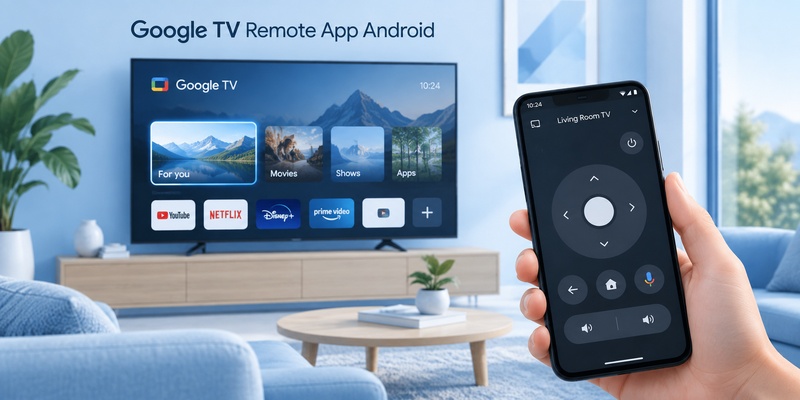
The easiest way to control Google TV from an Android phone is to open the Google TV app, select your nearby TV, enter the code shown on the television, and tap Pair.
Once connected, your phone can handle navigation, playback, volume, text entry, power controls on compatible equipment, and Google Assistant functions. Google also lets Android users add the virtual remote to Quick Settings, so it can be opened without searching for the Google TV app every time.
The google tv remote app android setup is especially useful when the physical remote is lost, has dead batteries, or refuses to pair.
According to Google TV Help, the virtual controller officially supports both Google TV and Android TV. Google Play also shows the broader Google TV app with more than 10 billion downloads, although that figure represents the entire Google TV application rather than only its remote-control feature.
1. Does Google TV Have a Remote App for Android?
Yes. Android users can officially control Google TV and Android TV using Google’s Google TV app.
That makes the answer straightforward for anyone asking can i use my phone as a tv remote.
You normally do not need to buy another physical controller.
The google tv remote app android functionality is part of Google’s TV ecosystem and provides a virtual remote directly on the phone.
According to Google TV Help, users can use it to:
- Play movies and television shows
- Control playback
- Turn compatible TVs on and off
- Change volume
- Activate Google Assistant
- Enter text for searches
- Enter usernames or login information
This is more capable than a basic directional-pad replacement.
The key Wi-Fi requirement
The phone and television normally need to be connected to the same Wi-Fi network.
Google specifically identifies this as a requirement for its virtual remote.
If your phone is using mobile data, guest Wi-Fi, or another router while the television is connected elsewhere, the phone may not detect the TV at all.
For a broader look at Google’s mobile controllers, see our Google Remote TV App guide.
📖 Read More Guides: Google Remote TV: Complete Guide to Apps, Pairing, Fixes, Phone Control, and Replacement
2. What Can Google TV Remote App Android Control?
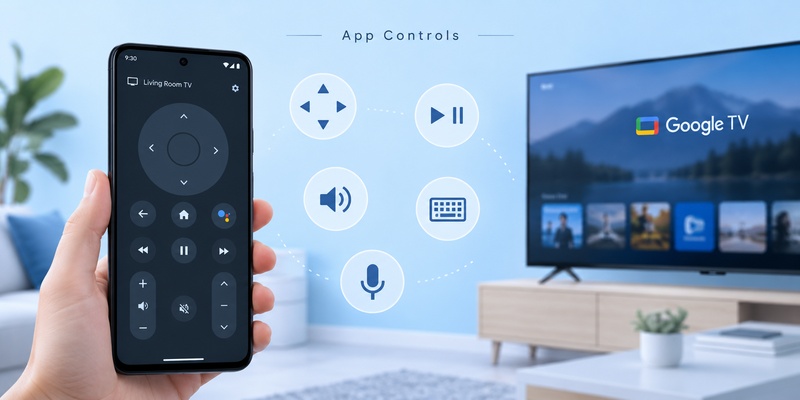
The google tv remote app android experience is designed to replace most everyday functions of a physical Google TV controller.
Once paired, you can navigate the interface using the touchscreen.
Navigation
The virtual D-pad lets you move:
- Up
- Down
- Left
- Right
Tap the center control to select an item.
This is enough for navigating Google TV’s home screen, opening streaming services, browsing settings, or choosing content.
Playback
The app can provide media controls for supported content.
Google officially lists playback control among the remote connection’s capabilities.
That makes a phone useful when you need to pause or resume a movie but cannot find the physical remote.
Keyboard input
Text input is one of the biggest advantages of a phone remote.
Entering a 20-character Wi-Fi password with a physical D-pad is slow.
Using the Android keyboard is much faster.
The google tv remote app for android can therefore be more convenient than the original controller when:
- Signing into Netflix or another service
- Searching for a movie
- Entering a Wi-Fi password
- Typing an email address
- Searching Google TV
Voice control
Google also supports Assistant activation through the virtual remote experience.
This makes it possible to search or issue supported commands without reaching for the original Voice Remote.
Download TV Remote App💡 Discover Helpful Guides: How to Pair and Reconnect a Google TV Remote
3. How to Set Up Google TV Remote App on Android
For anyone wondering how to use android phone as tv remote, Google’s official pairing procedure is short.
Before you begin:
Connect the Android phone and Google TV to the same Wi-Fi network.
Then follow these steps.
Step 1: Open Google TV
Open the Google TV app on your Android phone.
If you do not have it, install or update the official application from Google Play.
Confirm that the developer is Google LLC when downloading Google software.
Step 2: Find nearby TVs
Near the bottom-right area of Google TV, tap the option showing nearby televisions or the remote-control function.
The exact wording can change slightly with interface updates.
Step 3: Choose the TV
Select the Google TV or Android TV device you want to control.
If multiple televisions appear, verify the device name shown in Google TV settings.
Step 4: Enter the pairing code
A code appears on your television screen.
Enter that code on the Android phone.
Step 5: Tap Pair
Tap Pair.
Once authentication finishes, the phone becomes a google tv remote app android controller.
Google TV Help currently documents this sequence as:
Open Google TV → TVs nearby → Select device → Enter TV code → Pair.
For more phone-control options, see How to Control Google TV With Phone.
4. Add Google TV Remote to Android Quick Settings
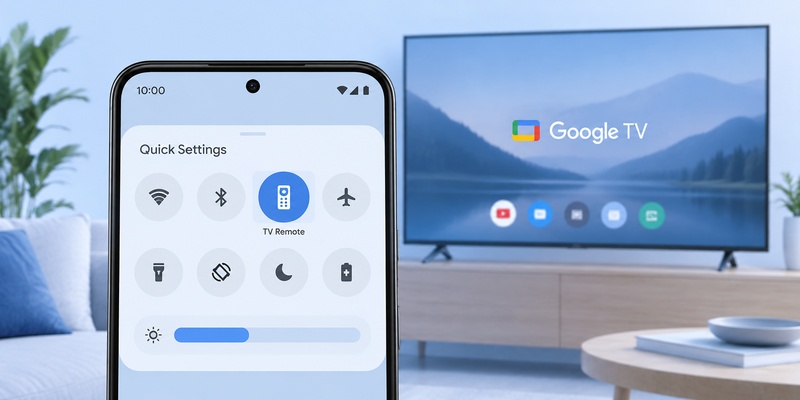
One of the strongest Android-specific advantages is Quick Settings integration.
You do not have to open Google TV manually whenever you need the remote.
Google officially recommends adding the controller to Android Quick Settings for faster access.
Why Quick Settings is useful
Imagine your physical remote disappears while you’re watching something.
Instead of:
Unlock phone → find Google TV → open app → find remote
you can access the remote through Android’s system controls.
Swipe down from the top of the phone and open the TV remote tile if it has been added.
This makes the google tv remote app android behave more like a built-in system feature.
How to add it
The precise interface depends on your Android version and phone manufacturer, but generally:
- Swipe down to open Quick Settings.
- Tap the edit or pencil control.
- Find the TV Remote tile.
- Drag or add it to active Quick Settings.
- Save the arrangement.
After that, the virtual controller can be opened much faster.
This is particularly useful as an emergency backup remote.
Set it up while your physical remote still works rather than waiting until the controller disappears under the sofa.
💡 Discover Helpful Guides: Google TV Remote Not Working? 15 Fixes for Pairing, Volume, Buttons, Voice, and Power
5. Google TV App vs Google Home Remote on Android
Google offers more than one way to control compatible TV hardware from Android.
The two most relevant options are:
Google TV app and Google Home.
| Feature | Google TV App | Google Home |
| TV-focused controls | Excellent | Good |
| Android Quick Settings | Supported | Not primary workflow |
| Google TV navigation | Yes | Yes on supported devices |
| Smart-home devices | Limited | Excellent |
| Text input | Supported | Device-dependent interface |
| Best use | Dedicated TV remote | Whole smart-home control |
Choose Google TV when…
Use the google tv remote app android when your main goal is simply to control your television.
It provides a focused controller with navigation and media functions.
Choose Google Home when…
Google Home becomes more useful if the television is part of a larger home automation environment.
For example, you may already use Home for:
- Smart speakers
- Chromecast
- Google TV Streamer
- Lights
- Cameras
- Thermostats
- Other connected equipment
Google’s Streaming Help confirms that both Google Home and Google TV can be used as virtual controllers for supported Google streaming devices.
For a deeper walkthrough, see Google Home TV Remote.
6. Using an Android Phone as a Remote for Android TV
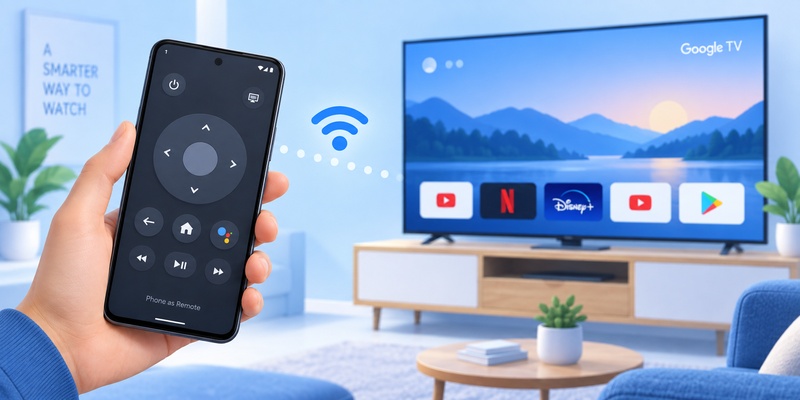
Google TV is not the only platform supported.
If you’re asking can i control my android tv with my phone, the answer is also yes.
Android TV Help explicitly states that the Google TV app on a phone or tablet can navigate an Android TV device.
The pairing process is essentially the same.
For how to use android phone as remote for android tv:
- Connect both devices to the same Wi-Fi network.
- Open Google TV on Android.
- Tap the TV connection option.
- Choose your Android TV.
- Enter the code displayed on the television.
- Tap Pair.
Google TV vs Android TV
These names can be confusing.
Google TV is a newer interface and content experience built on Google’s TV platform, while many older and current televisions still use Android TV.
From a remote-app perspective, the important part is simpler:
Google’s mobile remote supports both.
That is why the same google tv remote app android can work across televisions from different manufacturers when those TVs use supported Google software.
🗺️ Browse How-To Guides: Google TV Remote Battery: Type, Life, Drain and Replacement Guide
7. Which Google TV and Android TV Devices Are Compatible?
The google tv remote app android is not restricted to TVs carrying a Google logo.
Google TV and Android TV are used across many hardware brands and streaming devices.
Examples can include supported models from:
- TCL
- Hisense
- Sony BRAVIA
- Philips
- Xiaomi
- onn.
- Chromecast with Google TV
- Google TV Streamer
- Other Android TV manufacturers
The operating system matters more than the logo on the television.
TCL example
A TCL Google TV can use Google’s virtual remote.
A TCL Roku TV, however, belongs to the Roku ecosystem.
The fact that both televisions say TCL does not mean they use the same controller.
Hisense example
Hisense televisions can run several operating systems depending on model and region.
These include Google TV as well as other platforms.
Again:
Check the TV operating system before choosing the remote app.
Chromecast and Google TV Streamer
Google’s Streaming Help specifically supports phone-based remote control for Chromecast with Google TV and Google TV Streamer using Google TV or Google Home.
So if the Voice Remote is missing, the Android phone can be a particularly useful backup.
🗺️ Browse How-To Guides: Google TV Remote Not Working Light On: LED Meanings and Fast Fixes
8. Is Google TV Remote App Free?
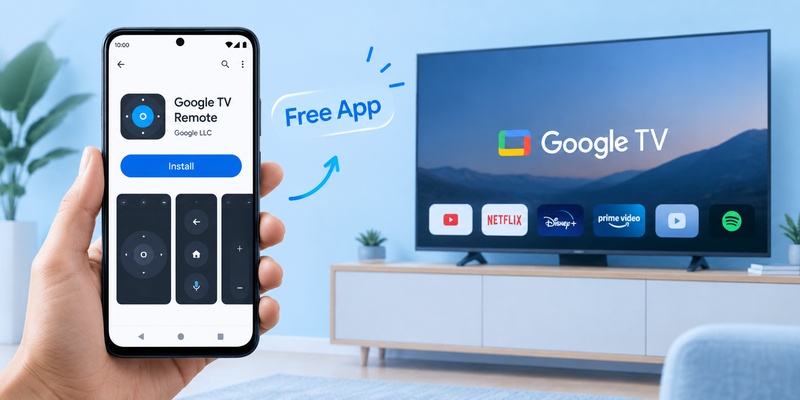
For users looking for a google tv remote app free, Google’s official virtual-remote functionality does not require purchasing another physical remote.
The Google TV application itself is available through Google Play.
Google Play currently lists Google TV from Google LLC with 10B+ downloads.
That statistic reflects the entire Google TV application—including entertainment discovery and library features—not simply users of the virtual remote.
Still, it demonstrates how widely distributed the application is across Android devices.
Do you need a subscription?
You do not need to buy a separate TV-remote subscription simply to use Google’s standard virtual controller with a compatible Google TV or Android TV.
Individual streaming services accessed through the television may, of course, require their own subscriptions.
Those are separate from the remote itself.
Third-party free apps
There are also third-party remote applications.
Some are free, while others use:
- Ads
- Premium upgrades
- Weekly subscriptions
- Lifetime purchases
Before downloading one, check the exact supported TV platform.
If Google’s official controller already works, installing another Android remote app may be unnecessary unless you need broader multi-brand compatibility.
💡 Discover Helpful Guides: How to Control Google TV With Phone on Android and iPhone
9. Android TV Remote Service by Google LLC Explained
Users searching for android tv remote control app by google llc may encounter an application called Android TV Remote Service.
This is different from simply opening Google TV as your everyday controller.
Google Play describes Android TV Remote Service as the service that allows Android phones and tablets to work as remote controls for Android TV.
As of September 2026, Google Play lists it with:
500M+ downloads
and shows an update date of September 6, 2026.
Google’s listing says the service supports:
- D-pad mode
- Touchpad mode
- Voice search
- Android keyboard text entry
It also states that Android devices can connect through the same network or discover Android TV through Bluetooth.
Should you search for the old standalone remote?
For normal use today, Google directs users toward the virtual controls in its current ecosystem rather than depending on an old standalone Android TV Remote Control workflow.
Think of Android TV Remote Service primarily as supporting infrastructure.
For everyday control, the google tv remote app android experience inside Google TV is clearer for most users.
Don’t confuse it with Google TV Home
Google TV Home is another Google system application used on the television itself.
It is not the phone remote you need to open when you want to control your TV from Android.
🗺️ Browse How-To Guides: How to Connect Google TV to WiFi Without Remote: 5 Working Methods
10. Google TV Remote App Android Not Working: Fast Fixes
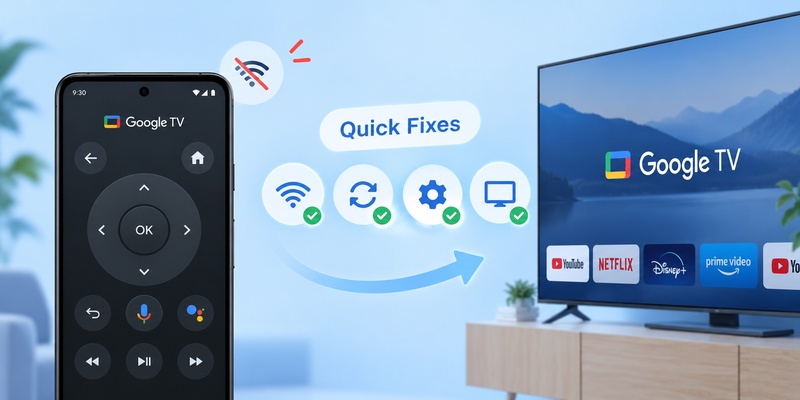
If your google tv remote app android suddenly stops connecting, check Wi-Fi first.
Google’s official troubleshooting documentation says the phone and television need to be connected to the same Wi-Fi network.
Use this quick diagnostic table.
| Problem | Likely Cause | First Fix |
| TV doesn’t appear | Different networks | Connect both to same Wi-Fi |
| Pairing code fails | Temporary connection issue | Retry pairing |
| Remote was working, then stopped | Network/device glitch | Restart TV |
| Navigation works, volume fails | CEC configuration | Check volume settings |
| TV remains unavailable | App/network issue | Restart phone/app/router |
Fix 1: Verify the network
A common google tv app remote not working cause is surprisingly simple.
Your Android phone may have automatically joined another Wi-Fi network.
Check:
Android Settings → Network & Internet → Wi-Fi
Then compare that network with the one displayed in Google TV’s Network & Internet settings.
Fix 2: Restart Google TV
Google’s troubleshooting instructions recommend:
- Unplug Google TV.
- Wait 10 seconds.
- Reconnect the power.
- Set up the virtual remote again.
This is often enough to clear a temporary network or system problem.
Fix 3: Reopen the app
Force-close Google TV and open it again.
Then scan for nearby TVs.
Fix 4: Update Google TV
Use Google Play to check whether an updated version is available.
App changes can affect discovery, pairing, or compatibility behavior.
📘 Find the Right Guide: Google TV Remote Finder: How to Find a Lost Remote
11. Why Your Phone Cannot Find Google TV
If you’re asking why is my google tv app remote not working, first determine whether the problem is discovery or control.
These are different failures.
The TV never appears
When the television does not appear at all, focus on networking.
Check:
- Same Wi-Fi name
- Wi-Fi enabled on TV
- Wi-Fi enabled on phone
- Guest network disabled
- Google TV actually online
- Router functioning normally
Some routers isolate devices on guest networks, preventing the phone from discovering another device even though both technically have internet access.
The TV appears but won’t pair
Confirm that you entered the pairing code exactly as displayed.
Then retry.
Restarting both devices can clear stale pairing sessions.
The TV changed Wi-Fi networks
If Google TV has moved to another router or no longer knows the current Wi-Fi credentials, a network-based mobile controller may not connect.
This becomes especially awkward when the physical remote is also unavailable.
For that case, see How to Connect Google TV to WiFi Without Remote.
The phone remote is most reliable when both devices already share a functioning local network.
12. Volume, Power and Voice Controls Not Working
Sometimes the google tv remote app android connects successfully, but one specific feature fails.
That does not necessarily mean the entire remote is broken.
Volume doesn’t work
Google’s virtual-remote troubleshooting documentation recommends checking:
Settings → Remotes & Accessories → Set up remote buttons → Volume control
Google specifically suggests confirming that Volume control is set to Auto (CEC) where appropriate.
CEC lets compatible HDMI-connected devices exchange control commands.
Navigation works but power doesn’t
Power control depends more heavily on the television and hardware configuration than basic menu navigation.
If your D-pad works but the TV power button does not, investigate TV-control settings rather than repeatedly re-pairing the phone.
Voice feature doesn’t work
Check microphone permission on the Android phone.
Also verify that Google Assistant or the relevant Google voice feature is available for your account, device, language, and region.
Text entry works but other functions don’t
This usually proves the phone and TV are communicating.
At that point, concentrate on the specific feature rather than uninstalling everything.
Successful navigation is a strong sign that the basic pairing and network connection are healthy.
13. Google TV Remote App Android vs iPhone
The article focuses on Android, but users may also encounter google tv remote app for iphone.
Google supports virtual-remote workflows on both major mobile platforms.
The Android version has one particularly useful advantage:
Quick Settings integration.
| Feature | Android | iPhone / iPad |
| Google TV remote | Yes | Yes |
| Google Home remote | Yes | Yes |
| Same-network requirement | Yes | Yes |
| Pairing code | Yes | Yes |
| Android Quick Settings tile | Yes | No |
| Smartphone keyboard | Yes | Yes |
For a household containing both Android phones and iPhones, either platform can therefore provide a backup controller.
But if your primary phone is Android, there is little reason to switch devices just for Google TV control.
The android google tv remote app workflow is already deeply integrated with Google’s ecosystem.
14. Using a Universal Remote TV App Instead
Google’s official controller is usually the best first option for a Google TV.
But it is not always the most convenient option for a household with several TV platforms.
Suppose you have:
- Sony Google TV in the living room
- Samsung TV in a bedroom
- LG TV elsewhere
- Roku TV in another room
Google TV’s virtual controller is optimized around Google’s TV ecosystem.
A universal Remote TV App can make more sense when you want one phone interface for several compatible television brands.
When a universal option is useful
Consider it when:
- You control several TV brands.
- Not every television uses Google TV.
- You want one backup remote app.
- Physical remotes are frequently misplaced.
- You prefer a consistent interface across rooms.
When Google’s app is better
Stick with the google tv remote app android if:
- You primarily use Google TV or Android TV.
- You want Google’s official setup.
- Quick Settings access is important.
- You rely heavily on Google TV’s keyboard or Assistant integration.
There is no need to treat these options as mutually exclusive.
Google TV can be your primary controller while a universal Remote TV App acts as a multi-brand backup.
15. Frequently Asked Questions
Can I control Google TV with my Android phone?
Yes. For can i control google tv with my phone, Google’s official answer is to use the Google TV app. Connect the phone and Google TV to the same Wi-Fi, select the TV, enter the pairing code, and tap Pair.
Can I use my Android phone as a remote for Android TV?
Yes. Android TV Help confirms that the Google TV app can navigate compatible Android TV devices. The phone and Android TV should normally share the same Wi-Fi network.
Is Google TV remote free on Android?
Yes, Google’s standard virtual remote does not require purchasing another physical controller. Install or update Google TV from Google Play and connect it to a supported TV.
Why can’t Google TV find my television?
The most common issue is networking. Make sure your Android phone and TV use the same Wi-Fi network. If they already do, restart Google TV; Google’s official troubleshooting instructions recommend disconnecting its power for 10 seconds before trying again.
Do I need Android TV Remote Service?
Android TV Remote Service is a Google system service supporting remote functionality in the Android TV ecosystem. Google Play currently lists it with 500M+ downloads. Most users should simply use the current Google TV virtual remote rather than searching for an old standalone remote interface.
Can I use the phone remote if the physical Google TV remote is broken?
Yes. As long as Google TV remains connected to the same local network as your phone, the google tv remote app android can be an excellent temporary or permanent backup.
16. Final Thoughts
The google tv remote app android turns a compatible Android phone into a practical controller for both Google TV and Android TV.
For most users, setup takes only a few steps:
Connect to the same Wi-Fi → open Google TV → choose the television → enter the pairing code → tap Pair.
After pairing, your phone can handle navigation, media playback, text entry, volume, Google Assistant, and supported power functions.
Android users also get one especially useful feature: the virtual remote can be added to Quick Settings, making it accessible from almost anywhere on the phone.
If the google tv remote app not working problem appears, do not immediately reinstall everything. Check whether the phone and television share the same Wi-Fi network first. Then restart Google TV, reopen the application, and verify the relevant volume or CEC settings.
Google’s Android TV Remote Service remains part of the wider platform and currently has more than 500 million downloads on Google Play, while Google TV itself shows more than 10 billion downloads. Those figures reflect Google’s broader applications and services, not only remote-control usage, but they show how established the ecosystem is.
For a home built mainly around Google TV, the official controller is usually the simplest choice.
For a home with multiple manufacturers, keep a Remote TV app as an additional universal option.
The most practical setup is therefore:
Physical Voice Remote for everyday use + google tv remote app android for fast phone control + universal remote app when you need broader multi-brand compatibility.