
Philips TV Remote App iOS: How to Control Your Philips TV From iPhone
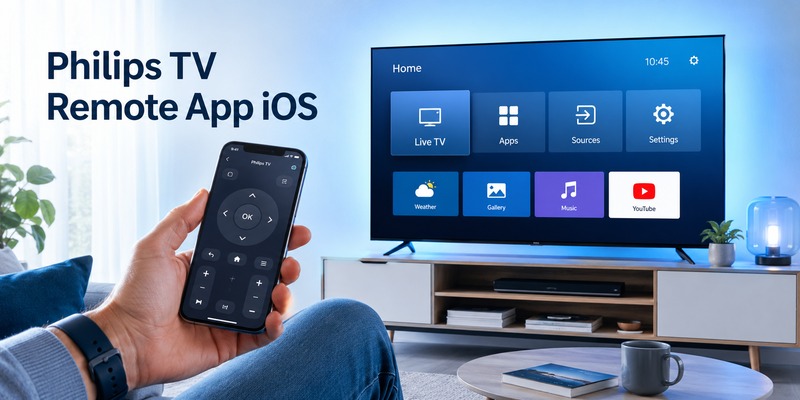
A philips tv remote app ios solution lets you use your iPhone as a remote for a compatible Philips Smart TV, usually by connecting the phone and television to the same Wi-Fi network.
If your physical remote is missing, has dead batteries, or is simply across the room, using an iPhone can be one of the fastest ways to regain control. Depending on the TV model and app, you may be able to change channels, adjust volume, navigate menus, launch streaming apps, enter text, control playback, and manage Ambilight.
Philips currently offers its Philips Smart TV app for iPhone through the App Store. The current listing says the app is free, requires iOS 14.0 or later, is developed by TP Vision Europe B.V., and is fully compatible with Philips Smart TVs released from 2019 onward, with some support for older models.
This guide explains how to choose, download, connect, and troubleshoot a philips tv remote app ios option without wasting time on apps designed primarily for Android.
1. What Is the Best Philips TV Remote App iOS Option?
For most compatible Philips Smart TVs, the best place to start is the official Philips Smart TV application available in Apple’s App Store.
The current App Store listing describes it as an iPhone utility that turns your phone into a Philips TV remote. It can handle basic controls such as channels and volume while also supporting text entry, media playback, TV app navigation, and Ambilight functions on supported televisions.
That makes it the logical first choice when searching for a philips tv remote app ios solution.
There are also third-party apps that provide Philips remote functionality. These can be useful if the official application does not detect your model, you prefer a different interface, or you want a universal remote that controls TVs from several brands.
However, third-party apps may include advertising, subscriptions, premium controls, or compatibility differences. Always check the developer, recent reviews, subscription information, and supported TV models before installing one.
For someone simply looking for a tv remote app for philips tv, the order should usually be:
- Try the official Philips option.
- Confirm your TV and iPhone are compatible.
- Test them on the same Wi-Fi network.
- Consider a reputable universal remote app only if necessary.
This approach is faster than downloading several similar apps and trying them randomly.
Download LG TV Remote🛠️ Learn with Step-by-Step Guides: Apple remote tv app: Complete Apple TV Remote Guide for iPhone, Siri Remote, Pairing & Fixes
2. Which Philips TVs Work With an iPhone Remote App?
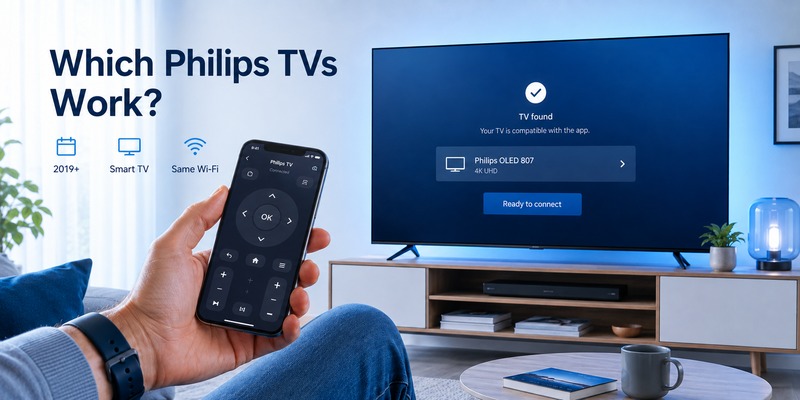
Compatibility is the most important thing to check before assuming your philips tv remote app ios setup is broken.
According to the current App Store description, the Philips Smart TV app offers full compatibility with Philips Smart TVs released from 2019 onward and some compatibility with older TVs. It requires iOS 14.0 or later on the iPhone.
That does not mean every function will behave identically across every Philips television.
| TV situation | Expected app compatibility | What to check |
| Philips Smart TV from 2019 or later | Best chance of full support | Same network and latest software |
| Older Philips Smart TV | May have partial support | Model-specific network controls |
| Non-Smart Philips TV | Usually limited or unsupported over Wi-Fi | Consider IR hardware or physical remote |
| TV disconnected from the network | Remote app may not find it | Reconnect TV to Wi-Fi/Ethernet |
| Unsupported regional/model variant | Features may vary | Check model number and app description |
A philips tv remote app for iphone normally communicates with the television through your home network rather than sending traditional infrared commands from the iPhone.
That distinction matters.
Most modern iPhones do not function as ordinary infrared TV remotes. If the TV is not network-connected, downloading another philips tv remote app iphone option may not solve the problem.
Before troubleshooting the app, locate your TV model number and confirm that it supports network-based remote control.
3. How to Download a Philips TV Remote App on iPhone
The safest way to download philips tv remote app software on an iPhone is through Apple’s App Store.
Open the App Store and search for the Philips Smart TV application. Check the developer information before installing so you can distinguish the official option from third-party remote applications with similar names.
The current official listing identifies TP Vision Europe B.V. as the developer and lists the application as free.
Download the official option
Follow these basic steps:
- Unlock your iPhone.
- Open the App Store.
- Search for “Philips Smart TV.”
- Review the developer and compatibility information.
- Tap Get or the download icon.
- Open the application after installation.
- Allow necessary local-network permissions when prompted.
If you’re searching for a free philips tv remote app for iphone, starting with the official option makes sense because the current App Store listing shows it as free to download.
Check iOS compatibility first
The official listing currently requires iOS 14.0 or later.
If you have a much older iPhone, check Settings > General > Software Update before assuming the philips tv remote app ios installation is unavailable.
Be careful with similarly named third-party apps. Some are free to download but use subscriptions or in-app purchases for advanced remote features.
A listing that says “free” does not necessarily mean every feature remains free indefinitely.
💡 Discover Helpful Guides
Apple TV Siri Remote: Complete Guide to Features, Generations, Pairing, and Everyday Use
4. How to Connect the Philips TV Remote App iOS to Your TV
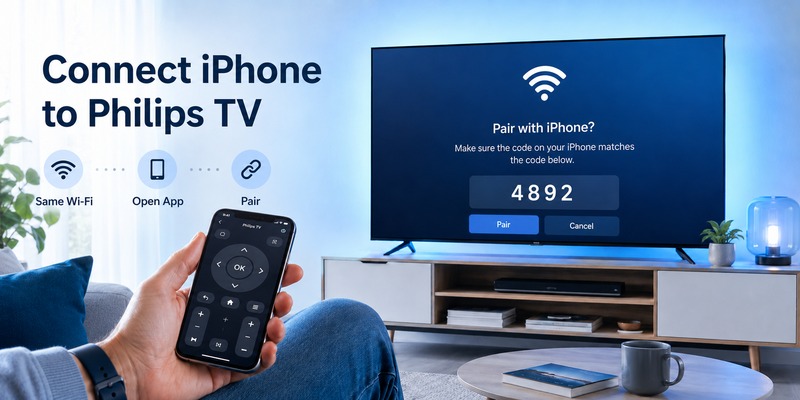
Once installed, connecting a philips tv remote app ios setup is usually straightforward.
The key requirement is that the iPhone and television can discover each other through the same local network. The official App Store listing specifically instructs users to connect the mobile device to the same network as the Philips TV.
Step 1: Connect both devices to the same Wi-Fi
On the iPhone, open:
Settings > Wi-Fi
Check the connected network name.
Then open the network settings on your Philips TV and verify that the TV uses the same home network.
For example, if your iPhone connects to HomeWiFi but the television is on HomeWiFi-Guest, device discovery can fail even though both devices have internet access.
This is one of the most common details worth checking when a philips tv remote control app for iphone cannot find the television.
Step 2: Open the remote app
Launch your chosen philips tv ios app and allow it a few seconds to scan the network.
When your Philips television appears, select it.
Depending on the model, your television may display a permission request, confirmation dialog, or pairing message. Accept it using the physical remote or TV buttons if necessary.
Step 3: Test simple controls first
Do not immediately test every advanced feature.
Start with:
- Volume up and down
- Directional navigation
- Menu navigation
- Play/pause
- Channel controls
If those work, the basic philips tv remote app ios connection is successful.
Then test model-dependent features such as Ambilight control, keyboard input, streaming-app shortcuts, or media controls.
A useful practical tip is to keep the remote screen open for 10–15 seconds after the initial pairing. Some TVs take a moment to establish the first local-network session, and repeatedly closing and reopening the app can make troubleshooting more confusing.
🛠️ Learn with Step-by-Step Guides: Apple TV Remote App Not Working: Fast Fixes for iPhone and Siri Remote Issues
5. What Can You Control From Your iPhone?
A good philips tv remote app ios experience can do much more than reproduce the Power and Volume buttons on a physical remote.
According to the official App Store listing, supported features include changing channels, controlling volume, controlling Ambilight or compatible Philips Hue lights, launching and switching TV apps, controlling media playback, and entering text using the iPhone keyboard.
Navigation and everyday TV controls
The most commonly used functions include:
- Volume up/down
- Channel switching
- Directional navigation
- Menu access
- Playback controls
- App selection
This makes an iPhone particularly useful when a physical remote is temporarily unavailable.
Faster text entry
Typing a long movie title, password, email address, or search query using arrow buttons on a TV remote can be frustrating.
A compatible philips tv remote app ios interface can let you use the iPhone keyboard instead.
For users who regularly search YouTube, streaming services, or TV menus, this can be one of the biggest advantages of using a phone rather than the original remote.
Ambilight controls
Supported Philips TVs may also provide Ambilight-related functions through the official application.
This is one reason a Philips-specific application can sometimes offer a better experience than a basic generic remote.
However, exact functions still depend on television model and firmware. Do not assume every Philips Smart TV exposes every control shown in the app.
6. Free vs Third-Party Philips TV Remote Apps
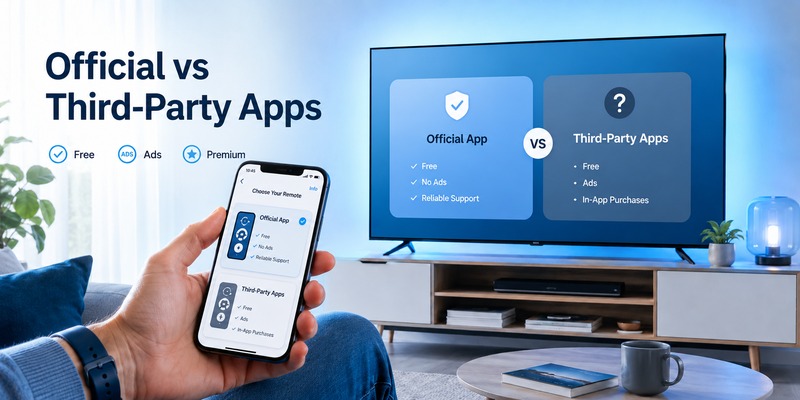
If you’re searching for philips tv remote app free iphone options, it is important to separate “free download” from “completely free functionality.”
The official Philips application is currently listed as free in the App Store. Third-party remote applications vary: some provide basic controls free and charge for premium features, while others use advertising or subscription plans.
| Option | Main advantage | Possible drawback | Best for |
| Official Philips app | Philips-focused features | Compatibility varies by model | Supported Philips Smart TVs |
| Third-party Philips remote | Different interface/options | Ads or subscriptions possible | Users needing an alternative |
| Universal Remote TV App | Multiple TV brands in one app | Feature support varies by TV | Multi-TV households |
| Physical replacement remote | Works without phone app | Extra hardware required | TVs without network remote support |
When comparing a philips tv remote app iphone free option, check four things before installing:
- Developer identity
- Subscription terms
- Recent user reviews
- TV compatibility
Avoid choosing an app only because its icon looks similar to a Philips remote.
Also remember that the best philips tv remote app ios option depends on what you need. If basic volume and navigation are enough, a simple universal solution may work well. If Ambilight integration matters, trying the official application first is more sensible.
💡 Discover Helpful Guides: Fire TV Remote iOS: How to Control Fire TV and Fire Stick From iPhone
7. Why Is the Philips TV Remote App iOS Not Working?
If your philips tv remote app ios installation cannot discover or control the TV, the cause is usually related to network access, permissions, compatibility, or the TV’s connection state.
Start with the simple checks before reinstalling anything.
| Problem | Likely cause | What to try |
| TV does not appear | Different Wi-Fi networks | Put both devices on the same network |
| TV appears but will not connect | Pairing or permission issue | Restart the app and accept TV prompts |
| App worked before but stopped | Network session changed | Restart iPhone, TV, and router |
| Some buttons do not work | Model-specific limitation | Test basic controls and update TV software |
| App cannot scan network | iOS permission disabled | Check local-network permission |
Check Local Network permission on iPhone
Modern iOS versions can restrict an application’s access to other devices on your local network.
Open:
Settings > Privacy & Security > Local Network
Look for your remote application and make sure access is enabled.
Without this permission, a philips tv remote app ios option may have internet access while still being unable to discover the TV sitting in the same room.
Restart the network connection
If permissions look correct, restart:
- The remote application
- The Philips television
- Your iPhone
- Your router, if necessary
Reconnect both devices to Wi-Fi and try again.
Disable guest-network isolation
Guest Wi-Fi networks often prevent devices from communicating directly with one another.
Your phone may access websites normally while being unable to see your TV.
Connect both devices to your primary home network before deciding the philips tv remote app ios software is incompatible.
Check for TV and iPhone updates
App compatibility can change with firmware and operating-system updates.
Update your iPhone, update the remote application, and check the Philips television for available software updates.
If a philips tv remote app for iphone worked previously and suddenly stopped after a network or software change, re-establishing the local-network connection is usually more useful than repeatedly deleting and reinstalling the app.
📘 Find the Right Guide: Fios Remote TV Codes: Find, Program, and Fix Your Verizon Fios Remote
8. Can You Control a Philips TV Without Wi-Fi?
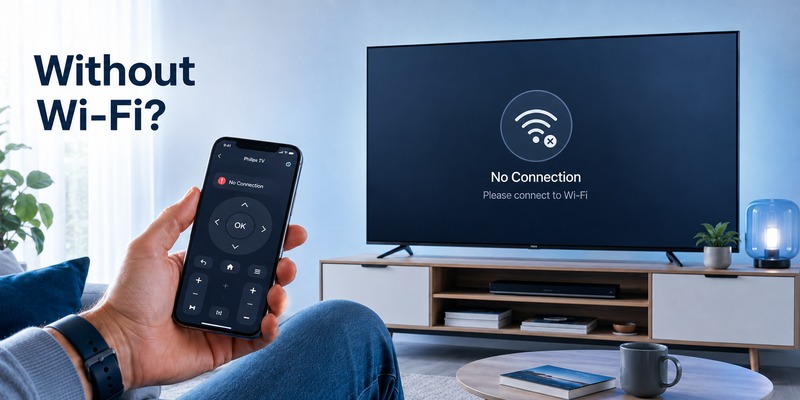
Usually, a network-based philips tv remote app ios solution needs the iPhone and television connected to the same local network.
That means the app is not necessarily a complete solution when the television has already lost Wi-Fi access.
If the TV is offline and you need a remote simply to reconnect it, you may need one of these alternatives:
- Original Philips remote
- Compatible replacement remote
- TV’s physical control buttons
- Ethernet connection, when supported
- Previously configured device-control method
This limitation is important because many users search for a philips tv remote app ios solution only after losing the physical remote.
If the television is already connected to Wi-Fi, the phone app can be extremely convenient. If the television has been factory-reset and is no longer connected to your network, the app may not be able to discover it until network access is restored.
Similarly, changing your Wi-Fi router or network name can break an existing app connection.
The iPhone and TV need a communication path before the app can function as a remote.
📘 Find the Right Guide: Apple TV Remote iOS: Set Up, Connect, and Fix Common iPhone Remote Problems
9. Using Remote TV App as an Alternative
If the official option does not support your model or you control televisions from several brands, Remote TV App can be a practical alternative to consider.
Instead of keeping a different remote application for every television, a universal solution can make it easier to manage compatible smart TVs from one interface.
For a Philips TV, the basic process remains similar:
- Connect the TV to your home network.
- Connect your iPhone to the same network.
- Open Remote TV App.
- Search for available televisions.
- Select the Philips TV.
- Complete any on-screen pairing request.
- Test navigation and volume controls.
A universal application is particularly useful in a home with Philips, Samsung, LG, Roku, Sony, or other compatible smart TVs.
However, manufacturer-specific features can vary. A universal application may handle everyday controls perfectly while certain Philips-specific functions remain available only through Philips software.
For that reason, treat Remote TV App as a convenient alternative rather than assuming every feature will be identical.
If your main goal is replacing basic remote functionality, a universal philips tv remote app ios workflow can be more convenient than buying another physical remote immediately.
📖 Explore Articles: Google TV Remote iOS: How to Control Google TV from Your iPhone or iPad
10. FAQ About Philips TV Remote Apps for iPhone
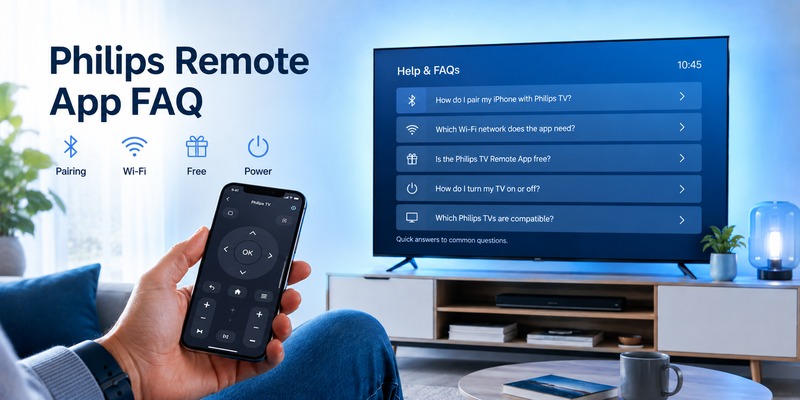
Does Philips TV have a remote app?
Yes. If you’re asking does philips tv have a remote app, Philips currently offers the Philips Smart TV application for iPhone. It can provide remote functions such as volume, channels, media controls, text entry, app navigation, and supported Ambilight features. Compatibility depends on the television model.
Is there a remote app for Philips TV that is free?
Yes. For users asking is there a remote app for philips tv, the official Philips Smart TV application is currently listed as free on the App Store. Third-party apps may also be free to download, but some include advertisements, subscriptions, or premium purchases.
Can I use my iPhone as a Philips TV remote?
Yes, if your television supports network remote control. Install a compatible philips tv remote app ios option, connect the iPhone and Philips TV to the same local network, select the television in the app, and complete any pairing request displayed on the screen.
Why can’t my iPhone find my Philips TV?
The most common reasons are different Wi-Fi networks, disabled Local Network permission, guest-network isolation, an offline television, or an unsupported TV model. Check these items before reinstalling the philips tv remote app ios software.
Do I need the original Philips remote to connect the iPhone app?
Not always. If the television is already connected to Wi-Fi and allows app pairing, you may be able to connect without the original remote. If the TV is offline or displays a confirmation that must be accepted, you may need the TV buttons or another compatible remote temporarily.
Can a Philips remote app turn the TV on?
It depends on the model and network state. Some televisions support network wake features, while others stop network communication when fully powered down. Do not assume every philips tv remote app ios option can power on every Philips TV.
💡 Discover Helpful Guides
Samsung TV Remote iOS: How to Control Your Samsung TV From an iPhone
11. Final Thoughts
A philips tv remote app ios solution is one of the simplest ways to replace basic Philips remote controls with an iPhone, especially when the television is already connected to your home network.
Start with the official Philips Smart TV application if your TV is compatible. The current App Store listing confirms iPhone support, free availability, same-network operation, and compatibility focused on Philips Smart TVs from 2019 onward.
Once connected, your iPhone can handle common actions such as adjusting volume, changing channels, navigating apps, controlling playback, typing text, and, on supported models, controlling Ambilight.
If the official philips tv remote app ios option does not work with your television—or if you want one remote interface for several TV brands—Remote TV App can provide a useful alternative for everyday control.
Whichever option you choose, check compatibility and network settings first. In many cases, fixing the Wi-Fi connection or Local Network permission is all it takes to turn your iPhone into a working Philips TV remote.
Download LG TV Remote